Remote Desktop Services (RDS) on Windows Server — Complete Setup Guide for Small Businesses.
Small businesses often need employees to access company applications and desktops from different computers or locations.
Installing the same software on every workstation can become expensive and difficult to maintain. Employees may also need access to business applications that only run inside the office network.
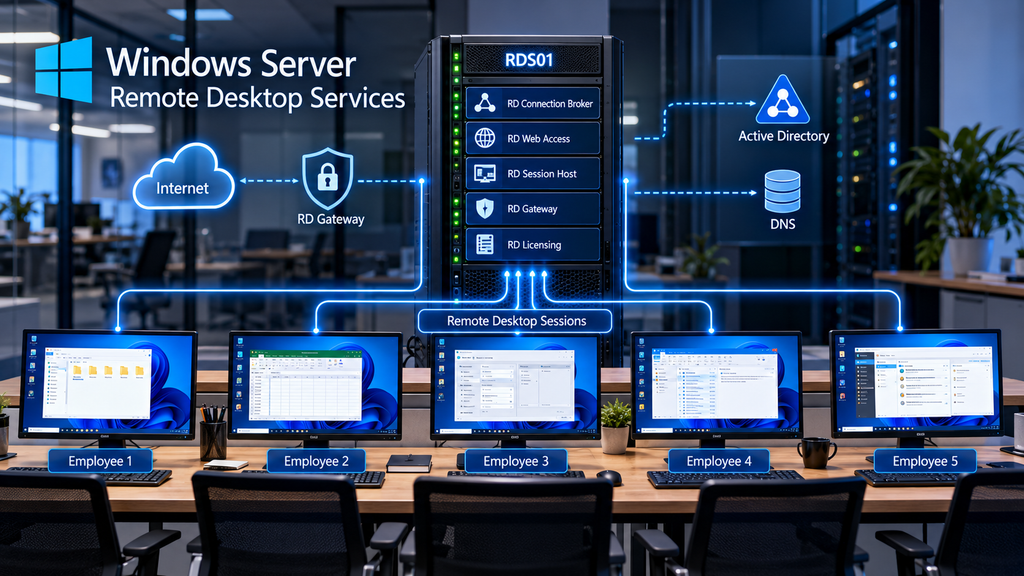
Microsoft Remote Desktop Services (RDS) provides a centralized solution.
Instead of running applications locally, employees connect to a Windows Server environment where their desktop sessions and applications run on the server.
With Remote Desktop Services, multiple authorized users can work simultaneously on a properly configured Windows Server Remote Desktop Session Host.
In this guide, we’ll explain how RDS works, install its main components, configure session-based desktops, manage user access and licensing, secure remote connections, and troubleshoot common problems.
The examples focus on Windows Server 2019, 2022, and 2025. Some settings and deployment options differ between versions.
1. What Is Remote Desktop Services?
Remote Desktop Services is a collection of Windows Server roles that allow users to access remote desktops and applications hosted on Windows servers.
The applications run on the remote server, while users interact with them from their local computers.
For example, a small accounting company may have five employees who need access to the same business software.
Instead of installing and maintaining that software on five separate computers, the company can deploy it on an RDS Session Host.
Employees connect to the server and work in separate sessions.
Each user has their own desktop environment, applications, and user profile.
Common RDS Use Cases
Remote Desktop Services is useful for:
- Centralized business applications
- Accounting and ERP software
- Remote office access
- Shared desktop environments
- Branch offices
- Administrative tools
- Applications requiring centralized maintenance
RDS is especially useful when business applications are designed to operate in a multi-user Windows Server environment.
Before deployment, verify that the applications support RDS and that their licenses permit multi-user hosting.
2. RDS vs. Standard Remote Desktop
Windows Server includes Remote Desktop functionality for administrative access.
However, administrative Remote Desktop and a full RDS deployment serve different purposes.
Remote Desktop for Administration
Windows Server normally permits up to two simultaneous remote sessions for administrative purposes without requiring RDS CALs.
These sessions are intended for server administration, not for hosting ordinary employee desktops or business applications.
Remote Desktop Services
A full RDS deployment supports multiple users connecting to session-based desktops or applications.
It requires the appropriate RDS infrastructure and licensing.
| Feature | Administrative RDP | RDS Session Host |
|---|---|---|
| Primary purpose | Server administration | Multi-user desktops and applications |
| Typical concurrent users | Up to 2 administrative sessions | Based on resources and licensing |
| RDS CALs | Not required for permitted administrative access | Required |
| Centralized applications | Not intended for general employee use | Supported |
| Session collections | No | Yes |
Important: Do not use the two administrative sessions as a substitute for properly licensed Remote Desktop Services.
3. Understanding RDS Components
A Remote Desktop Services deployment can include several server roles.
RD Session Host
The Remote Desktop Session Host (RDSH) runs user sessions and applications.
This is where employees actually work.
Multiple users can connect to the same Session Host, each using a separate Windows session.
RD Connection Broker
The RD Connection Broker manages connections to session collections.
It can reconnect users to existing sessions and distribute new connections across Session Hosts in supported deployments.
RD Web Access
RD Web Access provides a web-based portal for accessing published RemoteApp programs and desktops.
RD Licensing
RD Licensing manages Remote Desktop Services Client Access Licenses (RDS CALs).
RD Gateway
RD Gateway allows authorized users to connect to RDS resources through an HTTPS-based gateway.
It is especially useful for remote access from outside the office network.
RD Virtualization Host
This role supports virtual desktop infrastructure (VDI) scenarios.
For most small businesses deploying shared Windows Server desktops, session-based RDS is simpler than VDI.
4. Planning a Small Business RDS Environment
Before installing RDS, plan the server infrastructure.
We’ll use a fictional company with five employees.
Example Network
| Component | Configuration |
|---|---|
| Active Directory domain | corp.example.com |
| Domain controller | DC01 |
| Domain controller IP | 192.168.10.10 |
| RDS server | RDS01 |
| RDS server IP | 192.168.10.30 |
| Users | 5 employees |
| Session type | Session-based desktop |
| Client devices | Windows 10/11 |
For a small environment, several RDS roles can be installed on the same member server.
However, separating roles can improve security, scalability, and resilience.
For this tutorial, we’ll use a single member server for the core RDS deployment.
The domain controller remains separate.
Do not install a production RDS Session Host on a domain controller. A dedicated member server is a safer and more manageable design.
5. RDS Hardware Requirements
RDS resource requirements depend heavily on the applications employees run.
Five users working with lightweight office applications require fewer resources than five users running large databases, complex accounting software, or graphics-intensive programs.
Example Starting Configuration
For a small office with five users:
| Resource | Example allocation |
|---|---|
| Virtual processors | 4 vCPU |
| RAM | 16 GB |
| System storage | 100 GB or more |
| Additional storage | Based on applications and user data |
| Network | Reliable LAN connection |
These values are illustrative, not guaranteed sizing recommendations.
Actual requirements depend on application behavior, user activity, antivirus overhead, Windows updates, and profile storage.
Monitor resource usage during testing before committing to a production configuration.
Physical Server or Virtual Machine?
RDS can run on a physical server or inside a virtual machine.
Virtualization is often convenient because it simplifies infrastructure management and resource allocation.
If you’re planning a virtual deployment, read our Hyper-V on Windows Server Setup Guide.
6. Preparing Windows Server for RDS
Before installing Remote Desktop Services, prepare the server.
Step 1: Install Windows Server
Install a supported Windows Server version.
Apply current security updates.
Step 2: Configure the Computer Name
For our example:
RDS01
Use a consistent naming convention for servers.
Step 3: Configure Networking
Assign the server an appropriate IP configuration.
Example:
IP Address:      192.168.10.30
Subnet Mask:     255.255.255.0
Default Gateway: 192.168.10.1
DNS Server:      192.168.10.10
Domain-joined servers should use DNS servers that correctly resolve the Active Directory domain.
For more information, see our Windows Server DNS Configuration Guide.
Step 4: Join the Active Directory Domain
Open:
Server Manager → Local Server
Click the current workgroup or domain setting.
Join:
corp.example.com
Restart the server when prompted.
Step 5: Verify Domain Connectivity
After restarting, sign in using an authorized domain administrative account.
Run:
nltest /dsgetdc:corp.example.comThis checks domain controller discovery.
You can also verify DNS resolution:
Resolve-DnsName dc01.corp.example.comDo not proceed until domain connectivity and name resolution work correctly.
7. Installing Remote Desktop Services
For this tutorial, we’ll use the graphical deployment wizard in Server Manager.
Step 1: Open Server Manager
Sign in to RDS01 with an account that has the necessary administrative permissions.
Open Server Manager.
Step 2: Start the Installation Wizard
Select:
Manage → Add Roles and Features
Choose:
Remote Desktop Services installation
Do not select the ordinary role-based installation option for this walkthrough.
Step 3: Choose the Deployment Type
Select:
Quick Start
Quick Start is useful for demonstrations, labs, and smaller single-server deployments.
For larger production environments, Standard Deployment offers more flexibility when assigning roles to separate servers.
Step 4: Select the Deployment Scenario
Choose:
Session-based desktop deployment
This creates an environment where multiple users access sessions on Windows Server.
Step 5: Select the Server
Choose:
RDS01
Step 6: Install the Required Roles
The wizard installs the necessary core roles for the Quick Start deployment, including:
- RD Connection Broker
- RD Web Access
- RD Session Host
Allow the required restart and complete the deployment.
After installation, return to Server Manager and open the Remote Desktop Services management section.
Important: Quick Start is a convenient deployment method, but it does not automatically provide a fully secured, licensed, internet-accessible production environment.
Additional configuration is required.
8. Creating and Managing RDS Session Collections
An RDS session collection groups Session Hosts and defines the desktops or applications available to users.
Quick Start generally creates a collection automatically.
In a Standard Deployment, administrators can create collections manually.
View Existing Collections
Open:
Server Manager → Remote Desktop Services → Collections
Select the existing collection.
Review:
- Session Hosts
- User groups
- Session settings
- User profile settings
- Published applications
Create a Collection in a Standard Deployment
- Open Remote Desktop Services → Collections.
- Select Tasks → Create Session Collection.
- Enter a collection name.
- Select the Session Host servers.
- Specify authorized user groups.
- Configure optional user profile settings.
- Complete the wizard.
For example:
Office-Desktop
This collection could provide access to the company’s centralized desktop environment.
9. Configuring Active Directory User Access
RDS access should be managed through security groups rather than individual accounts whenever practical.
For our example, create an Active Directory security group:
GG_RDS_Users
Add the five authorized employees.
Create the Group
Open:
Server Manager → Tools → Active Directory Users and Computers
Navigate to the appropriate organizational unit.
Right-click and select:
New → Group
Enter:
GG_RDS_Users
Choose:
- Group scope: Global
- Group type: Security
Add the employees who require RDS access.
Assign Collection Access
In Server Manager:
- Open Remote Desktop Services.
- Select Collections.
- Open the relevant collection.
- Edit its properties.
- Locate User Groups.
- Add
CORP\GG_RDS_Users. - Remove unnecessarily broad access groups where appropriate.
- Apply the changes.
Users also need the appropriate Remote Desktop logon rights on the Session Host.
In a domain environment, these rights can be managed through Group Policy.
For more information, read our Active Directory for Small Businesses guide.
10. Understanding RDS Licensing
Licensing is one of the most important parts of an RDS deployment.
Installing the roles does not eliminate the requirement for proper Remote Desktop Services licensing.
Windows Server CALs vs. RDS CALs
Organizations generally need the appropriate Windows Server access licenses as well as RDS CALs for users or devices accessing RDS functionality.
RDS CALs are additional to ordinary Windows Server CAL requirements.
The exact licensing requirements depend on the products, access model, agreements, and deployment.
RDS Per User CAL
A Per User RDS CAL licenses an individual user to access RDS from eligible devices under the applicable terms.
This model may be suitable when employees use multiple devices.
RDS Per Device CAL
A Per Device RDS CAL licenses a device for RDS access under the applicable terms.
This can be useful in environments where multiple employees share the same workstation.
Example: Five Employees
For a company with five employees, the appropriate licensing model depends on how many people and devices access the service.
If five named employees each use several devices, Per User licensing may be appropriate.
If employees share a smaller number of fixed workstations, Per Device licensing may be worth evaluating.
Important: The correct number and type of licenses must be determined from the actual usage scenario and current Microsoft licensing terms.
RDS Grace Period
New RD Session Host installations normally have a limited licensing grace period.
The grace period is not a permanent licensing solution.
Plan licensing before putting RDS into production.
11. Installing and Configuring RD Licensing
The RD Licensing role service must be installed and configured for a properly licensed RDS environment.
Step 1: Add the RD Licensing Role
Open:
Server Manager → Remote Desktop Services → Overview
Use the deployment configuration options to add an RD Licensing server.
Select the server that will host the licensing role.
Step 2: Open RD Licensing Manager
Navigate to:
Server Manager → Tools → Remote Desktop Services → Remote Desktop Licensing Manager
Step 3: Activate the Licensing Server
Right-click the licensing server.
Select:
Activate Server
Follow the activation wizard.
Step 4: Install RDS CALs
After activation, use the appropriate licensing program and documentation to install the purchased RDS CALs.
Step 5: Configure the Licensing Mode
In the RDS deployment properties, specify:
- Per User, or
- Per Device
Then specify the RD Licensing server.
Verify Licensing
Open:
Remote Desktop Licensing Diagnoser
Check for licensing configuration warnings or errors.
Resolve licensing problems before production use.
12. Connecting to an RDS Desktop
Once the deployment is configured, authorized users can connect.
Method 1: Remote Desktop Connection
On a Windows workstation, press:
Win + R
Enter:
mstscIn the Computer field, enter the appropriate RDS endpoint.
For a simple internal single-host deployment, this may be:
RDS01.corp.example.com
Sign in with an authorized domain account.
Note: Direct connections to an individual Session Host are not equivalent to connecting through a Connection Broker-managed collection. In multi-host environments, use the supported collection connection method.
Method 2: RD Web Access
If RD Web Access is configured, users can access published resources through the organization’s RD Web portal.
A typical internal URL is:
The exact URL depends on the deployment.
The portal should use a valid, trusted TLS certificate.
Depending on the server version and client configuration, users may access resources through a supported Remote Desktop client or downloaded RDP connection file.
13. Publishing Applications with RemoteApp
Remote Desktop Services can publish individual applications instead of a complete desktop.
This feature is called RemoteApp.
For example, an accounting employee might launch a centralized accounting application without interacting with the entire remote Windows desktop.
Benefits of RemoteApp
- Centralized application maintenance
- Reduced workstation installation requirements
- Familiar application experience
- Easier access to shared business software
- Controlled application availability
Publish a RemoteApp Program
- Open Server Manager.
- Select Remote Desktop Services → Collections.
- Open the relevant session collection.
- Locate the RemoteApp Programs section.
- Select Publish RemoteApp Programs.
- Choose the installed application.
- Complete the wizard.
Only publish applications that are compatible with multi-user RDS environments and appropriately licensed.
Test application behavior with multiple concurrent users before production deployment.
14. Configuring RD Gateway for Secure Remote Access
Employees working outside the office may need access to RDS resources.
A common mistake is forwarding TCP port 3389 directly from the internet to an internal RDS server.
Do not expose ordinary RDP directly to the public internet.
A safer architecture uses a properly configured RD Gateway, VPN, or another supported secure remote-access solution.
What Is RD Gateway?
RD Gateway allows authorized remote clients to establish RDS connections through an HTTPS-based gateway.
It provides an additional security and access-control layer between external users and internal RDS resources.
RD Gateway Requirements
A production deployment should include:
- A trusted TLS certificate
- Appropriate DNS configuration
- Correct firewall rules
- RD Gateway policies
- Strong authentication
- Multi-factor authentication where supported
- Security monitoring
- Regular patching
Configure RD Gateway
In Server Manager:
- Open Remote Desktop Services → Overview.
- Select the option to add an RD Gateway server.
- Choose the appropriate server.
- Configure the external DNS name.
- Install and configure a trusted certificate.
- Review connection authorization policies.
- Review resource authorization policies.
- Configure the supported authentication and MFA solution.
- Test access from outside the internal network.
RD Gateway typically uses HTTPS on TCP port 443 for client connectivity, with optional UDP transport depending on configuration.
The gateway still needs permitted connectivity to the internal RDS resources.
For higher-security environments, place the gateway in an appropriately segmented network and restrict administrative access.
15. Securing Remote Desktop Services
RDS servers can host sensitive business applications and documents.
Security should be part of the initial deployment.
Use Strong Authentication
Require strong passwords and implement MFA for remote access where supported.
Restrict Access Through Security Groups
Only authorized employees should be able to establish RDS sessions.
Avoid Administrative Accounts for Daily Work
Employees should use standard domain accounts.
Administrators should use separate privileged accounts for management tasks.
Apply Group Policy Restrictions
Group Policy can control:
- Session time limits
- Clipboard redirection
- Drive redirection
- Printer redirection
- Remote Desktop security settings
- User environment restrictions
For detailed guidance, see our Group Policy Guide for Small Businesses.
Keep Windows Server Updated
Apply security updates to Session Hosts, Connection Brokers, RD Gateway servers, and supporting infrastructure.
Use Trusted Certificates
Configure appropriate certificates for RDS services and avoid ignoring certificate warnings.
Monitor User Sessions
Review active sessions, unusual sign-in activity, and relevant security events.
Limit Unnecessary Redirection
Disable clipboard, drive, or device redirection when business requirements do not justify it.
These features are convenient but may increase data-exposure risks.
16. Managing RDS User Sessions
Administrators often need to identify connected users and troubleshoot session problems.
View Sessions Using Command Prompt
On the Session Host:
quserThis displays information about user sessions.
Example:
USERNAME       SESSIONNAME     ID  STATE
john           rdp-tcp#5       2   Active
mary           rdp-tcp#6       3   Active
Query Sessions
qwinstaThis displays Remote Desktop session information.
Log Off a Session
Administrators can use:
logoff 3This logs off the session with ID 3 on the local server.
Warning: Logging off a user can cause unsaved work to be lost. Confirm the correct session and notify the user before taking action.
Disconnect vs. Sign Out
Disconnecting leaves the session running.
Signing out ends the session and closes its applications.
This distinction matters because disconnected sessions can continue consuming server resources.
17. Configuring Session Time Limits
Without appropriate limits, users may leave sessions disconnected for extended periods.
This can waste resources and create security risks.
Group Policy provides controls for session duration.
Open:
Group Policy Management
Navigate to:
Computer Configuration → Policies → Administrative Templates → Windows Components → Remote Desktop Services → Remote Desktop Session Host → Session Time Limits
Relevant settings include:
- Set time limit for disconnected sessions
- Set time limit for active but idle Remote Desktop Services sessions
- End session when time limits are reached
Choose values appropriate for the organization’s workflow.
For example, automatically ending disconnected sessions after a defined period may reduce unnecessary resource consumption.
However, session limits should be tested with business applications to avoid interrupting legitimate work.
18. User Profiles in RDS Environments
Each RDS user needs a profile to store settings and application preferences.
In a simple single-server deployment, local user profiles may be sufficient.
However, larger environments with multiple Session Hosts need a consistent profile strategy.
FSLogix Profile Containers
FSLogix is commonly used in eligible Microsoft virtual desktop and RDS environments to manage user profiles through container files stored on network storage.
Before adopting FSLogix, verify the current licensing eligibility, operating system support, and deployment requirements.
User Profile Disks
User Profile Disks are another profile technology available in certain RDS deployments.
They can provide a consistent profile experience within supported session collections.
Profile Storage Considerations
Regardless of the solution, administrators should plan:
- Storage capacity
- File permissions
- Backup and recovery
- Profile performance
- Antivirus compatibility
- Concurrent session behavior
Profile storage failures can prevent users from signing in correctly or cause temporary profiles.
For shared storage configuration, see our Windows Server File Sharing Guide.
19. Backing Up an RDS Environment
An RDS server may host applications, user settings, and business-critical workflows.
Backups should protect the information needed to restore the environment.
Depending on the deployment, this may include:
- Session Host configuration
- Application installation and configuration
- Business application data
- User profiles
- Profile container storage
- Connection Broker configuration
- Certificates and related configuration
- Licensing documentation and recovery information
A backup of the RDS server alone may not protect data stored on separate file servers or databases.
Virtual Machine Backups
If RDS runs on Hyper-V, use an appropriate virtualization-aware backup solution.
Application Data Backups
Protect business databases and application data using supported application-aware backup methods.
Test Recovery
Periodically verify that applications, profiles, and user access can be restored.
For more information, read our Windows Server Backup Guide and 3-2-1 Backup Rule.
20. Common RDS Problems and Solutions
Even a properly configured RDS environment can encounter connection and performance problems.
Problem 1: Remote Desktop Cannot Connect
Possible causes include:
- Incorrect server name
- DNS resolution failure
- Network connectivity problem
- Remote Desktop service unavailable
- Firewall restrictions
- Invalid gateway configuration
- Certificate or authentication problems
Start by testing name resolution:
Resolve-DnsName RDS01.corp.example.comFor a direct internal RDP connection, test TCP connectivity:
Test-NetConnection RDS01.corp.example.com -Port 3389A successful TCP connection does not guarantee that authentication or RDS authorization will succeed.
For gateway-based access, test the gateway endpoint and its configured HTTPS connectivity instead.
Problem 2: User Is Not Authorized
Check:
- Active Directory group membership
- Session collection user groups
- Remote Desktop logon rights
- Group Policy restrictions
- Account status
- RD Gateway authorization policies, if applicable
Do not grant local administrator privileges merely to resolve an ordinary RDS access problem.
Problem 3: RDS Licensing Error
Possible causes include:
- Licensing server not activated
- Incorrect licensing mode
- Missing or insufficient CALs
- Licensing server unavailable
- Incorrect deployment licensing configuration
Open Remote Desktop Licensing Diagnoser and review the reported problems.
Problem 4: Slow RDS Performance
Investigate:
- CPU usage
- Available RAM
- Storage latency
- Network latency
- Application resource usage
- Antivirus scanning
- Number of concurrent sessions
- User profile performance
A server with enough resources for two users may struggle when five or ten employees connect simultaneously.
Problem 5: User Profile Does Not Load
Check:
- Profile storage availability
- NTFS and share permissions
- Available disk space
- Profile container configuration
- User profile service events
- Antivirus interference
Avoid deleting user profiles without first protecting their data.
Problem 6: Disconnected Sessions Remain Active
Review session timeout policies and user behavior.
Use:
quserto identify active and disconnected sessions.
Configure appropriate session limits through Group Policy.
Problem 7: Application Works Locally but Not Through RDS
Some applications are not designed for multi-user session environments.
Investigate:
- Application compatibility
- Licensing restrictions
- File and registry permissions
- User profile dependencies
- Shared database access
- Application-specific documentation
Test applications with multiple standard user accounts before deploying them to employees.
21. Monitoring RDS Performance and Events
Regular monitoring helps administrators identify problems before they affect users.
Monitor Server Resources
Use Task Manager, Resource Monitor, or Performance Monitor to review:
- CPU usage
- Memory utilization
- Disk performance
- Network throughput
- Per-session resource consumption
Review Event Viewer
Open:
Event Viewer → Applications and Services Logs → Microsoft → Windows
Relevant logs may include:
- TerminalServices-LocalSessionManager
- TerminalServices-RemoteConnectionManager
- RemoteDesktopServices-RdpCoreTS
- User Profile Service
- GroupPolicy
The exact available channels vary by Windows Server version and installed roles.
For a practical introduction, read our Windows Event Viewer Guide.
Monitor Licensing
Check licensing health regularly, especially after server migrations or configuration changes.
Monitor Backup Jobs
Verify that scheduled backups complete successfully and that recovery tests remain current.
22. RDS Best Practices for Small Businesses
Before placing an RDS environment into production, review this checklist:
- Use a supported Windows Server version.
- Keep the domain controller separate from the Session Host.
- Verify DNS and Active Directory connectivity.
- Size CPU, RAM, and storage for actual user workloads.
- Install the appropriate RDS roles.
- Configure a session collection.
- Manage access through Active Directory security groups.
- Purchase and configure the required RDS CALs.
- Test applications with multiple concurrent users.
- Configure trusted TLS certificates.
- Use a secure gateway or VPN for external access.
- Implement MFA where supported.
- Restrict unnecessary device and drive redirection.
- Configure session time limits.
- Protect user profiles and business application data.
- Configure and test backups.
- Monitor performance, sessions, and security events.
- Document the deployment and recovery procedures.
Frequently Asked Questions
What is Remote Desktop Services in Windows Server?
Remote Desktop Services is a collection of Windows Server technologies that allows authorized users to access centralized remote desktops and applications.
Can multiple users connect to one Windows Server?
Yes. A properly configured and licensed RD Session Host can support multiple simultaneous user sessions, subject to hardware capacity and application requirements.
Do I need RDS CALs for five users?
A normal multi-user RDS deployment requires appropriate RDS licensing. The number and type of CALs depend on whether users or devices are licensed and on the applicable Microsoft licensing terms.
Can I use RDS without Active Directory?
Some standalone Remote Desktop configurations are possible, but the standard multi-user RDS deployment described in this guide uses Active Directory and domain-joined servers.
What is the difference between RDP and RDS?
RDP is the protocol used for remote desktop communication. RDS is the broader Windows Server platform for delivering remote desktops and applications.
Is RDS secure over the internet?
RDS can be deployed for remote access when protected by appropriate security controls, such as RD Gateway, trusted certificates, strong authentication, MFA, and restrictive network policies. Directly exposing RDP port 3389 is not recommended.
Can I run RDS on Hyper-V?
Yes. RDS roles can run inside supported Windows Server virtual machines on Hyper-V, provided the environment has adequate resources and appropriate licensing.
What is RemoteApp?
RemoteApp allows users to access individual applications hosted on an RD Session Host rather than interacting with a complete remote desktop.
What happens when an RDS user disconnects?
A disconnected session may continue running on the server. The user can potentially reconnect to the existing session, depending on deployment settings and session policies.
Is RDS suitable for small businesses?
Yes. RDS can be a practical solution for small businesses that need centralized applications or remote desktops, provided the deployment is correctly sized, secured, licensed, and maintained.
Final Thoughts
Remote Desktop Services provides small businesses with a practical way to centralize applications, simplify administration, and support employees who need access to company resources from different locations.
A properly configured RDS environment allows multiple users to work independently on a shared Windows Server infrastructure.
However, successful deployment requires more than enabling Remote Desktop.
Administrators must plan the server roles, Active Directory integration, licensing, user permissions, secure remote access, profile storage, and backup strategy.
For a small office with five employees, a carefully planned RDS deployment can provide centralized access without the complexity of a large enterprise environment.
By following the steps in this guide and testing the environment before production use, businesses can build a reliable foundation for secure remote desktop access.