What Is Active Directory and Does a Small Business Need It?
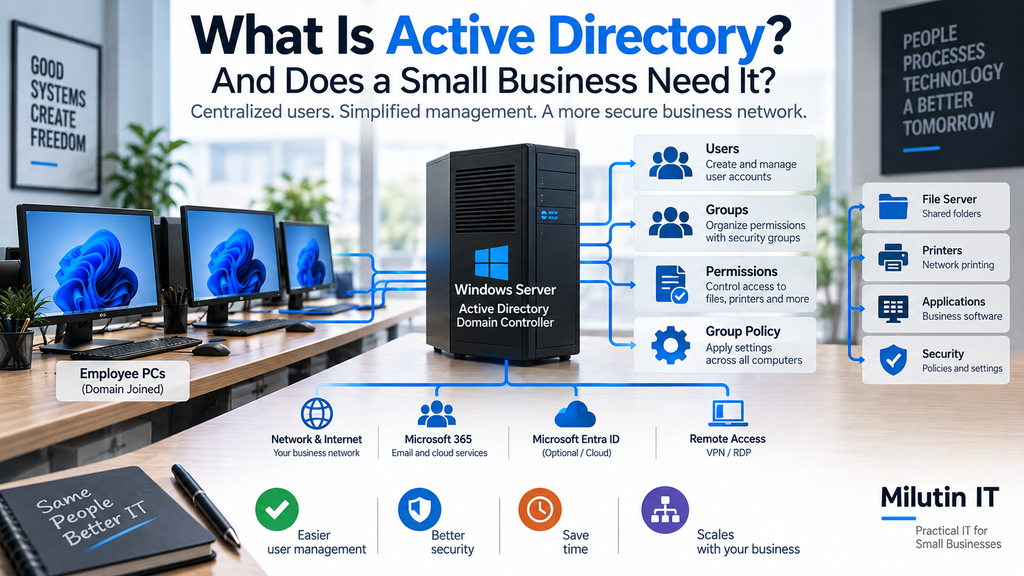
If your business has three computers, managing them individually is usually not a problem.
Create a Windows account on each PC, install the required software, connect the printer, configure a few settings, and you’re done.
But what happens when three computers become ten?
Or twenty?
A new employee arrives and needs access to company computers, shared folders, printers, and other resources. Someone leaves the company and their access needs to be removed immediately. Different departments need different permissions.
Managing every computer separately quickly becomes inefficient.
This is exactly the type of problem Active Directory was designed to solve.
What Is Active Directory?
Active Directory, usually shortened to AD, is Microsoft’s directory service for centrally managing users, computers, permissions, and other resources in a Windows business network.
Instead of every computer having completely independent user accounts and settings, computers can join a central domain.
The Active Directory server then becomes the central authority for authentication and management.
For example, instead of creating an account for John separately on ten computers, you create one domain account:
john@company.local
John can then use that account to log in to authorized computers and access the resources assigned to him.
When his password changes, it changes centrally.
When his access changes, an administrator modifies it centrally.
And when John leaves the company, his account can be disabled from one place.
That’s the basic idea behind Active Directory.
What Is a Domain?
You’ll often hear Active Directory and “domain” mentioned together.
A domain is essentially a centrally managed environment containing users, computers, groups, and other resources.
Instead of a PC operating independently as:
OFFICE-PC01
it can become part of something like:
company.local
The computer still has its own name, but it now trusts the domain for authentication and management.
Users can sign in with their domain credentials rather than relying only on accounts stored locally on that individual computer.
What Is a Domain Controller?
A server running Active Directory Domain Services is called a domain controller, or DC.
The domain controller handles important functions such as:
- Authenticating users
- Authenticating computers
- Managing user accounts
- Managing security groups
- Applying Group Policy
- Controlling access to network resources
When an employee logs in to a domain-joined computer, the domain controller verifies their credentials and determines what they are allowed to access.
Because of its importance, a domain controller should be treated as critical infrastructure.
If your business depends heavily on Active Directory, redundancy, backups, monitoring, and recovery planning become important.
Local Accounts vs Domain Accounts
Without Active Directory, small offices commonly use local Windows accounts.
Imagine a business with ten computers and ten employees.
If every employee needs access to several PCs, administrators may end up maintaining many separate local accounts.
Password changes become inconvenient.
Permissions become inconsistent.
Removing access when someone leaves can involve checking multiple computers manually.
With Active Directory, you create the user once.
For example:
COMPANY\mark
That account can then be used throughout the domain according to the permissions assigned to Mark.
The difference becomes increasingly important as the number of employees and computers grows.
Centralized User Management
One of Active Directory’s biggest advantages is centralized user management.
Suppose your company hires a new salesperson named Sarah.
Without centralized management, someone may need to:
- Create her account on a PC
- Configure shared folders
- Map network drives
- Connect printers
- Configure security settings
- Give her access to different company resources
With Active Directory, much of this can be managed centrally.
You create Sarah’s domain account and add her to the appropriate groups.
For example:
Sales
Employees
Office Printer Users
Permissions associated with those groups can then determine what she can access.
Use Groups Instead of Managing Users Individually
This is an important Active Directory concept.
Whenever possible, permissions should be assigned to groups, not directly to individual users.
Imagine a company with these departments:
- Accounting
- Sales
- Management
- IT
You could create Active Directory security groups with the same structure.
Then configure a shared folder so only members of the Accounting group can access it.
When a new accountant joins the company, you add their account to:
Accounting
They receive the appropriate access.
When they leave that department, remove them from the group.
You don’t have to redesign folder permissions every time an employee changes roles.
This makes access control much easier to understand and maintain.
Active Directory and File Servers
Active Directory becomes especially useful when combined with centralized file storage.
Imagine a Windows file server containing:
\\FILESERVER\Public
\\FILESERVER\Accounting
\\FILESERVER\Sales
\\FILESERVER\Management
Instead of configuring permissions separately for every employee, you can assign access to Active Directory groups.
Everyone might have access to Public.
Only Accounting gets Accounting.
Sales gets Sales.
Management gets Management.
IT administrators may have administrative access where required.
This creates a much cleaner permission structure.
Group Policy: One of the Biggest Advantages of Active Directory
Active Directory is not only about usernames and passwords.
One of its most powerful features is Group Policy.
Group Policy allows administrators to centrally configure Windows settings across domain computers.
Instead of walking to twenty PCs and changing the same setting manually, you can create a policy and apply it centrally.
Depending on the environment, Group Policy can be used to manage things such as:
- Password policies
- Account lockout policies
- Windows security settings
- Firewall settings
- Network drives
- Printers
- Desktop settings
- Windows Update behavior
- Scripts
- Software-related configuration
- Restrictions for standard users
For example, you could automatically map:
Z:\
to:
\\FILESERVER\Shared
for all employees.
Or automatically deploy a network printer to members of a particular department.
This is where centralized management starts saving administrators a significant amount of time.
Active Directory Makes Employee Offboarding Easier
Employee offboarding is one area where centralized identity management becomes particularly valuable.
When someone leaves the company, access should be removed quickly.
In a poorly managed network, the administrator may have to remember:
Which computers had this user’s account?
Which shared folders could they access?
What passwords did they know?
Which systems were configured manually?
With Active Directory, the user’s domain account can be disabled centrally.
That does not automatically solve every offboarding task—cloud services and other business applications may have separate accounts—but it significantly simplifies access to Windows domain resources.
A proper offboarding checklist should still include email, VPN access, SaaS applications, company devices, and other credentials.
Does Active Directory Improve Security?
Active Directory can significantly improve centralized security management, but simply installing it does not automatically make a network secure.
A poorly configured Active Directory environment can create serious security problems.
The advantage is that AD gives administrators tools to enforce consistent policies.
For example:
- Central password policies
- Account lockout rules
- Restricted administrative access
- Centralized permissions
- Group Policy security settings
- Easier account disabling
- Controlled access to shared resources
Administrators can also separate normal user accounts from privileged administrative accounts.
An IT administrator should not necessarily perform everyday work while permanently logged in with the highest level of domain privileges.
Does Every Small Business Need Active Directory?
No.
And this is important.
A company should not deploy Active Directory simply because it sounds professional.
Imagine an office with:
- Four employees
- Four laptops
- Microsoft 365
- One network printer
- Files stored in SharePoint and OneDrive
- No local business applications
- No Windows file server
Traditional on-premises Active Directory may add unnecessary complexity.
You would need a server or virtual machine, Windows Server licensing, administration, backups, monitoring, updates, and someone who understands how to maintain it.
For four users, the benefit may not justify the infrastructure.
When Does Active Directory Start Making Sense?
There isn’t a magic number of computers where Active Directory suddenly becomes necessary.
The better question is:
How difficult is the environment becoming to manage?
Active Directory starts becoming attractive when you have several of these requirements:
- Many Windows computers
- Employees using multiple computers
- Centralized file servers
- Department-based permissions
- Network applications
- Centralized security policies
- Frequent employee onboarding and offboarding
- Multiple administrators
- Remote Desktop infrastructure
- A need for consistent computer configuration
An office with 15 tightly controlled Windows workstations may benefit greatly from Active Directory.
Another company with 30 cloud-managed laptops may not need traditional on-premises AD at all.
The architecture should follow the business requirements.
What About Microsoft Entra ID?
Modern businesses also have another option.
Microsoft Entra ID, formerly known as Azure Active Directory, provides cloud-based identity and access management.
Despite the old Azure Active Directory name, Entra ID is not simply Active Directory running in Microsoft’s cloud.
Traditional Active Directory and Entra ID are different technologies designed around different environments.
Traditional AD is strongly associated with:
- Windows domains
- Domain controllers
- Kerberos and LDAP
- Group Policy
- Local servers
- Traditional corporate networks
Entra ID is designed primarily around cloud identity and services such as:
- Microsoft 365
- Cloud applications
- Modern authentication
- Single sign-on
- Multi-factor authentication
- Cloud-managed devices
Modern Windows devices can also be joined to Entra ID without joining a traditional on-premises Active Directory domain.
Active Directory vs Entra ID
A simplified way to think about it is:
| Traditional Active Directory | Microsoft Entra ID |
|---|---|
| Primarily on-premises | Primarily cloud-based |
| Uses domain controllers | Microsoft-hosted identity platform |
| Traditional Windows domains | Cloud identities |
| Group Policy | Commonly paired with Intune/MDM |
| Excellent for local resources | Excellent for cloud services |
| Requires server infrastructure | No local domain controller required |
Many organizations also use hybrid environments, combining traditional Active Directory with Microsoft’s cloud identity services.
But for a new small business with no legacy infrastructure, going cloud-first may sometimes make more sense than building a traditional domain from scratch.
What About a NAS?
Modern NAS devices can provide user accounts, groups, permissions, and even directory-related functionality.
For a small office whose primary requirement is centralized file sharing, this may be enough.
For example, a company with eight employees may only need:
Router/Firewall → Network Switch → PCs + NAS + Access Points
The NAS provides shared folders and backups.
Microsoft 365 provides email and cloud services.
No Windows domain is required.
If the business later grows and needs more centralized Windows management, Active Directory or a modern cloud-management platform can be introduced.
Active Directory Requires Proper Backup
If you decide to deploy Active Directory, backup becomes extremely important.
The domain controller contains critical information about your environment.
You should have a proper backup and recovery strategy rather than relying only on RAID or virtual-machine snapshots.
Remember the basic principle:
RAID is not a backup.
Important infrastructure should follow a proper backup strategy, including off-site protection where appropriate.
For a small business, the 3-2-1 backup rule is an excellent starting point.
Don’t Put Everything on One Server Without a Plan
Small businesses sometimes purchase one physical server and install everything on it:
- Active Directory
- File server
- Database
- Business application
- Remote Desktop
- Backup software
Technically, some combinations may work.
But it creates a major dependency on one machine.
If that server fails, the entire office may stop working.
Virtualization can help separate server roles even when they run on the same physical hardware, but you still need to consider what happens if the physical host fails.
Infrastructure should always be designed with recovery in mind.
A Practical Example
Imagine a business with 20 employees.
They have:
- 20 Windows computers
- A Windows file server
- Several shared printers
- Department-specific folders
- A business application running on a server
- Employees occasionally using different workstations
- Regular employee onboarding
This is the type of environment where Active Directory can be extremely useful.
A possible structure might look like:
Internet
↓
Router / Firewall
↓
Network Switch
↓
Domain Controller + File Server + PCs + Access Points
Employees authenticate against Active Directory.
Security groups control access to shared folders.
Group Policy configures computers.
Printers and network drives can be deployed centrally.
When a new employee arrives, the administrator creates one account, places it in the correct groups, and prepares the workstation.
When the employee leaves, that account can be disabled centrally.
That is much easier to manage than twenty independent PCs.
Active Directory Is Not Set-and-Forget
Active Directory requires maintenance.
Administrators need to manage:
- Updates
- Backups
- DNS
- User accounts
- Permissions
- Group Policy
- Security
- Administrative privileges
- Domain controller health
- Disaster recovery
Old accounts should be disabled or removed according to company policy.
Permissions should be reviewed.
Administrative privileges should be kept under control.
Backups should be tested.
Like any important infrastructure, AD needs someone responsible for maintaining it.
Final Thoughts
Active Directory solves a very specific problem:
centrally managing Windows users, computers, permissions, and policies.
For a small office with only a few laptops and cloud services, traditional Active Directory may be unnecessary.
For a growing Windows-based company with shared resources, multiple departments, centralized applications, and increasing management requirements, it can make administration dramatically easier.
The important question isn’t:
“Does a professional business need Active Directory?”
The better question is:
“Do our management and security requirements justify running a Windows domain?”
If the answer is no, keep the infrastructure simple.
If the answer is yes, Active Directory provides an extremely powerful foundation for managing a Windows business environment.
As always, design the infrastructure around the business—not the other way around.