Windows Server File Sharing: Setup, SMB Shares & NTFS Permissions
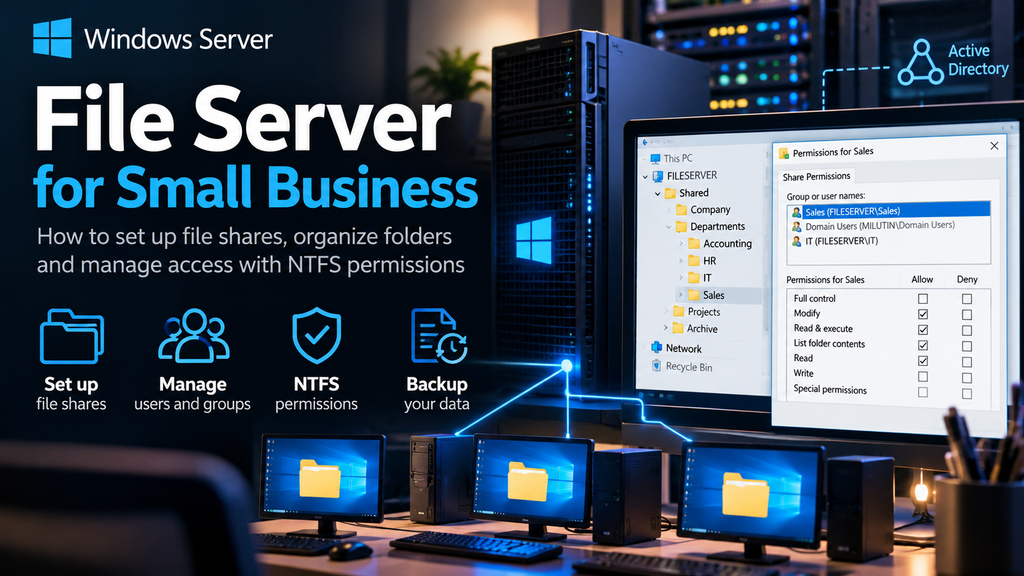
Every small business needs a reliable way to store, organize, and share files. Whether employees work with accounting documents, customer records, sales reports, or project files, having everything scattered across individual computers quickly becomes a problem.
Files get duplicated, employees struggle to find the latest versions, and sensitive information may end up accessible to the wrong people.
A centralized Windows file server solves many of these problems.
With Windows Server file sharing, businesses can store documents in one location, control access through user accounts and security groups, and provide employees with shared folders that behave almost like local drives.
But setting up a file server involves more than creating a folder and clicking Share.
Administrators need to understand SMB, NTFS permissions, Active Directory integration, security settings, and backup strategies.
In this guide, we’ll walk through the process of configuring a Windows Server file server for a small business, from creating shared folders to managing permissions and troubleshooting access problems.
The instructions apply to Windows Server 2016, 2019, 2022, and 2025, although some features and interface details vary.
1. What Is a Windows File Server?
A file server is a computer or server that stores files and makes them available to authorized users over a network.
Instead of keeping company documents on individual workstations, employees access shared folders hosted on a central server.
For example, a company might organize its files like this:
D:\Shares\
    Company\
    Departments\
        Accounting\
        Sales\
        HR\
        IT\
    Projects\
    Archive\
Employees access these folders through network paths such as:
\\FS01\Departments
or:
\\FS01.corp.example.com\Departments
A properly configured file server provides several benefits:
- Centralized document storage
- Consistent folder organization
- Access control through user accounts and groups
- Easier backup management
- Simplified administration
- Better collaboration between departments
- Reduced dependence on individual employee computers
For businesses already using Active Directory, Windows Server file sharing integrates naturally with existing domain accounts.
2. Understanding SMB File Sharing
Windows file sharing primarily uses the Server Message Block (SMB) protocol.
SMB allows computers to access files and other shared resources over a network.
Modern Windows environments use SMB 2.x and SMB 3.x protocol versions.
SMB 3 introduced capabilities such as encryption and improvements in availability and performance.
SMB 3.1.1 also provides additional security protections.
How SMB Works
Imagine an employee opening:
\\FS01\Departments\Sales
The process generally involves:
- The workstation resolves the file server’s hostname using DNS.
- The workstation establishes an SMB connection to the server.
- The server authenticates the user’s identity.
- Windows evaluates the applicable share and NTFS permissions.
- The user receives access to the files and folders they are authorized to use.
Modern SMB file sharing typically uses TCP port 445.
Security note: SMB should not be exposed directly to the public internet. Remote employees should use an appropriately secured VPN or another supported secure remote-access solution.
3. Planning a Small Business File Server
Before configuring shared folders, plan the storage structure and access requirements.
We’ll use this example environment:
| Component | Configuration |
|---|---|
| Active Directory domain | corp.example.com |
| Domain controller | DC01 |
| File server | FS01 |
| File server IP | 192.168.10.20 |
| Shared data volume | D: |
| Department folders | Sales, Accounting, HR, IT |
| Client computers | Windows 10/11 |
The file server will be a domain-joined Windows Server machine.
Why Use a Separate Data Volume?
Although files can be stored on the system drive, keeping business data on a separate volume is generally preferable.
For example:
C: Windows Server operating system
D: Company shared data
This makes it easier to organize storage, monitor capacity, and plan backup and recovery procedures.
However, a separate partition on the same physical disk does not protect data from hardware failure.
For production environments, consider storage redundancy, monitoring, and a tested backup strategy.
4. Installing the File Server Role
Windows Server includes file-sharing capabilities, but administrators should verify that the appropriate File Server role service is installed.
Method 1: Server Manager
- Open Server Manager.
- Click Manage → Add Roles and Features.
- Select Role-based or feature-based installation.
- Choose the server.
- Expand File and Storage Services.
- Expand File and iSCSI Services.
- Select File Server.
- Continue through the wizard and install if necessary.
In many Windows Server installations, the basic File Server role service is already present.
Method 2: PowerShell
Open PowerShell as Administrator:
Install-WindowsFeature -Name FS-FileServer -IncludeManagementToolsVerify installation:
Get-WindowsFeature -Name FS-FileServerYou can also inspect the Server service:
Get-Service LanmanServerThe Server service provides core Windows file-sharing functionality.
5. Creating the Shared Folder Structure
Next, create the folders that employees will access.
For our example, we’ll use:
D:\Shares\Departments\
    Accounting\
    Sales\
    HR\
    IT\
Create Folders Through File Explorer
- Open File Explorer on the server.
- Navigate to the
D:drive. - Create a folder named
Shares. - Inside it, create
Departments. - Create the four departmental subfolders.
Create Folders Using PowerShell
New-Item -Path "D:\Shares\Departments\Accounting" -ItemType Directory -Force
New-Item -Path "D:\Shares\Departments\Sales" -ItemType Directory -Force
New-Item -Path "D:\Shares\Departments\HR" -ItemType Directory -Force
New-Item -Path "D:\Shares\Departments\IT" -ItemType Directory -Force
These commands create the required directory structure.
Before assigning access, verify the inherited NTFS permissions on the folders.
New directories may inherit permissions from their parent, so creating a folder does not automatically make it private.
6. Creating an SMB Share in Windows Server
Once the folders exist, you can make them available over the network.
We’ll share the Departments folder.
Method 1: Server Manager
- Open Server Manager.
- Select File and Storage Services.
- Click Shares.
- Open the Tasks menu.
- Select New Share.
- Choose SMB Share – Quick.
- Select the appropriate server and volume.
- Choose the existing folder:
D:\Shares\Departments - Set the share name to:
Departments - Review the share settings and permissions.
- Complete the wizard.
The network path will be:
\\FS01\Departments
Method 2: PowerShell
To create a share with explicitly defined access:
New-SmbShare `
    -Name "Departments" `
    -Path "D:\Shares\Departments" `
    -ReadAccess "CORP\Domain Users" `
    -FullAccess "CORP\Domain Admins"
This example assumes the domain’s NetBIOS name is CORP.
It grants domain users read-level share access and domain administrators full share access.
Important: This is a starting example, not the final permissions design. Users who need to edit departmental files must also receive appropriate share-level change access and NTFS permissions.
For production environments, a dedicated file server administrators group is often preferable to using Domain Admins for routine file administration.
7. Share Permissions vs. NTFS Permissions
This is one of the most important concepts in Windows Server file sharing.
Windows uses two separate permission systems.
Share Permissions
Share permissions control access through the SMB network share.
The main permission levels are:
| Permission | General capability |
|---|---|
| Read | View and read shared content |
| Change | Read, create, modify, and delete permitted content |
| Full Control | Includes the ability to manage share-level permissions |
Share permissions apply when users access the folder through the network share.
NTFS Permissions
NTFS permissions control access to files and folders on an NTFS volume.
They apply to both local and network access.
Common NTFS permissions include:
- Full Control
- Modify
- Read & Execute
- List Folder Contents
- Read
- Write
NTFS permissions provide more granular control than basic share permissions.
Which Permission Takes Priority?
When accessing files over SMB, Windows evaluates both the share permissions and NTFS permissions.
The effective access is constrained by both layers.
For example:
| Share permission | NTFS permission | Effective network access |
|---|---|---|
| Read | Modify | Read |
| Change | Read | Read |
| Change | Modify | Modify, subject to detailed permissions |
| Full Control | Read | Read |
A user cannot gain write access merely because one permission layer allows it.
This is why administrators must review both layers when troubleshooting access problems.
8. Using Active Directory Security Groups
For a business with multiple departments, assigning permissions individually to every employee quickly becomes difficult.
A better approach is to use security groups.
For example:
GG_Sales_Users
GG_Accounting_Users
GG_HR_Users
GG_IT_Users
These groups contain the employees belonging to each department.
We can also create resource-specific permission groups:
DL_Sales_Modify
DL_Accounting_Modify
DL_HR_Modify
DL_IT_Modify
A common Active Directory permission model is called AGDLP:
Accounts → Global Groups → Domain Local Groups → Permissions
For example:
- Add employees to
GG_Sales_Users. - Add
GG_Sales_UserstoDL_Sales_Modify. - Assign
DL_Sales_Modifythe required NTFS permissions on the Sales folder.
This makes access management easier.
When an employee joins the Sales department, the administrator updates group membership rather than manually changing folder permissions.
For more background, see our Active Directory for Small Business guide.
9. Configuring NTFS Permissions Step by Step
Let’s configure access to the Sales folder.
Our objective is simple:
- Sales employees can read and modify Sales files.
- File server administrators retain administrative access.
- Employees from unrelated departments should not automatically receive access.
Step 1: Open Folder Security Settings
Navigate to:
D:\Shares\Departments\Sales
Right-click the folder and select:
Properties → Security → Advanced
Step 2: Review Inherited Permissions
Check which permissions the folder inherits from its parent.
Do not blindly remove entries such as SYSTEM or required administrative permissions.
Also review whether broad groups, such as Users or Authenticated Users, have access that conflicts with your intended security model.
Step 3: Configure Appropriate Access
If the inherited permissions are too broad, adjust the parent folder’s permissions or carefully manage inheritance on the departmental folder.
Add:
CORP\DL_Sales_Modify
Grant:
Modify
Apply the permission to:
This folder, subfolders and files
Retain appropriate permissions for SYSTEM and authorized file server administrators.
Step 4: Verify Other Groups
Check that unrelated department groups do not receive access through another permission entry.
Remember that users may belong to multiple groups.
An explicit Deny entry is usually unnecessary for ordinary departmental separation and can make permissions harder to troubleshoot.
Step 5: Test with a Standard User
Sign in using a test account that belongs to the Sales group.
Verify that the user can:
- Open the Sales folder
- Create a test file
- Modify the file
- Delete the test file
Then test with an account from another department.
That user should not be able to access Sales files unless another permission explicitly grants access.
Always test permissions before moving sensitive production data into a new share.
10. Configuring Share Permissions for Departmental Access
Earlier, we created the Departments share with read access for Domain Users.
That setting is suitable for browsing permitted read-only content, but employees need share-level Change access to modify files.
There are two common approaches.
Approach A: Department-Specific Share Permissions
Grant Change access to the appropriate department groups at the share level.
For example:
Grant-SmbShareAccess `
    -Name "Departments" `
    -AccountName "CORP\DL_Sales_Modify" `
    -AccessRight Change `
    -Force
Repeat for other authorized departmental groups.
Then ensure the NTFS permissions restrict each group to its own folder.
Approach B: Broad Share Access with Restrictive NTFS Permissions
Some organizations use relatively broad share permissions and manage detailed access through NTFS.
This can simplify administration, but it requires careful NTFS configuration and ongoing permission reviews.
For small businesses, either model can work if implemented consistently.
Our recommendation: Use security groups, avoid unnecessary Full Control assignments, and test effective access rather than assuming the permissions are correct.
11. Access-Based Enumeration: Hiding Inaccessible Folders
By default, users may be able to see folder names even when they cannot open the folders.
For example, a Sales employee might see:
Accounting
HR
IT
Sales
But only be able to access Sales.
Windows Server supports Access-Based Enumeration (ABE), which can hide files and folders from users who do not have permission to access them.
Enable ABE Using Server Manager
- Open Server Manager.
- Go to File and Storage Services → Shares.
- Select the
Departmentsshare. - Open its properties.
- Find the share settings.
- Enable Access-based enumeration.
- Apply the changes.
Enable ABE Using PowerShell
Set-SmbShare -Name "Departments" -FolderEnumerationMode AccessBasedABE improves the user experience and reduces unnecessary exposure of folder names.
However, ABE is not a replacement for NTFS permissions.
Actual access restrictions must still be enforced through appropriate permissions.
12. How Employees Access Shared Folders
Once the file server is configured, employees can access shared folders from their Windows workstations.
Method 1: Open the Network Path
Press:
Win + R
Enter:
\\FS01\Departments
Press Enter.
If DNS, connectivity, authentication, and permissions are configured correctly, the shared folder should open.
Method 2: Map a Network Drive
Employees often prefer having a shared folder appear as a drive letter.
For example:
S:
To map it:
- Open File Explorer.
- Select This PC.
- Choose Map network drive.
- Select drive letter
S:. - Enter:
\\FS01\Departments - Enable reconnect at sign-in if appropriate.
- Complete the wizard.
The shared folder will appear as a network drive.
Map a Drive Using Command Prompt
net use S: \\FS01\Departments /persistent:yesThis maps the share to drive S: and requests that Windows reconnect it during future sign-ins.
Users must still have permission to access the share.
13. Deploying Network Drives with Group Policy
In an Active Directory environment, administrators can map network drives automatically using Group Policy Preferences.
This eliminates the need to configure each workstation manually.
Step-by-Step Configuration
- Open Group Policy Management.
- Create a new Group Policy Object.
- Name it something descriptive, such as:
Map Department Drives - Edit the GPO.
- Navigate to:User Configuration → Preferences → Windows Settings → Drive Maps
- Right-click and select New → Mapped Drive.
- Configure the share path:
\\FS01\Departments - Choose a drive letter, such as
S:. - Select an appropriate action, such as Update.
- Link the GPO to the organizational unit containing the relevant users.
For department-specific mappings, consider security group targeting or item-level targeting.
Test the GPO
On a workstation:
gpupdate /forceThen sign out and back in if necessary.
Check whether the mapped drive appears.
For a detailed introduction to GPOs, read our Group Policy Guide for Small Businesses.
14. PowerShell Commands for Managing File Shares
PowerShell provides useful tools for managing Windows file servers.
List SMB Shares
Get-SmbShareView Share Permissions
Get-SmbShareAccess -Name "Departments"View Active SMB Sessions
Get-SmbSessionView Open Files
Get-SmbOpenFileThis helps identify files currently opened through SMB.
Check SMB Server Configuration
Get-SmbServerConfigurationCheck Share Encryption
Get-SmbShare -Name "Departments" |
    Select-Object Name, EncryptData, FolderEnumerationMode
View NTFS Permissions
Get-Acl "D:\Shares\Departments\Sales" |
    Format-List
Check a Specific SMB Port
From a client workstation:
Test-NetConnection FS01 -Port 445This helps determine whether TCP port 445 is reachable.
A successful connection does not guarantee that authentication or file permissions are correct.
15. Securing a Windows File Server
File servers often contain some of a company’s most important information.
Security should be part of the initial setup rather than an afterthought.
Use Least-Privilege Permissions
Employees should only receive the access required for their work.
Avoid granting Full Control when Modify or Read is sufficient.
Use Security Groups
Manage access through Active Directory groups instead of assigning permissions individually.
Disable SMB1
SMB1 is an outdated protocol with significant security limitations.
Modern Windows file servers should use supported SMB 2.x and SMB 3.x versions.
Before removing legacy protocol support, verify whether any old devices still depend on it.
Protect SMB Traffic
Modern SMB supports signing and encryption.
SMB signing helps protect message integrity and reduce certain relay attacks.
SMB encryption protects file data transmitted across the network.
Windows Server 2025 and recent Windows 11 releases include stronger default SMB security settings than some earlier versions.
For sensitive shares, administrators can enable SMB encryption where supported:
Set-SmbShare -Name "Departments" -EncryptData $trueBefore enforcing encryption, verify that all required clients support it.
Restrict Firewall Access
Allow SMB access only from trusted internal networks and authorized remote-access infrastructure.
Do not expose TCP port 445 directly to the public internet.
Keep Servers Updated
Apply supported Windows Server security updates and monitor relevant vulnerabilities.
Enable Appropriate Auditing
For sensitive folders, consider file system auditing.
Auditing can help administrators investigate access attempts, file modifications, and security incidents.
However, auditing requires appropriate policies and system access control lists to generate useful events.
Protect Administrative Accounts
Use dedicated administrative accounts and avoid performing ordinary daily work with privileged credentials.
16. Backing Up Shared Files
Centralizing company files makes backup management easier, but it also concentrates risk.
If the file server fails, many employees may lose access to their documents at once.
A reliable backup strategy should protect:
- Shared folders
- Important NTFS permissions
- Relevant server configuration
- Required recovery information
- Business-critical application data
Windows Server Backup
Windows Server includes a backup feature that can protect selected volumes and other supported server components.
For example, a backup of the D: volume can protect departmental files stored there.
However, backup jobs must be configured appropriately, monitored, and tested.
Read our Windows Server Backup Guide for detailed instructions.
The 3-2-1 Backup Rule
A useful starting point is to maintain:
- Three copies of important data
- Two different storage media or failure domains
- One copy stored offsite
Additional offline or immutable copies can improve resilience against ransomware.
For a broader explanation, see our 3-2-1 Backup Rule for Small Businesses.
Test File Recovery
A successful backup job does not guarantee successful recovery.
Periodically restore sample files to a separate location and verify their contents and permissions.
For critical systems, test complete recovery procedures as well.
17. Common Windows File Sharing Problems
Even a correctly configured file server can encounter access problems.
Here are some of the most common issues.
Problem 1: Network Path Not Found
An employee receives an error when opening:
\\FS01\Departments
Possible causes include:
- DNS resolution problems
- File server unavailable
- SMB service stopped
- Firewall blocking TCP port 445
- Incorrect server or share name
Start by testing DNS:
nslookup FS01.corp.example.comThen check SMB connectivity:
Test-NetConnection FS01 -Port 445If DNS is the problem, consult our Windows Server DNS Configuration Guide.
Problem 2: Access Denied
The user can reach the server but cannot open a folder.
Check:
- Share permissions
- NTFS permissions
- Active Directory group membership
- Inherited permissions
- Explicit Deny entries
- Whether the user’s sign-in token reflects recent group membership changes
Remember that both share and NTFS permissions affect network access.
Problem 3: User Can Read but Cannot Save Files
This often occurs when one permission layer allows Read but not Modify or Change.
Check the share and NTFS permissions separately.
Problem 4: Mapped Drive Does Not Appear
Possible causes include:
- Group Policy not applying
- Incorrect share path
- User outside the targeted OU
- Security filtering problems
- Network unavailable during sign-in
Run:
gpresult /rThis helps identify which Group Policy Objects have applied.
Problem 5: File Is Locked by Another User
Windows may prevent certain operations while a file is open.
Administrators can inspect active SMB files:
Get-SmbOpenFileAvoid forcibly closing files unless necessary, because doing so may cause users to lose unsaved work.
Problem 6: Slow File Transfers
Investigate:
- Network bandwidth
- Storage performance
- Antivirus scanning
- SMB configuration
- High server utilization
- Network latency
- Large numbers of small files
Do not disable SMB security features simply to improve performance without evaluating the risks.
Problem 7: Permissions Behave Unexpectedly
Inherited NTFS permissions and nested group memberships can make effective access difficult to understand.
Use the Effective Access tab in Advanced Security Settings where appropriate, and test using a standard user account.
For additional troubleshooting, our Windows Event Viewer Guide explains how to investigate Windows errors.
18. Windows File Server Best Practices
Before deploying a file server in production, review the following checklist.
- Use a supported Windows Server version.
- Assign a static IP address.
- Join the server to the correct Active Directory domain.
- Store shared data on appropriately configured storage.
- Create a clear folder structure.
- Use security groups to manage access.
- Configure share permissions carefully.
- Apply appropriate NTFS permissions.
- Test access with standard user accounts.
- Enable Access-Based Enumeration where useful.
- Avoid unnecessary SMB1 dependencies.
- Secure SMB traffic and firewall access.
- Configure reliable backups.
- Test file recovery.
- Document permissions, shares, and recovery procedures.
Frequently Asked Questions
Is Windows Server good for file sharing?
Yes. Windows Server provides centralized SMB file sharing, integration with Active Directory, detailed NTFS permissions, and management tools suitable for many small-business environments.
What is the difference between SMB and NTFS?
SMB is the network protocol used to access shared files. NTFS is a file system that provides storage features and file-level access permissions.
Which permissions should I use for shared folders?
Use a consistent model combining appropriate share permissions with restrictive NTFS permissions. Security groups are generally easier to maintain than individual user permissions.
Can I share folders without Active Directory?
Yes. Windows Server can share folders using local user accounts. However, Active Directory simplifies centralized account and permission management in larger environments.
What port does Windows file sharing use?
Modern direct-hosted SMB primarily uses TCP port 445.
Should I enable SMB encryption?
SMB encryption is useful when sensitive file traffic requires confidentiality. Verify compatibility and performance requirements before enforcing it.
Can users access file shares remotely?
Yes, through an appropriately secured remote-access solution such as a VPN. Supported SMB over QUIC deployments are another option in compatible environments. Avoid exposing ordinary SMB directly to the public internet.
Can I automatically map shared folders for employees?
Yes. Group Policy Preferences can map network drives for domain users.
Do I need a dedicated file server?
Not always. Very small businesses may use a NAS or another supported storage solution. A dedicated Windows file server becomes attractive when centralized Windows administration, Active Directory integration, and granular permissions are important.
Final Thoughts
Windows Server file sharing is one of the most useful services for small businesses that rely on shared documents and centralized data.
With a properly configured file server, employees can access the files they need while administrators maintain control over permissions, storage, security, and backups.
The most important part of the setup is not creating the SMB share itself.
It is designing a clear folder structure, using Active Directory security groups, understanding how share and NTFS permissions interact, and testing access before the system enters production.
A reliable file server should also be secured against unauthorized access, monitored for problems, and protected by a tested backup strategy.
For small businesses, a well-designed Windows file server can provide years of dependable service without unnecessary complexity.