How to Configure DNS Server on Windows Server: Step-by-Step Guide
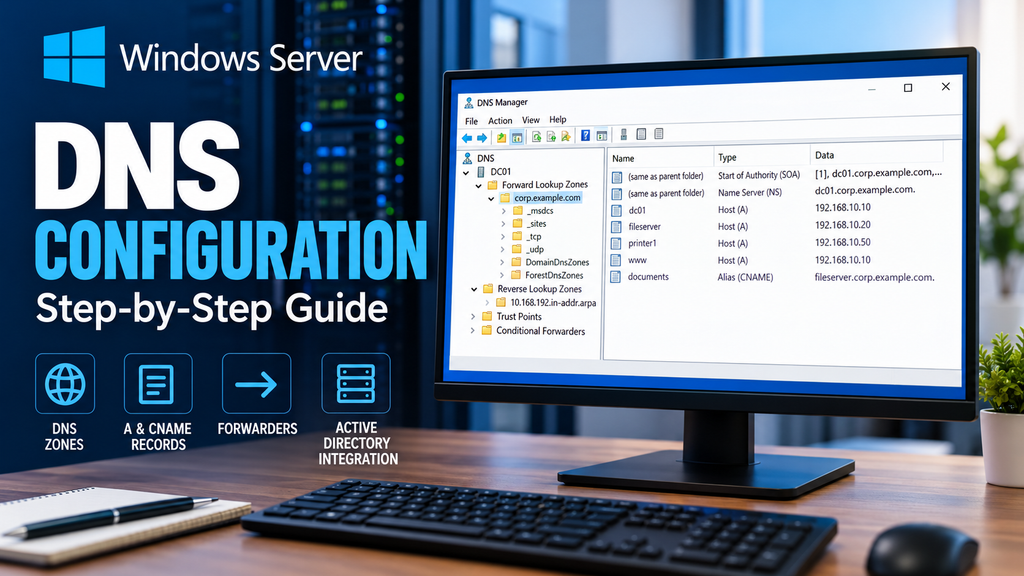
DNS is one of the most important services in any business network. Without properly functioning DNS, employees may be unable to access internal servers, connect to shared resources, or sign in to an Active Directory domain.
Although DNS usually operates quietly in the background, even a small configuration mistake can cause widespread network problems.
For small businesses running Windows Server, understanding DNS configuration is an essential system administration skill.
In this guide, we’ll explain Windows Server DNS configuration step by step, including installing the DNS Server role, creating DNS zones, managing records, configuring forwarders, integrating DNS with Active Directory, and troubleshooting common problems.
The instructions apply to Windows Server 2016, 2019, 2022, and 2025, although some interface details may vary.
1. What Is DNS and Why Does It Matter?
DNS stands for Domain Name System.
Its primary purpose is to translate human-readable domain names into IP addresses.
For example, instead of remembering an IP address such as 192.168.10.20, employees can access a file server using a name such as:
fileserver.corp.example.com
A DNS server receives the query and returns the appropriate IP address.
In a small business environment, DNS commonly supports:
- Access to internal file servers
- Active Directory authentication and domain controller discovery
- Network printers and business applications
- Internal websites and services
- Internet name resolution
- Remote access and VPN connectivity
DNS problems can appear to be network failures even when the underlying network connection is working correctly.
For example, a computer may be able to ping a server by IP address but fail when using its hostname.
That is a strong indication that name resolution needs investigation.
2. How DNS Works in a Small Business Network
Consider a company with 15 employees, one Windows Server domain controller, and a separate file server.
The network uses the following configuration:
| Device | IP address |
|---|---|
| Router | 192.168.10.1 |
| Domain controller and DNS server | 192.168.10.10 |
| File server | 192.168.10.20 |
| Network printer | 192.168.10.50 |
| Employee computers | 192.168.10.100–199 |
The internal Active Directory domain is:
corp.example.com
When an employee enters:
fileserver.corp.example.com
their computer asks the configured DNS server for the corresponding IP address.
The DNS server returns:
192.168.10.20
The computer can then connect to the file server.
If the employee wants to visit an external website, the internal DNS server can resolve the request using a configured DNS forwarder or recursive resolution.
This allows employees to use one internal DNS service for both business resources and internet access.
3. Requirements Before Installing DNS Server
Before beginning, make sure you have:
- A supported Windows Server installation
- Administrator privileges
- A static IP address assigned to the server
- A planned internal DNS namespace
- Network connectivity between the server and clients
- Appropriate firewall rules allowing DNS traffic
DNS normally uses UDP port 53 and TCP port 53.
Both protocols may be required for normal DNS operation.
For our example, we’ll use:
Server name: DC01
Server IP: 192.168.10.10
DNS domain: corp.example.com
If you already have an Active Directory domain controller, DNS may have been installed automatically during domain controller promotion.
Check the existing configuration before creating new zones.
Important: Do not create a second copy of an existing production DNS zone without understanding how it will interact with the current DNS infrastructure.
4. How to Install DNS Server on Windows Server
There are two common installation methods: Server Manager and PowerShell.
Method 1: Install DNS Using Server Manager
- Open Server Manager.
- Click Manage → Add Roles and Features.
- Select Role-based or feature-based installation.
- Choose the appropriate server.
- In Server Roles, select DNS Server.
- Accept the required management tools if prompted.
- Continue through the wizard.
- Click Install.
Once installation finishes, open:
Server Manager → Tools → DNS
This launches DNS Manager.
Method 2: Install DNS Using PowerShell
Open PowerShell as Administrator and run:
Install-WindowsFeature -Name DNS -IncludeManagementToolsVerify installation:
Get-WindowsFeature -Name DNSThe installation state should indicate that the DNS Server role is installed.
You can also check the DNS service:
Get-Service DNSThe service should normally be running after installation.
Installing the DNS role does not automatically create every zone or record your network requires.
5. Understanding DNS Zones
A DNS zone is a portion of the DNS namespace managed by a DNS server.
Windows Server supports several zone types.
Primary Zone
A primary zone contains a writable copy of DNS records.
For a standalone DNS server, a standard primary zone is typically stored in a local zone file.
Secondary Zone
A secondary zone contains a read-only copy of another DNS zone.
It receives zone data through DNS zone transfers from authorized source servers.
Secondary zones can provide additional DNS availability, but they require proper transfer configuration.
Active Directory-Integrated Zone
An Active Directory-integrated zone stores DNS data in Active Directory.
This provides several benefits:
- DNS data can replicate through Active Directory.
- Multiple domain controllers can host writable copies of the zone.
- Secure dynamic DNS updates are supported.
- DNS management can integrate with existing Active Directory administration.
For Windows domain environments, Active Directory-integrated DNS zones are generally preferable to separate standard primary zones when appropriate.
Forward Lookup Zone
A forward lookup zone translates names into IP addresses.
Example:
fileserver.corp.example.com → 192.168.10.20
Reverse Lookup Zone
A reverse lookup zone supports mapping IP addresses back to hostnames through PTR records.
For example:
192.168.10.20 → fileserver.corp.example.com
Reverse lookup zones can assist troubleshooting and support applications that rely on reverse DNS.
6. How to Create a Forward Lookup Zone
If you are configuring a standalone DNS server and do not already have the zone, follow these steps.
- Open DNS Manager.
- Expand the server name.
- Right-click Forward Lookup Zones.
- Select New Zone.
- Choose Primary zone.
- Enter the zone name:
corp.example.com - Accept an appropriate zone file name.
- Choose the dynamic update policy.
- Finish the wizard.
For a standalone, non-Active Directory-integrated zone, disabling dynamic updates is generally the safer starting point unless you specifically need them.
Do not enable unrestricted nonsecure updates without understanding the security implications.
Creating the Zone Using PowerShell
For a standalone primary zone:
Add-DnsServerPrimaryZone -Name "corp.example.com" -ZoneFile "corp.example.com.dns"This example creates a file-backed primary zone.
For an existing Active Directory domain, the appropriate procedure is different. An AD-integrated zone should be created or managed within the existing directory-aware DNS infrastructure.
7. How to Add DNS Records
Once your zone exists, you can create records for internal servers and services.
A Record
An A record maps a hostname to an IPv4 address.
For example:
fileserver.corp.example.com → 192.168.10.20
To create it:
- Open DNS Manager.
- Expand Forward Lookup Zones.
- Select
corp.example.com. - Right-click the zone and choose New Host (A or AAAA).
- Enter
fileserveras the name. - Enter
192.168.10.20as the IP address. - Click Add Host.
Using PowerShell:
Add-DnsServerResourceRecordA -Name "fileserver" -ZoneName "corp.example.com" -IPv4Address "192.168.10.20"CNAME Record
A CNAME record creates an alias for another hostname.
For example:
documents.corp.example.com → fileserver.corp.example.com
This allows employees to use a service-oriented name even if the underlying server changes later.
In DNS Manager:
- Right-click the appropriate zone.
- Select New Alias (CNAME).
- Enter
documentsas the alias. - Enter
fileserver.corp.example.comas the fully qualified target. - Save the record.
PowerShell:
Add-DnsServerResourceRecordCName -Name "documents" -ZoneName "corp.example.com" -HostNameAlias "fileserver.corp.example.com."The trailing dot indicates a fully qualified DNS name.
PTR Record
PTR records are used for reverse DNS resolution.
They map an IP address to a hostname.
A PTR record is typically created in an appropriate reverse lookup zone.
SRV Record
SRV records identify services available within a domain.
Active Directory relies heavily on SRV records to help clients locate domain controllers and related services.
For example, domain-joined computers use DNS to discover available domain controllers.
Avoid manually editing Active Directory SRV records unless you have a specific reason and understand the consequences.
8. How to Configure a Reverse Lookup Zone
For our example network, 192.168.10.0/24, we can create a reverse lookup zone.
- Open DNS Manager.
- Right-click Reverse Lookup Zones.
- Select New Zone.
- Choose the appropriate zone type.
- Select IPv4 Reverse Lookup Zone.
- Enter the network ID:
192.168.10 - Choose the appropriate dynamic update settings.
- Complete the wizard.
PowerShell example for a standalone primary reverse zone:
Add-DnsServerPrimaryZone -NetworkID "192.168.10.0/24" -ZoneFile "10.168.192.in-addr.arpa.dns"You can then add PTR records for servers and other devices.
Reverse lookup zones are not required for every basic DNS resolution scenario, but they can be valuable for administration and troubleshooting.
9. How to Configure DNS Forwarders
A DNS forwarder allows your DNS server to send queries it cannot answer locally to another DNS server.
For example, your internal DNS server may be responsible for corp.example.com but need help resolving public websites.
Configure Forwarders Through DNS Manager
- Open DNS Manager.
- Right-click the DNS server name.
- Select Properties.
- Open the Forwarders tab.
- Click Edit.
- Add the IP addresses of your chosen upstream DNS resolvers.
- Click OK.
For demonstration purposes, public resolver addresses include:
1.1.1.18.8.8.8
These are examples, not mandatory recommendations. Your organization may prefer ISP, corporate, or security-filtering DNS resolvers.
Configure Forwarders Using PowerShell
Set-DnsServerForwarder -IPAddress 1.1.1.1,8.8.8.8Important: This command replaces the configured forwarder list. Review existing settings before running it on a production server.
Check the configuration with:
Get-DnsServerForwarderForwarders help separate internal DNS management from external recursive resolution.
10. DNS and Active Directory: Why They Must Work Together
DNS is essential for Active Directory.
Domain-joined computers use DNS to locate domain controllers, Kerberos services, and other directory resources.
This means a computer may have perfectly functional internet access but still fail to sign in to the domain if its DNS configuration is incorrect.
The Most Common DNS Mistake
A frequent configuration error is assigning public DNS servers directly to domain-joined workstations.
For example, a workstation might use:
8.8.8.8
as its preferred DNS server.
That public resolver cannot normally resolve private Active Directory records.
The correct approach is generally to configure domain-joined computers to use internal DNS servers that host or can properly resolve the Active Directory DNS namespace.
Those internal servers can then forward external queries to appropriate upstream resolvers.
Example
A domain-joined workstation should use:
Preferred DNS: 192.168.10.10
If you have a second properly configured internal DNS server, it can be assigned as an alternate.
Do not use a public DNS resolver as a fallback for Active Directory clients merely because it resolves internet websites.
Secure Dynamic Updates
For Active Directory-integrated zones, configure dynamic updates appropriately.
The Secure only setting restricts updates to authenticated and authorized clients.
This is preferable to permitting unrestricted DNS record modifications.
If you’re new to domain administration, our Active Directory for Small Business guide explains the fundamentals of Windows domain environments.
11. How to Test DNS Configuration
After configuring your DNS server, verify that name resolution works correctly.
Check Client DNS Settings
On a Windows workstation, run:
ipconfig /allCheck which DNS servers the computer is using.
For our example domain environment, the client should use the internal DNS server at 192.168.10.10.
Test a DNS Query with NSLookup
nslookup fileserver.corp.example.com 192.168.10.10Expected result:
Name:    fileserver.corp.example.com
Address: 192.168.10.20
Test External Resolution
nslookup microsoft.com 192.168.10.10If internal names resolve but external names fail, investigate forwarders, recursion, firewall rules, and upstream connectivity.
Test Using PowerShell
Resolve-DnsName fileserver.corp.example.com -Server 192.168.10.10You can also check a specific record type:
Resolve-DnsName corp.example.com -Type SOA -Server 192.168.10.10Clear the Local DNS Cache
After changing DNS records, clients may temporarily retain cached responses.
To clear the local Windows DNS resolver cache:
ipconfig /flushdnsThis clears the client’s resolver cache, not the DNS server’s cache.
12. Common Windows Server DNS Problems and Solutions
Problem 1: Clients Cannot Resolve Internal Hostnames
Possible causes include:
- Incorrect client DNS settings
- Missing A records
- Wrong DNS suffix
- Firewall restrictions
- DNS service unavailable
Start by checking:
ipconfig /allThen query the internal DNS server directly using nslookup.
Problem 2: Internet Works but Domain Login Fails
This often happens when domain-joined computers use inappropriate DNS servers.
Check whether the workstation is configured to use internal Active Directory-aware DNS servers.
Also verify that domain controller SRV records exist.
For example:
nslookup -type=SRV _ldap._tcp.dc._msdcs.corp.example.com 192.168.10.10A functioning Active Directory environment should normally return appropriate domain controller service records.
Problem 3: DNS Changes Do Not Appear Immediately
DNS responses may be cached.
Check the record’s TTL and verify that the authoritative DNS server contains the correct information.
Clearing a client’s DNS cache may help during testing.
Problem 4: DNS Server Cannot Resolve External Domains
Review:
- Forwarder addresses
- DNS recursion settings
- Firewall rules
- Internet connectivity
- Upstream resolver availability
Test the upstream resolver directly to isolate the issue.
Problem 5: Stale DNS Records
Older DNS records can remain after devices change addresses or leave the network.
Windows Server supports DNS aging and scavenging to help remove eligible stale dynamically registered records.
However, these features require careful planning.
Aggressive scavenging settings can remove valid records and disrupt services.
Do not enable scavenging across production zones without understanding timestamps, refresh intervals, and replication behavior.
Problem 6: DNS Service Is Not Running
Check the service status:
Get-Service DNSIf the service has stopped unexpectedly, investigate the underlying cause and review Windows event logs before making changes.
For more troubleshooting techniques, see our Windows Event Viewer Guide.
13. DNS Security Best Practices for Small Businesses
DNS is a critical network service and should be protected accordingly.
Restrict Administrative Access
Only authorized administrators should be able to change DNS server settings and zone records.
Use Secure Dynamic Updates
For Active Directory-integrated zones, use secure dynamic updates wherever appropriate.
Restrict Zone Transfers
Zone transfers should be disabled when unnecessary or limited to explicitly authorized secondary DNS servers.
Avoid Exposing Internal DNS Publicly
An internal DNS server generally should not be accessible from the public internet.
Use firewall rules to restrict DNS access to authorized clients and networks.
Keep Windows Server Updated
Install supported security updates and monitor relevant DNS vulnerabilities.
Maintain Reliable DNS Availability
For Active Directory environments, consider redundant internal DNS servers on appropriately configured domain controllers.
Back Up Critical DNS Configuration
DNS configuration is part of your disaster recovery planning.
For AD-integrated zones, understand how DNS data is protected through Active Directory backup and recovery.
For standalone zones, ensure zone data and server configuration are included in the backup strategy.
Our Windows Server Backup Guide covers backup and recovery fundamentals.
14. DNS Configuration Best Practices
Before deploying DNS in a production environment, review these recommendations:
- Assign static IP addresses to DNS servers.
- Plan your internal DNS namespace before creating zones.
- Use Active Directory-integrated zones when appropriate for domain environments.
- Configure domain-joined clients to use internal DNS servers.
- Use appropriate DNS forwarders for external resolution.
- Restrict DNS administrative permissions.
- Secure dynamic updates.
- Limit zone transfers to authorized servers.
- Monitor DNS health and relevant event logs.
- Document server addresses, zones, forwarders, and recovery procedures.
Small businesses benefit from keeping their DNS design straightforward.
A simple, documented configuration is generally easier to troubleshoot and maintain than an unnecessarily complicated one.
Frequently Asked Questions
Is DNS Server included with Windows Server?
Yes. The DNS Server role is available in supported Windows Server editions and can be installed through Server Manager or PowerShell.
Does Active Directory require DNS?
Yes. Active Directory depends on DNS for domain controller discovery and several other essential functions.
Can Windows Server DNS resolve internet websites?
Yes. It can perform recursive resolution or forward suitable queries to upstream DNS resolvers.
Should domain computers use Google DNS or Cloudflare DNS?
Domain-joined computers should normally use internal DNS servers that properly resolve the Active Directory namespace. Public resolvers may be configured as upstream forwarders where appropriate.
What is the difference between an A record and a CNAME record?
An A record maps a hostname to an IPv4 address. A CNAME record maps an alias to another DNS name.
Is a reverse lookup zone required?
Not for every environment. Reverse lookup zones are useful for troubleshooting and for applications or services that depend on reverse DNS.
Can I install DNS Server without Active Directory?
Yes. Windows Server DNS can operate as a standalone DNS server without an Active Directory domain.
Final Thoughts
Windows Server DNS configuration is a fundamental skill for anyone managing a Windows-based business network.
A properly configured DNS server allows employees to access internal resources, supports Active Directory authentication, and provides reliable name resolution.
By understanding DNS zones, resource records, forwarders, secure dynamic updates, and troubleshooting tools, administrators can prevent many common network problems.
For small businesses, the objective is not to create the most complicated DNS infrastructure.
It is to build a secure, reliable, and well-documented service that employees can depend on every day.
Once your DNS infrastructure is working correctly, maintaining it through regular monitoring, security updates, and backups will help keep the entire Windows Server environment running smoothly.
3 Comments