How to Back Up a Small Business Properly: The 3-2-1
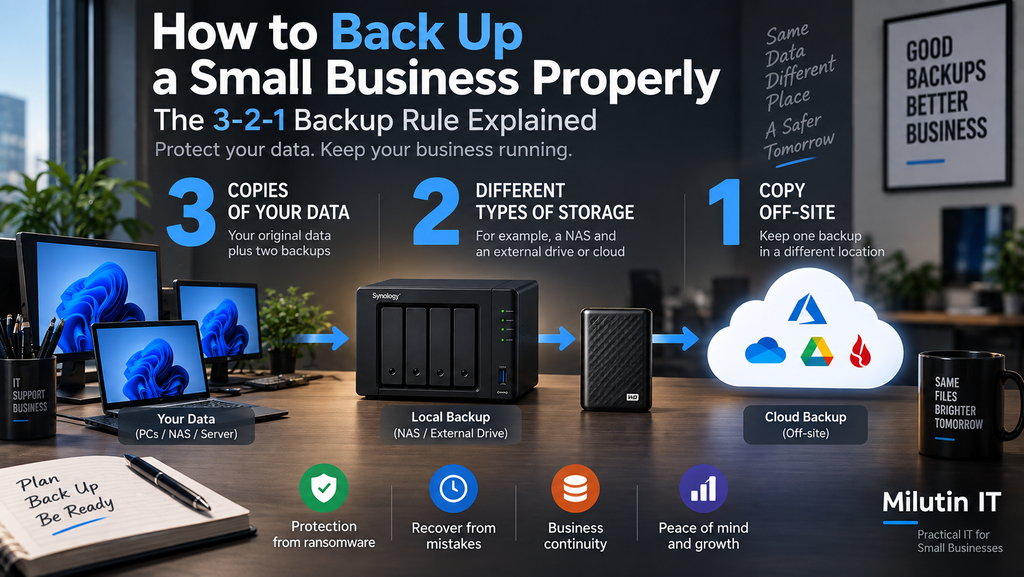
Every small business has data it cannot afford to lose.
Customer information, invoices, contracts, accounting documents, project files, databases, emails, and years of work may all exist somewhere on company computers.
Unfortunately, many businesses only think about backups after something goes wrong.
A hard drive fails.
Someone accidentally deletes an important folder.
A laptop gets stolen.
Ransomware encrypts the company files.
Or a server simply refuses to boot one morning.
A good backup strategy doesn’t prevent every problem. What it does is make sure that when something happens, you can recover.
One of the simplest ways to build that strategy is the 3-2-1 backup rule.
What Is the 3-2-1 Backup Rule?
The traditional 3-2-1 rule says you should have:
3 copies of your data
stored on
2 different types of storage
with
1 copy kept off-site.
For a small business, that might look like this:
- The working files on your NAS or file server
- A backup stored on another local device
- Another backup stored in the cloud
The exact hardware and services don’t matter as much as the principle.
Your important data should never exist in only one place.
Why One Backup Is Not Enough
Imagine your company stores all its documents on a NAS.
The NAS contains four hard drives configured in RAID.
That sounds safe.
But what happens if ransomware encrypts the files?
What happens if someone deletes an important folder?
What happens if the NAS itself is stolen?
Or there is a fire in the office?
Multiple drives inside the same device do not protect against all of these scenarios.
This is why a real backup strategy needs multiple independent copies.
RAID Is Not a Backup
This is probably one of the most important things to understand about business storage.
RAID is not a backup.
RAID can protect you against a hard drive failure.
For example, with RAID 1, the same data is mirrored across two drives.
If one drive fails, the other can continue operating while you replace the failed drive.
That’s useful.
But if someone deletes a folder, that deletion can affect the data stored on the array.
If ransomware encrypts accessible files, RAID does not magically restore the original versions.
And if the entire NAS is stolen or destroyed, all the drives disappear together.
RAID provides redundancy and availability.
Backup provides recovery.
They solve different problems.
Cloud Sync Is Not Necessarily a Backup Either
Another common mistake is assuming that OneDrive, Google Drive, Dropbox, or another synchronization service automatically solves the backup problem.
Synchronization is extremely useful.
If you edit a document on your computer, the new version can quickly appear on your other devices.
But that is exactly why sync should not automatically be treated as your only backup.
Changes can synchronize too.
If files are deleted, corrupted, or encrypted, those changes may propagate to synchronized locations.
Many cloud services provide version history, recycle bins, and retention features that can help recover data.
Those features are valuable.
But for important business data, I still prefer having an independent backup system.
Think of synchronization primarily as a productivity and availability tool.
Think of backup as your recovery system.
Copy 1: Your Working Data
The first copy is simply the data employees use every day.
Depending on your setup, that might be stored on:
- A NAS
- Windows Server
- Employee computers
- Microsoft 365
- Google Workspace
- Another cloud platform
If your business uses a central NAS or file server, most important company documents should ideally be stored there instead of scattered across individual computers.
Centralized storage makes permissions, monitoring, and backups much easier to manage.
Copy 2: Your Local Backup
The second copy should be stored separately from the primary data.
For a small office, this could be another NAS or dedicated backup storage.
An external USB drive can also be used in some environments, although it requires more discipline.
If an external backup drive remains permanently connected to a computer or server, ransomware may also be able to access it.
For very small businesses using removable drives, rotating multiple drives and disconnecting them after backups can provide additional protection.
However, automated backup systems are usually preferable because they don’t depend on someone remembering to connect a drive every Friday afternoon.
Copy 3: Your Off-Site Backup
At least one backup should be stored somewhere physically separate from the office.
Today, cloud backup is usually the easiest way to accomplish this.
A NAS or server can automatically send encrypted backups to a cloud storage provider.
This protects the business against events that affect the entire office, such as:
- Fire
- Flood
- Theft
- Electrical damage
- Major hardware failure
If your server and its backup are sitting next to each other, they can both disappear in the same incident.
That is why the off-site part of the 3-2-1 rule matters.
A Practical Backup Setup for a Small Office
Let’s imagine a company with eight employees.
The office has:
- Eight Windows PCs
- A NAS for shared company files
- Microsoft 365
- A Gigabit Ethernet network
- A reliable internet connection
A practical backup architecture could look like this:
Employee PCs → NAS → Local Backup + Cloud Backup
Employees store important business documents on the NAS.
The NAS performs automatic backups to another local storage device.
It also sends an encrypted backup off-site to a cloud provider.
Now the business has multiple recovery options.
If a user accidentally deletes a document, it may be recovered from snapshots or the local backup.
If a NAS drive fails, RAID can keep the system running while the drive is replaced.
If the entire NAS fails, data can be restored from the backup.
And if the office itself is damaged or equipment is stolen, the cloud copy remains available.
That is a much stronger strategy than simply buying a NAS and assuming the data is safe.
Use Automatic Backups
Backups should happen automatically whenever possible.
Manual backups have one major weakness:
people forget.
A good backup system should run without someone having to remember it every day.
For example, you might configure:
Every hour: snapshots of important shared folders
Every night: local backup
Every night: incremental cloud backup
Every week: full or extended backup task, depending on your backup software
The exact schedule depends on how frequently your company’s data changes.
An accounting office editing important documents throughout the day may need more frequent protection than a small business whose files rarely change.
How Much Data Can You Afford to Lose?
This is where two useful concepts appear:
RPO — Recovery Point Objective
and
RTO — Recovery Time Objective.
They sound complicated, but the ideas are simple.
RPO asks:
How much recent data can the business afford to lose?
If backups run once every 24 hours, you could potentially lose almost a full day’s work.
For some companies, that’s acceptable.
For others, it isn’t.
RTO asks:
How long can the business operate without the system?
If restoring your file server takes two days, can employees continue working?
These questions help determine how often backups should run and how quickly systems need to be recoverable.
Keep Multiple Backup Versions
Don’t keep only the newest backup.
Imagine ransomware encrypts your files on Monday, but nobody notices until Thursday.
If your backup system continuously overwrites yesterday’s backup, you may discover that your backup now contains encrypted files too.
Keeping multiple historical versions allows you to go back to a point before the problem occurred.
For example, you might keep:
- Daily backups
- Weekly backups
- Monthly backups
The exact retention period depends on storage capacity, business requirements, and regulatory obligations.
Protect Backups From Ransomware
Modern backup design should assume that ransomware is a possibility.
Ideally, ransomware running on an employee computer should not be able to delete or modify your backups.
This can be achieved through several approaches, including:
- Separate backup credentials
- Restricted permissions
- Snapshots
- Immutable cloud storage
- Offline backups
- Proper network segmentation
Most importantly, normal employee accounts should not have administrative access to backup systems.
If one compromised account can delete both production data and every backup, the backup architecture has a serious weakness.
Back Up Microsoft 365 and Other Cloud Data
Moving data to the cloud does not eliminate the need to think about backup and recovery.
Businesses increasingly store critical information inside:
- Microsoft 365
- OneDrive
- SharePoint
- Teams
- Google Workspace
- Other SaaS platforms
These platforms generally provide strong infrastructure and various recovery or retention mechanisms.
However, businesses should still understand exactly what is retained, for how long, and how recovery works.
For important cloud data, dedicated SaaS backup solutions may also be worth considering.
The key question remains the same:
If this data disappeared today, how would I restore it?
If you don’t know the answer, the backup strategy isn’t finished.
Don’t Forget Employee Computers
Ideally, employees should not store the only copy of important business files on their desktops or in their Downloads folders.
Important data should be stored on centralized systems that are included in the company’s backup strategy.
For laptops, folder synchronization through OneDrive or another managed platform can help protect common locations such as Desktop and Documents.
But employees should still understand where business files are supposed to be stored.
Technology cannot completely compensate for poor file management.
Encrypt Your Backups
Off-site backups should be encrypted.
This is especially important when backups contain:
- Customer information
- Financial records
- Employee information
- Contracts
- Credentials
- Confidential business documents
Encryption protects the data if backup storage is accessed by an unauthorized person.
Encryption keys and recovery credentials should also be documented and stored securely.
An encrypted backup is not very useful if nobody knows the password when the server fails.
Monitor Backup Jobs
A backup system saying:
Backup configured successfully
does not mean everything will continue working forever.
Drives fill up.
Passwords change.
Cloud subscriptions expire.
Network connections fail.
Backup software encounters errors.
Someone needs to monitor whether backup jobs are actually completing.
Most professional backup platforms can send email notifications when jobs fail.
Enable them.
A failed backup that nobody notices for six months is effectively no backup at all.
Test Your Backups
This is the step many businesses forget.
A backup is only useful if you can restore it.
You should periodically test recovery.
Pick a file and restore it.
Occasionally restore an entire folder.
For critical systems, test whether the server or application can actually be recovered.
This confirms three things:
- The backup exists.
- The backup contains the expected data.
- You know how to restore it.
Discovering that your backups have been unusable for the last year should not happen during an emergency.
Document the Recovery Process
Even a small business should have basic backup documentation.
It doesn’t need to be a 100-page disaster recovery manual.
A simple document can include:
- What is backed up
- Where backups are stored
- Backup schedule
- Retention period
- Cloud provider
- Who receives failure notifications
- Where recovery credentials are stored
- How to restore important data
- Who is responsible for recovery
If the person who originally configured the system is unavailable, someone else should still be able to understand how the backup environment works.
A Simple 3-2-1 Small Business Backup Design
For many small businesses, a good starting point is:
Primary storage: NAS or file server
↓
Local protection: snapshots and/or separate local backup
↓
Off-site protection: encrypted cloud backup
This provides protection against several different types of failure without requiring extremely complicated infrastructure.
As the company grows, the system can be expanded with additional backup servers, immutable storage, replication, disaster recovery systems, and more advanced retention policies.
But the fundamental principle remains the same.
Don’t depend on a single copy of important data.
Final Thoughts
Backups are not exciting.
When everything works correctly, nobody notices them.
But when a server fails or an important folder disappears, backups can suddenly become the most valuable part of your IT infrastructure.
For most small businesses, the 3-2-1 rule provides an excellent starting point:
3 copies of your data.
2 different types of storage.
1 copy off-site.
Combine that with automated backups, multiple versions, proper security, monitoring, and regular restore tests.
Most importantly, remember:
RAID is not a backup.
Synchronization is not necessarily a backup.
And a backup you have never successfully restored should not be blindly trusted.
Build your backup system before you need it—not after you’ve already lost the data.