Router vs Access Point: What’s the Difference and Which Do You Need?
If your Wi-Fi signal is weak in part of your home or office, your first thought might be to buy another router.
In many cases, that’s not the best solution.
A router and a wireless access point (AP) perform different jobs. Understanding that difference can help you build a faster, more reliable network without adding unnecessary complexity.
For a small office, the solution is often surprisingly simple: keep one device responsible for routing and use one or more properly positioned access points for Wi-Fi coverage.
Let’s look at how that works.
What Does a Router Do?
A router connects different networks together.
In a typical small office, the router sits between your local network and the internet. It usually handles several important functions, including:
- Routing traffic between your network and the internet
- NAT (Network Address Translation)
- DHCP and IP address assignment
- Basic firewall protection
- Internet connection management
Most routers supplied by internet service providers also include Wi-Fi.
That’s why people often think of a router simply as “the Wi-Fi box.”
But Wi-Fi is only one of its functions.
A typical ISP router is actually several devices combined into one box: a router, firewall, Ethernet switch, and wireless access point.
That can be perfectly adequate for a home or very small office.
Problems usually appear when the office gets larger or the network needs to support more devices.
What Is a Wireless Access Point?
A wireless access point provides Wi-Fi connectivity to an existing wired network.
Unlike a router, an access point normally doesn’t create a separate network or manage your internet connection.
Its main job is much simpler:
Allow wireless devices to connect to your existing network.
For example, imagine an office where the router is located near the entrance.
Computers near the router have excellent Wi-Fi, but employees at the other end of the office constantly complain about weak signal and slow connections.
Instead of installing another router, you could run an Ethernet cable to that part of the office and install an access point.
Now both areas have good wireless coverage while remaining part of the same network.
Router vs Access Point: The Main Difference
The easiest way to remember the difference is:
The router manages the network. The access point provides wireless access to it.
A router usually handles things such as DHCP, NAT, firewall rules, and internet connectivity.
An access point primarily handles wireless clients.
In a properly designed small-business network, you might therefore have:
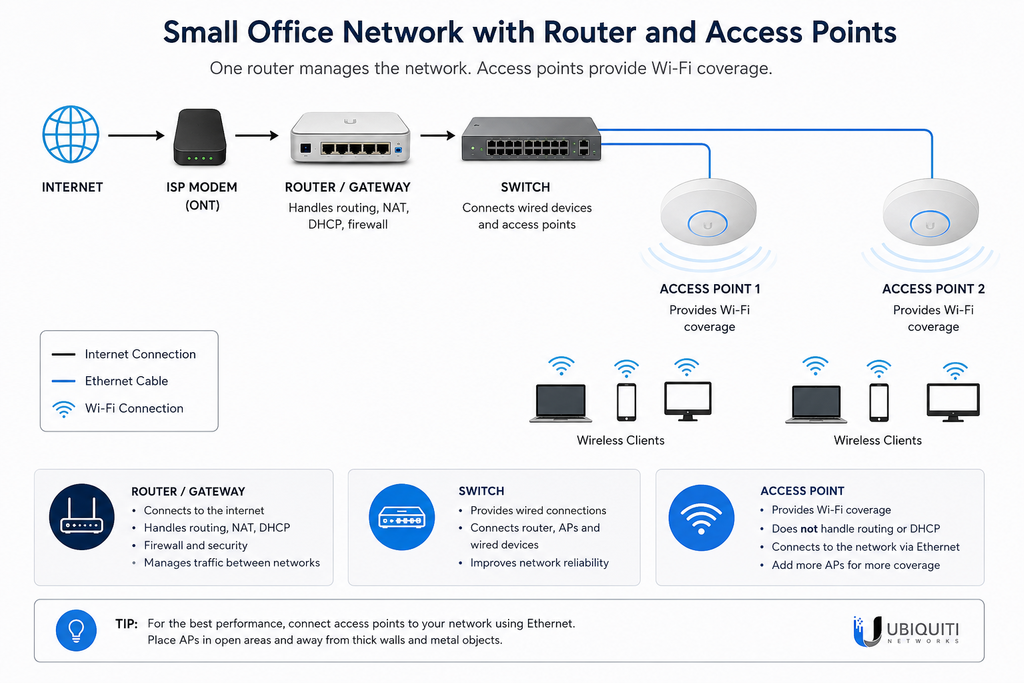
Internet → Router/Gateway → Switch → Access Points → Wireless Devices
The router doesn’t need to provide Wi-Fi at all.
In many professional installations, it doesn’t.
Why Adding Another Router Usually Isn’t the Best Solution
When Wi-Fi coverage is poor, buying another router may seem logical.
But connecting multiple routers without configuring them correctly can cause unnecessary problems.
You can end up with:
- Multiple DHCP servers
- Double NAT
- Separate networks
- Devices unable to communicate with each other
- More complicated troubleshooting
A second router can often be configured in access point or bridge mode, which disables most routing functions.
But at that point, you’re effectively using it as an access point anyway.
If your goal is simply better wireless coverage, installing a proper AP is usually cleaner.
Wired Access Point vs Wi-Fi Repeater
There is another common solution to weak Wi-Fi: a wireless repeater or extender.
Repeaters can be convenient because they don’t require Ethernet cabling.
But convenience comes with compromises.
Whenever possible, I prefer connecting access points back to the network using Ethernet.
A wired connection gives the AP a stable connection to the rest of the network instead of relying on another wireless connection.
This generally means better reliability, more consistent performance, and easier troubleshooting.
For a permanent office installation, running Ethernet is usually worth the effort.
What About Mesh Wi-Fi?
Mesh systems can be useful when running Ethernet isn’t practical.
For example, in a building where installing new cables would require major construction work, a well-designed mesh system may be a reasonable alternative.
However, if Ethernet is already available—or can reasonably be installed—I would normally choose wired access points.
Wireless technology is excellent, but a cable is still difficult to beat for a network backbone.
Example: Wi-Fi for a Small Office
Let’s take a simple example.
Imagine an office with around 15 employees.
The internet provider installed a router in one corner of the office. Wi-Fi works well nearby, but employees in other rooms experience weak signal and unstable connections.
A straightforward solution could look like this:
Internet
↓
Router
↓
Ethernet Switch
↓
Access Point 1 + Access Point 2
↓
Laptops, phones and other wireless devices
The two APs are connected to the switch using Ethernet and positioned where they can provide good coverage.
You don’t necessarily need two access points just because there are 15 employees. The number required depends on the office layout, building materials, interference, client density, and where users actually work.
One properly positioned AP may be enough.
A larger or more difficult space may need two or more.
Should You Keep the ISP Router?
This depends largely on your requirements and budget.
For a small business trying to keep costs down, there is nothing inherently wrong with keeping the ISP router.
You can let it handle routing, DHCP, NAT, and firewall functions while adding dedicated access points for better Wi-Fi.
A budget-friendly setup might therefore be:
ISP Router → Switch → Access Points
It’s simple, relatively inexpensive, and can work very well.
If the budget allows, however, I prefer replacing—or bypassing where possible—the ISP router and using dedicated networking equipment.
The setup then becomes:
ISP Modem/ONT → Dedicated Router or Gateway → Managed Switch → Access Points
This gives you much more control over the network and makes future upgrades easier.
What I Prefer for Small Office Networks
For small-business installations, I generally prefer a dedicated network infrastructure rather than relying entirely on the ISP’s all-in-one router.
My preferred approach is a dedicated gateway/router, Ethernet switch, and one or more wired access points.
I often use Ubiquiti UniFi equipment for this type of installation because the ecosystem makes it convenient to manage gateways, switches, access points, VLANs, and wireless networks from one interface.
That doesn’t mean every small office needs a complete UniFi deployment.
The network should match the requirements and the budget.
For a small company with basic requirements, keeping the ISP router and installing one or two good wired access points may be all that’s necessary.
For a growing business that needs better network management, VLANs, multiple Wi-Fi networks, monitoring, or easier expansion, dedicated networking equipment becomes much more attractive.
Where Should You Install Access Points?
Buying a good AP won’t help much if you install it in the wrong place.
Placement matters.
Avoid hiding access points inside cabinets, behind large metal objects, or in distant corners simply because that’s where the internet connection enters the building.
Whenever possible, position APs closer to the areas where wireless devices are actually used.
Ceiling-mounted access points can work particularly well in offices because they can provide relatively unobstructed coverage.
For larger installations, proper Wi-Fi planning or a site survey is better than simply adding APs until the signal looks strong.
Do You Need a Router or an Access Point?
If you’re building a network from scratch, you need a router or gateway to connect and manage your local network.
If you already have a functioning router but need better Wi-Fi coverage, you probably need an access point.
And if you’re designing a small-business network with reliability and future expansion in mind, separating these roles often makes sense.
Instead of asking one ISP router to do everything, you can let each device do the job it was designed for.
Final Thoughts
A router and an access point aren’t competing products.
They perform different roles and often work together.
For a small office with poor Wi-Fi coverage, I wouldn’t automatically add another router. In most cases, I would first look at AP placement and the possibility of installing one or more Ethernet-connected access points.
If the budget is limited, keep the ISP router and improve the wireless network around it.
If the budget allows and the business needs more control, consider a dedicated router or gateway, switch, and access points.
The result is a network that is easier to manage, easier to expand, and—most importantly—more reliable for the people who actually have to use it.