Hyper-V on Windows Server — Complete Setup Guide for Beginners
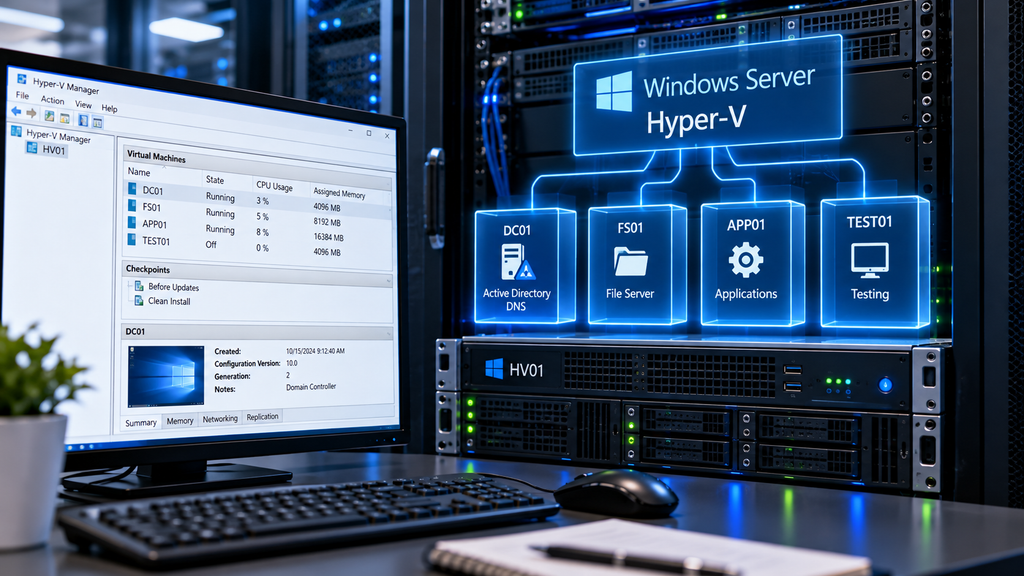
Virtualization has become an essential part of modern IT infrastructure. Instead of purchasing a separate physical server for every service, businesses can run multiple virtual servers on a single physical machine.
For small businesses, this can reduce hardware costs, simplify administration, and make better use of available computing resources.
Microsoft Hyper-V is a built-in virtualization platform available in supported editions of Windows Server. It allows administrators to create and manage virtual machines running Windows, Linux, and other supported operating systems.
With Hyper-V on Windows Server, a single physical server can host several independent virtual machines, each with its own operating system, virtual hardware, network configuration, and applications.
In this guide, we’ll walk through installing Hyper-V, creating virtual machines, configuring networking and storage, managing checkpoints, and troubleshooting common problems.
The examples focus on Windows Server 2019, 2022, and 2025. Most concepts also apply to Windows Server 2016, although available features and management interfaces may differ.
1. What Is Hyper-V?
Hyper-V is Microsoft’s hypervisor-based virtualization technology.
A hypervisor allows multiple operating systems to share the resources of one physical computer while operating as separate virtual machines.
Each virtual machine, or VM, has its own:
- Virtual processors
- Allocated memory
- Virtual hard disks
- Virtual network adapters
- Operating system
- Applications and services
For example, a small business might use one physical server to host:
| Virtual machine | Purpose |
|---|---|
| DC01 | Active Directory and DNS |
| FS01 | File server |
| APP01 | Business applications |
| TEST01 | Testing and development |
Instead of maintaining four physical servers, the business can run these workloads on one appropriately sized Hyper-V host.
However, hardware consolidation also creates a shared point of failure. If the physical host fails, all virtual machines running on it may become unavailable.
For business-critical environments, administrators should consider redundancy, reliable backups, and disaster recovery planning.
2. Benefits of Hyper-V for Small Businesses
Hyper-V offers several advantages over running every service on dedicated physical hardware.
Better Hardware Utilization
Many small-business servers use only a fraction of their available CPU and memory resources.
Virtualization allows multiple workloads to share those resources.
Reduced Hardware Costs
Fewer physical servers can mean lower spending on hardware, electricity, cooling, and maintenance.
Licensing costs must still be considered, especially when running multiple Windows Server virtual machines.
Easier Testing
Administrators can create temporary virtual machines to test software, Windows updates, or configuration changes without affecting production servers.
Simplified Deployment
Virtual machines can be created from templates or deployed using automated scripts.
Flexible Resource Allocation
Administrators can adjust virtual processors, memory, storage, and network connectivity according to workload requirements.
Improved Recovery Options
Virtual machines can be protected using virtualization-aware backup solutions.
Hyper-V also supports technologies such as replication and live migration in appropriate configurations.
These features improve flexibility, but they do not eliminate the need for backups.
3. Hyper-V System Requirements
Before installing Hyper-V, verify that the physical server supports hardware virtualization.
The main requirements include:
- A supported 64-bit processor
- Hardware-assisted virtualization
- Second Level Address Translation (SLAT)
- Hardware-enforced Data Execution Prevention (DEP)
- Sufficient physical memory
- Adequate storage capacity
- A supported Windows Server edition
Intel processors commonly expose virtualization through Intel VT-x, while AMD processors use AMD-V.
The relevant virtualization settings must be enabled in the server’s BIOS or UEFI firmware.
Check Hyper-V Requirements
Open an elevated Command Prompt:
systeminfoLook for the Hyper-V Requirements section.
On systems where a hypervisor is already running, systeminfo may display a message indicating that a hypervisor has been detected rather than listing the individual requirements.
You can also inspect processor capabilities with PowerShell:
Get-CimInstance Win32_Processor |
Select-Object Name,
    VirtualizationFirmwareEnabled,
    SecondLevelAddressTranslationExtensions,
    VMMonitorModeExtensions
How Much RAM Do You Need?
Memory requirements depend on the workloads running inside the virtual machines.
For example:
| Component | Example allocation |
|---|---|
| Hyper-V host and management overhead | 8 GB reserved for planning |
| Domain controller VM | 4 GB |
| File server VM | 8 GB |
| Application server VM | 16 GB |
| Test VM | 4 GB |
| Total planning allocation | 40 GB |
These are illustrative allocations, not universal requirements.
A physical server with 64 GB RAM could accommodate this example with room for additional overhead, depending on actual workload demand.
Production sizing should be based on application requirements, monitoring, and expected growth.
4. Installing Hyper-V on Windows Server
Hyper-V can be installed using Server Manager or PowerShell.
Method 1: Install Hyper-V Using Server Manager
- Open Server Manager.
- Select Manage → Add Roles and Features.
- Choose Role-based or feature-based installation.
- Select the local server.
- Under Server Roles, select Hyper-V.
- Add the required management tools when prompted.
- Continue through the installation wizard.
- Review the virtual switch and migration settings.
- Confirm the installation.
- Restart the server when required.
After restarting, Hyper-V should be available.
Method 2: Install Hyper-V Using PowerShell
Open PowerShell as Administrator:
Install-WindowsFeature -Name Hyper-V -IncludeManagementTools -RestartThis installs the Hyper-V role and management tools and restarts the server if required.
Important: Installing Hyper-V on a production server requires planning. The restart interrupts running workloads, and configuring an external virtual switch can temporarily disrupt network connectivity.
Verify Installation
After restarting:
Get-WindowsFeature -Name Hyper-VThe installation state should indicate that Hyper-V is installed.
5. Understanding Hyper-V Manager
Hyper-V Manager is the graphical management console used to administer Hyper-V hosts and virtual machines.
To open it:
Server Manager → Tools → Hyper-V Manager
Alternatively, press Win + R and enter:
virtmgmt.mscThe console displays the available Hyper-V hosts and their virtual machines.
From Hyper-V Manager, administrators can:
- Create virtual machines
- Start and stop VMs
- Modify virtual hardware
- Configure virtual switches
- Create checkpoints
- Inspect virtual machine settings
- Connect to virtual machine consoles
- Export virtual machines
For small environments, Hyper-V Manager provides most of the tools needed for day-to-day administration.
Larger environments may benefit from Windows Admin Center, PowerShell automation, or other supported management platforms.
6. Understanding Hyper-V Virtual Switches
Virtual machines need network connectivity just like physical computers.
Hyper-V uses virtual switches to connect virtual network adapters to other virtual machines, the host, and external networks.
There are three primary virtual switch types.
| Switch type | Connectivity |
|---|---|
| External | Connects VMs to the physical network through a host network adapter |
| Internal | Connects VMs to each other and the Hyper-V host |
| Private | Connects VMs to each other on the same host, without direct host connectivity |
External Virtual Switch
An external switch is commonly used for production servers.
It allows virtual machines to communicate with the physical network.
For example, a domain controller VM can receive an IP address on the office network and provide services to physical workstations.
Internal Virtual Switch
An internal switch is useful for isolated labs that still require communication between the host and virtual machines.
Private Virtual Switch
A private switch provides connectivity among virtual machines connected to that switch on the same host.
It is useful for isolated testing environments.
7. Creating an External Virtual Switch
Let’s create a virtual switch for our office network.
Using Hyper-V Manager
- Open Hyper-V Manager.
- Select the Hyper-V host.
- Click Virtual Switch Manager.
- Select External.
- Click Create Virtual Switch.
- Enter a name such as:
Office-LAN - Select the appropriate physical network adapter.
- Decide whether the management operating system should share the adapter.
- Apply the configuration.
Warning: Changing external switch settings may temporarily interrupt the host’s network connection. Avoid doing this over an unprotected remote session without alternative management access.
Using PowerShell
First, identify the available physical adapters:
Get-NetAdapterThen create a switch:
New-VMSwitch `
    -Name "Office-LAN" `
    -NetAdapterName "Ethernet" `
    -AllowManagementOS $true
Replace Ethernet with the actual physical adapter name.
The AllowManagementOS setting allows the host operating system to share the selected adapter through the virtual switch.
Verify the Virtual Switch
Get-VMSwitchThe new switch should appear in the list.
8. Creating Your First Virtual Machine
Now that Hyper-V is installed and networking is configured, we can create a virtual machine.
For this example, we’ll deploy a Windows Server VM named:
FS01
It will eventually function as a file server.
Step 1: Start the New Virtual Machine Wizard
In Hyper-V Manager:
- Right-click the Hyper-V host.
- Select New → Virtual Machine.
- Click Next.
Step 2: Specify the VM Name
Enter:
FS01
Choose an appropriate storage location.
For example:
D:\Hyper-V\VMs
Keeping virtual machine files on dedicated storage can simplify capacity management and backup planning.
Step 3: Choose the VM Generation
Hyper-V supports two virtual machine generations.
Generation 1 uses legacy virtual hardware and BIOS-style firmware.
Generation 2 uses modern virtual hardware and UEFI firmware.
For supported modern operating systems, Generation 2 is generally the preferred choice.
Generation 2 also supports features such as Secure Boot.
Choose:
Generation 2
Note that the generation cannot be changed through the normal VM settings after creation.
Step 4: Assign Memory
For this example, allocate:
8192 MB
This gives the VM 8 GB of startup memory.
Hyper-V also supports Dynamic Memory, which allows compatible guest operating systems to use memory within configured minimum and maximum limits.
Dynamic Memory can improve consolidation, but administrators should evaluate whether it is appropriate for each workload.
Step 5: Configure Networking
Select:
Office-LAN
This connects the virtual machine to the external virtual switch created earlier.
Step 6: Create a Virtual Hard Disk
Choose:
Create a virtual hard disk
For example:
Name: FS01.vhdx
Location: D:\Hyper-V\Virtual Hard Disks
Size: 100 GB
VHDX is the modern virtual hard disk format supported by Hyper-V.
The wizard normally creates a dynamically expanding virtual hard disk.
A 100 GB maximum size does not mean the file immediately occupies 100 GB of physical storage.
However, sufficient free space must be available as the disk grows.
Step 7: Install the Operating System
Select an installation ISO for a supported Windows Server version.
For example:
Windows_Server_2022.iso
Finish the wizard.
The virtual machine is now created.
9. Installing Windows Server Inside the VM
In Hyper-V Manager:
- Right-click
FS01. - Select Connect.
- Click Start.
- Boot from the installation ISO.
- Follow the Windows Server installation wizard.
- Choose the appropriate edition and installation option.
- Configure the administrator password.
- Complete the installation.
Once Windows Server starts, install updates and configure the operating system.
Recommended Initial Configuration
For a typical domain-joined file server:
- Rename the computer to
FS01. - Configure the appropriate IP settings.
- Set internal DNS servers.
- Install Windows updates.
- Join the Active Directory domain.
- Configure time synchronization appropriately.
- Enable required management access.
- Verify security and firewall settings.
For Active Directory environments, review our Windows Server DNS Configuration Guide before joining the VM to the domain.
10. Creating a Virtual Machine with PowerShell
Hyper-V can also be managed entirely through PowerShell.
This is useful when deploying multiple virtual machines or automating routine tasks.
Create a Generation 2 VM
New-VM `
    -Name "TEST01" `
    -Generation 2 `
    -MemoryStartupBytes 4GB `
    -NewVHDPath "D:\Hyper-V\Virtual Hard Disks\TEST01.vhdx" `
    -NewVHDSizeBytes 60GB `
    -Path "D:\Hyper-V\VMs" `
    -SwitchName "Office-LAN"
This command creates a virtual machine with:
- Generation 2 firmware
- 4 GB startup memory
- A new 60 GB virtual hard disk
- Connection to the Office-LAN virtual switch
The specified folders and virtual switch must be available, and the host must have sufficient resources.
Assign Virtual Processors
Set-VMProcessor -VMName "TEST01" -Count 2Attach an Installation ISO
Add-VMDvdDrive `
    -VMName "TEST01" `
    -Path "D:\ISO\Windows_Server_2022.iso"
For a Generation 2 VM, verify that the firmware boot order allows the VM to boot from the DVD drive.
Start the Virtual Machine
Start-VM -Name "TEST01"Check VM Status
Get-VM -Name "TEST01"Stop the Virtual Machine Gracefully
Stop-VM -Name "TEST01"This requests a graceful shutdown when supported by the guest.
Avoid forcibly turning off production virtual machines unless necessary.
11. Understanding Virtual Hard Disks
Hyper-V commonly uses the VHDX format for virtual hard disks.
A VHDX file contains the virtual machine’s disk data.
There are several important virtual disk concepts.
Dynamically Expanding Disks
These files grow as data is written, up to the configured maximum size.
They are convenient for general-purpose workloads and lab environments.
Fixed-Size Disks
Fixed-size virtual disks allocate their configured capacity when created.
They can be useful when predictable storage allocation is important.
Differencing Disks
Differencing disks store changes relative to a parent virtual disk.
They are useful in specific deployment and testing scenarios but introduce dependencies that must be managed carefully.
Storage Planning
Regardless of the virtual disk type, monitor physical storage capacity.
If the host volume runs out of space, virtual machines can experience serious problems.
For business-critical workloads, consider:
- Enterprise-grade SSDs
- Appropriate RAID or resilient storage
- Separate storage volumes where practical
- Storage monitoring
- Reliable backups
- Sufficient free space for maintenance and recovery operations
Remember that RAID protects against certain hardware failures but is not a replacement for backups.
12. Hyper-V Checkpoints Explained
Checkpoints capture the state of a virtual machine at a particular moment.
They can be useful before testing software changes or applying updates.
Hyper-V supports two main checkpoint types.
Standard Checkpoints
Standard checkpoints capture virtual machine state, including memory state.
They are primarily useful in test and development environments.
Production Checkpoints
Production checkpoints use guest-aware mechanisms, such as Volume Shadow Copy Service for supported Windows guests, to create a data-consistent checkpoint.
For production workloads, production checkpoints are generally preferred when checkpoints are appropriate.
Create a Checkpoint
In Hyper-V Manager:
- Right-click the virtual machine.
- Select Checkpoint.
- Wait for the operation to complete.
- Verify that the checkpoint appears.
Using PowerShell:
Checkpoint-VM -Name "TEST01" -SnapshotName "Before-Updates"Important: Checkpoints Are Not Backups
Checkpoints depend on the VM’s storage chain and are not independent recovery copies.
If the underlying storage fails, checkpoints may be lost along with the VM.
Keeping checkpoints for extended periods can also consume significant disk space and complicate storage management.
Use checkpoints for controlled changes, not as your primary data-protection strategy.
For proper backup planning, read our Windows Server Backup Guide and 3-2-1 Backup Rule for Small Businesses.
13. Dynamic Memory in Hyper-V
Dynamic Memory allows Hyper-V to adjust the amount of physical memory assigned to a running virtual machine within configured limits.
For example:
Startup RAM: 4096 MB
Minimum RAM: 2048 MB
Maximum RAM: 8192 MB
This can improve memory utilization when running multiple virtual machines.
Configure Dynamic Memory
In Hyper-V Manager:
- Open the virtual machine’s settings.
- Select Memory.
- Enable Dynamic Memory.
- Configure startup, minimum, and maximum values.
- Review memory buffer and weight settings.
PowerShell example:
Set-VMMemory `
    -VMName "TEST01" `
    -DynamicMemoryEnabled $true `
    -StartupBytes 4GB `
    -MinimumBytes 2GB `
    -MaximumBytes 8GB
The appropriate settings depend on the guest operating system and workload.
Some applications require more predictable memory allocation and may be better suited to static memory.
14. Hyper-V Networking Best Practices
Virtual networking is one of the most important parts of a Hyper-V deployment.
Poor network design can affect performance, security, and management access.
Use Clear Switch Names
Choose names such as:
Production-LAN
Management-LAN
Lab-Internal
Avoid generic names that become confusing as the environment grows.
Separate Traffic Where Appropriate
Larger deployments may separate:
- Management traffic
- Virtual machine production traffic
- Storage traffic
- Live migration traffic
- Backup traffic
This can be achieved through appropriate physical adapters, VLANs, and network configuration.
For more information, see our VLANs for Small Businesses guide.
Avoid Unnecessary Network Complexity
A small business with only a few virtual machines may not need multiple physical network adapters and elaborate VLAN configurations.
Start with a simple, secure design that meets actual requirements.
Protect Management Access
Restrict access to Hyper-V management interfaces.
Use dedicated administrator accounts and avoid exposing management services directly to the internet.
15. Hyper-V Backup and Disaster Recovery
Virtualization makes infrastructure easier to manage, but it does not eliminate the risk of data loss.
A single hardware failure can affect multiple virtual machines.
A reliable backup strategy should protect both the guest workloads and the information required to restore them.
Use Hyper-V-Aware Backups
Choose a backup solution that supports Hyper-V and provides application-consistent backups where required.
This is particularly important for workloads such as:
- Active Directory
- SQL Server
- Business databases
- File servers
- Line-of-business applications
Keep Independent Backup Copies
Do not store the only backup on the same physical storage as the Hyper-V host.
Follow the 3-2-1 backup principle and consider immutable or offline recovery copies.
Test Virtual Machine Recovery
Regularly test restoring a virtual machine to an isolated environment.
Verify that:
- The VM starts successfully.
- The operating system is functional.
- Important applications work.
- Required data is present.
- Network settings are appropriate.
- Recovery procedures are documented.
Understand Hyper-V Replica
Hyper-V Replica can replicate supported virtual machines to another Hyper-V host for disaster recovery.
However, replication is not equivalent to backup.
Accidental deletion, corruption, or malicious changes may also be replicated.
A complete recovery strategy should consider both replication and independent backups.
16. Monitoring Hyper-V Performance
After deploying virtual machines, administrators should monitor the host and guest workloads.
Important resources include:
- CPU utilization
- Memory usage and pressure
- Storage latency
- Available disk capacity
- Network throughput
- VM uptime and health
- Backup job status
List Virtual Machines
Get-VMView Virtual Machine Resource Information
Get-VM |
Select-Object Name, State, CPUUsage, MemoryAssigned, Uptime
View Virtual Hard Disks
Get-VMHardDiskDrive -VMName "FS01"View Virtual Network Adapters
Get-VMNetworkAdapter -VMName "FS01"View Host Memory
Get-CimInstance Win32_OperatingSystem |
Select-Object TotalVisibleMemorySize, FreePhysicalMemory
These commands provide useful information, but they are not substitutes for continuous monitoring.
For production environments, configure appropriate alerts for resource exhaustion, service failures, and backup problems.
17. Common Hyper-V Problems and Solutions
Even a properly configured Hyper-V host may experience issues.
Here are some common problems and troubleshooting approaches.
Problem 1: Hyper-V Cannot Be Installed
Possible causes include:
- Unsupported processor
- Virtualization disabled in BIOS or UEFI
- Missing required processor features
- Unsupported operating system edition
- Conflicting platform or nested virtualization configuration
Start by checking hardware capabilities and firmware settings.
Problem 2: Virtual Machine Will Not Start
Possible causes include:
- Insufficient available memory
- Missing virtual hard disk
- Incorrect file permissions
- Storage capacity problems
- Invalid virtual machine configuration
- Hyper-V service errors
Check the VM status:
Get-VM -Name "FS01"Then inspect relevant Hyper-V event logs.
Problem 3: VM Has No Network Connectivity
Check:
- The virtual network adapter is connected.
- The correct virtual switch is selected.
- The physical network adapter is operational.
- The guest has valid IP settings.
- VLAN settings match the physical network.
- Firewall rules allow the required traffic.
Useful commands include:
Get-VMSwitchGet-VMNetworkAdapter -VMName "FS01"Inside the guest operating system:
ipconfig /allIf the guest can reach IP addresses but not hostnames, investigate DNS configuration.
Our Windows Server DNS Troubleshooting Guide covers these problems in detail.
Problem 4: Virtual Machine Performance Is Slow
Investigate:
- Excessive CPU overcommitment
- Memory pressure
- Slow physical storage
- High storage latency
- Too many competing workloads
- Antivirus or backup activity
- Insufficient guest resources
Avoid increasing virtual CPU counts automatically.
Adding virtual processors does not always improve performance and may introduce additional scheduling overhead.
Problem 5: Virtual Hard Disk Is Running Out of Space
Check both the guest’s free disk space and the host’s physical storage capacity.
A dynamically expanding VHDX may grow until it reaches its configured maximum size.
The host must also have enough free space to accommodate growth.
Problem 6: Checkpoint Files Consume Too Much Space
Checkpoints create differencing disk files that can grow as data changes.
Delete checkpoints through supported Hyper-V management tools when they are no longer required.
Do not manually delete checkpoint-related AVHDX files from the file system.
Problem 7: VM Cannot Boot from ISO
Verify:
- The ISO path is correct.
- The ISO file is accessible.
- A virtual DVD drive is attached.
- The firmware boot order is correct.
- Secure Boot settings are compatible with the guest operating system.
For Generation 2 virtual machines, firmware and Secure Boot settings are especially important.
18. Hyper-V Security Best Practices
Virtualization introduces additional administrative responsibilities.
The physical host controls multiple virtual machines, making it a high-value security target.
Keep the Host Updated
Install supported security updates and monitor vendor advisories.
Minimize Installed Software
Avoid installing unnecessary applications directly on the Hyper-V host.
A dedicated virtualization host generally has a smaller attack surface than a server performing multiple unrelated roles.
Restrict Administrative Access
Use dedicated administrative accounts and role-appropriate permissions.
Protect Virtual Machine Storage
Apply appropriate NTFS permissions to virtual machine files and storage locations.
Secure Remote Management
Use trusted management networks and secure remote-access methods.
Maintain Separate Backups
Protect both the virtual machines and their critical application data.
Review VM Isolation
Do not assume that virtualization alone provides complete security isolation.
Keep guest operating systems updated and apply normal security controls inside each VM.
19. Practical Example: Small Business Hyper-V Infrastructure
Consider a company with 20 employees.
The business needs:
- Active Directory authentication
- DNS services
- Shared company documents
- A business application server
- A testing environment
Instead of deploying five physical servers, the company installs Windows Server with Hyper-V on an appropriately sized physical machine.
The virtual environment might look like this:
Physical Server: HV01
|
+-- Hyper-V
    |
    +-- DC01
    |   Active Directory + DNS
    |   2 vCPU / 4 GB RAM
    |
    +-- FS01
    |   File Server
    |   2 vCPU / 8 GB RAM
    |
    +-- APP01
    |   Business Application
    |   4 vCPU / 16 GB RAM
    |
    +-- TEST01
        Testing Environment
        2 vCPU / 4 GB RAM
These resource allocations are examples and must be adjusted to actual workload requirements.
For a small business, this architecture can provide a practical starting point.
However, the company should also plan for:
- Physical host failure
- Storage failure
- Backup and recovery
- Power protection
- Monitoring
- Licensing
- Future growth
Virtualization simplifies infrastructure, but careful planning is still essential.
20. Hyper-V Setup Checklist
Before deploying Hyper-V into production, verify the following:
- Confirm hardware virtualization support.
- Enable required BIOS or UEFI settings.
- Install a supported Windows Server edition.
- Install the Hyper-V role and management tools.
- Configure secure host management.
- Plan storage capacity and performance.
- Create appropriate virtual switches.
- Choose the correct VM generation.
- Allocate suitable CPU and memory resources.
- Configure guest networking and DNS.
- Install guest operating system updates.
- Protect VM files with appropriate permissions.
- Configure Hyper-V-aware backups.
- Test virtual machine recovery.
- Monitor host and guest resource usage.
- Document the virtual infrastructure.
Frequently Asked Questions
Is Hyper-V free with Windows Server?
The Hyper-V role is included in supported Windows Server editions. However, Windows Server licensing and virtualization rights still apply. The number of Windows Server guest operating system environments covered depends on the edition and licensing arrangement.
Can Hyper-V run Linux virtual machines?
Yes. Hyper-V supports many Linux distributions, although supported features and integration capabilities vary by distribution and version.
How many virtual machines can Hyper-V run?
The practical number depends on hardware resources, licensing, supported configuration limits, and workload requirements.
Is Hyper-V suitable for small businesses?
Yes. Hyper-V can be an effective virtualization platform for small businesses that need multiple servers but want to reduce physical hardware requirements.
What is the difference between Generation 1 and Generation 2 VMs?
Generation 1 uses legacy virtual hardware and BIOS-style firmware. Generation 2 uses modern virtual hardware and UEFI firmware, making it generally preferable for supported modern operating systems.
Does Hyper-V require Active Directory?
No. Hyper-V can operate on standalone or domain-joined hosts. Active Directory can simplify centralized management but is not required to run virtual machines.
Are Hyper-V checkpoints the same as backups?
No. Checkpoints depend on the VM’s storage and are intended primarily for short-term state management. Independent backups are required for reliable recovery.
Can Hyper-V virtual machines use static IP addresses?
Yes. Virtual machines can use static IP addresses or receive network configuration through DHCP, depending on the network design.
Can I run Hyper-V inside a virtual machine?
Nested virtualization is supported in certain configurations when the underlying hardware, host platform, and guest operating system meet the applicable requirements.
Final Thoughts
Hyper-V on Windows Server provides a powerful way to consolidate infrastructure, reduce hardware requirements, and simplify server management.
For small businesses, virtualization makes it possible to run Active Directory, file sharing, business applications, and testing environments on a single physical server.
The most important part of a successful Hyper-V deployment is proper planning.
Administrators must consider hardware resources, virtual networking, storage performance, security, licensing, and backup requirements before moving critical workloads into production.
By following the steps in this guide, you can build a solid foundation for a Windows Server virtualization environment and expand it as your business grows.
With appropriate monitoring and a tested recovery strategy, Hyper-V can become a reliable part of a small-business IT infrastructure.
One Comment