Windows Server DNS Troubleshooting: Common Problems and How to Fix Them
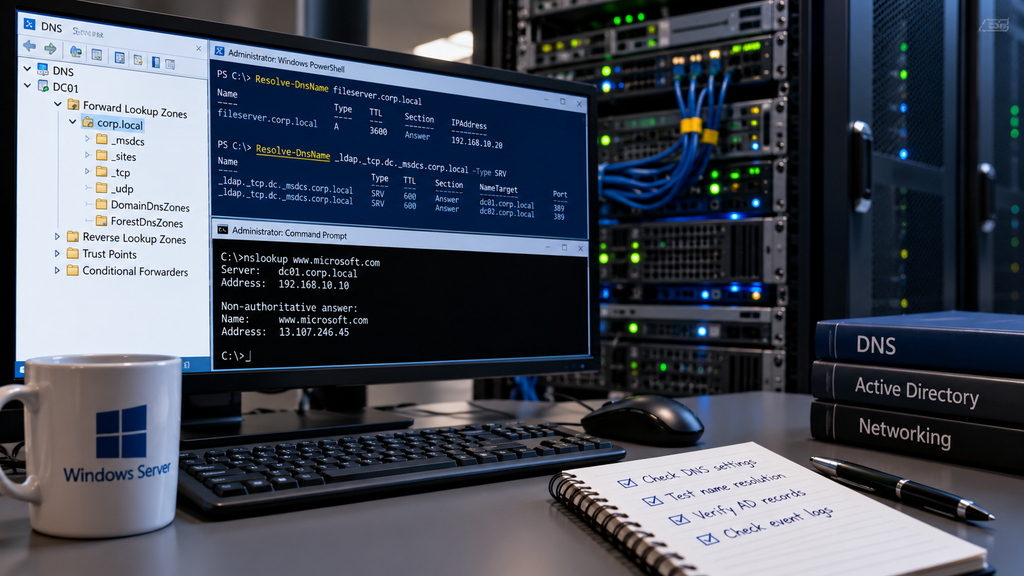
DNS is one of the most important services in a Windows Server environment. When DNS works correctly, employees can access websites, shared folders, domain resources, and business applications without even thinking about it.
But when DNS fails, the symptoms can be confusing.
Users may report that the internet is not working, network drives have disappeared, domain logins are slow, or certain applications cannot connect to their servers.
In many cases, the network itself is functioning perfectly. The real problem is name resolution.
Windows Server DNS troubleshooting is therefore an essential skill for system administrators, especially in small-business networks where one or two servers may provide several critical services.
In this guide, we’ll explore the most common DNS problems, learn how to diagnose them using built-in Windows tools, and walk through practical solutions for Windows Server environments.
The examples apply primarily to Windows Server 2016, 2019, 2022, and 2025, although some commands and features may differ between versions.
1. Understanding How DNS Works in Windows Server
The Domain Name System (DNS) translates hostnames into IP addresses.
For example, when a user accesses:
fileserver.corp.example.com
DNS might return:
192.168.10.20
The workstation can then connect to the server using its IP address.
Without working DNS, users would need to remember IP addresses instead of computer names.
In a Windows Server environment, DNS does much more than resolve ordinary hostnames.
It also supports:
- Active Directory domain controller discovery
- Kerberos authentication
- LDAP service discovery
- Access to shared folders
- Internal application connectivity
- Network printer discovery in some configurations
- Resolution of external websites
This is why a DNS problem can sometimes look like an Active Directory, network, or authentication problem.
If you’re new to configuring the service, start with our Windows Server DNS Configuration Guide.
2. Common Symptoms of DNS Problems
DNS failures can appear in several different ways.
Typical symptoms include:
- Websites fail to load by hostname.
- Users can ping an IP address but not a hostname.
- Domain-joined computers cannot locate domain controllers.
- Network drives fail to reconnect.
- Group Policy processing becomes slow or fails.
- Internal servers are accessible only by IP address.
- Some applications work while others fail.
- DNS queries return incorrect or outdated IP addresses.
- External websites cannot be resolved, although internal resources work.
The most useful troubleshooting approach is to determine which type of name resolution is failing.
For example, if internal names resolve but external websites do not, the problem may involve DNS forwarders or upstream resolution.
If external websites work but Active Directory services fail, the problem may involve internal DNS zones, SRV records, or client DNS settings.
3. Start with Basic Network Connectivity
Before investigating DNS configuration, confirm that the workstation and DNS server can communicate.
We’ll use this example environment:
| Component | Example |
|---|---|
| Domain | corp.example.com |
| Domain controller and DNS server | DC01 |
| DNS server IP | 192.168.10.10 |
| File server | FS01 |
| File server IP | 192.168.10.20 |
| Client workstation | PC01 |
These addresses and names are examples. Replace them with the values from your environment.
Step 1: Check the Client IP Configuration
Open Command Prompt:
ipconfig /allReview the following information:
- IPv4 address
- Subnet mask
- Default gateway
- DNS servers
- DNS suffix
- DHCP enabled or disabled
For a domain-joined workstation, the configured DNS servers should normally be the internal DNS servers that host or can correctly resolve the Active Directory domain.
For example:
IPv4 Address:     192.168.10.101
Subnet Mask:      255.255.255.0
Default Gateway:  192.168.10.1
DNS Servers:      192.168.10.10
A common mistake is configuring a domain-joined workstation to use a public DNS server, such as 8.8.8.8, instead of the organization’s internal Active Directory DNS service.
Public DNS servers generally cannot resolve private Active Directory records.
Step 2: Test Connectivity to the DNS Server
Run:
ping 192.168.10.10If the DNS server responds, basic IP connectivity exists.
However, some servers block ICMP traffic, so a failed ping does not automatically mean the server is unreachable.
A better test is to check whether DNS traffic can reach the server.
In PowerShell:
Test-NetConnection 192.168.10.10 -Port 53This checks TCP connectivity on port 53.
Remember that ordinary DNS queries commonly use UDP port 53, so a successful TCP test does not prove that UDP DNS queries are working.
We’ll test actual DNS resolution next.
4. Troubleshooting DNS with nslookup
The nslookup command is one of the most useful tools for diagnosing DNS problems.
It allows administrators to query DNS servers directly.
Test Basic Name Resolution
Open Command Prompt:
nslookup fileserver.corp.example.comA successful response might look like:
Server:  dc01.corp.example.com
Address: 192.168.10.10

Name:    fileserver.corp.example.com
Address: 192.168.10.20
This indicates that the DNS server returned an address for the requested hostname.
Query a Specific DNS Server
To avoid relying on the client’s default DNS server, specify one explicitly:
nslookup fileserver.corp.example.com 192.168.10.10This is useful when a workstation has multiple DNS servers configured.
Test External DNS Resolution
Run:
nslookup www.microsoft.com 192.168.10.10If internal records resolve but external names fail, investigate forwarders, root hints, DNS policies, and upstream network connectivity.
Interpret Common nslookup Errors
DNS request timed out
The DNS server did not respond within the query timeout. Possible causes include network connectivity, firewall rules, service problems, or an overloaded server.
Non-existent domain
The server returned an NXDOMAIN response. This can indicate that the requested record does not exist or that the server is querying an unexpected DNS namespace.
Server failed
A SERVFAIL response indicates that the DNS server could not complete the request successfully. Possible causes include upstream failures, zone problems, or DNSSEC validation issues.
Important: A timeout, NXDOMAIN, and SERVFAIL are different problems. Identifying the exact response helps narrow down the cause.
5. Troubleshooting DNS with PowerShell
PowerShell provides additional diagnostic options.
The most useful command is:
Resolve-DnsNameResolve a Hostname
Resolve-DnsName fileserver.corp.example.comQuery a Specific Server
Resolve-DnsName fileserver.corp.example.com `
    -Server 192.168.10.10
Query an A Record
Resolve-DnsName fileserver.corp.example.com `
    -Type A
Query an MX Record
Resolve-DnsName example.com -Type MXQuery a DNS Server Directly
Resolve-DnsName www.microsoft.com `
    -Server 192.168.10.10 `
    -DnsOnly
The -DnsOnly parameter restricts resolution to DNS rather than using other supported name-resolution methods.
Compare Multiple DNS Servers
If your network has two internal DNS servers, test both:
Resolve-DnsName dc01.corp.example.com `
    -Server 192.168.10.10

Resolve-DnsName dc01.corp.example.com `
    -Server 192.168.10.11
If one server returns the correct record and the other does not, investigate zone replication, record consistency, or configuration differences.
6. DNS Server Service Not Running
Sometimes the problem is straightforward: the DNS Server service has stopped.
On the DNS server, open PowerShell as Administrator:
Get-Service DNSExpected output:
Status   Name   DisplayName
------   ----   -----------
Running  DNS    DNS Server
If the service is stopped, investigate the cause before restarting it.
To start the service:
Start-Service DNSIf it is running but experiencing problems, check the event logs and DNS configuration.
A restart may temporarily restore functionality, but it should not replace identifying the underlying cause.
Be cautious when restarting DNS on a production domain controller because connected users and applications may be affected.
7. Incorrect DNS Client Settings
One of the most common problems in Active Directory networks is an incorrect DNS server configuration on workstations.
Consider this example:
DNS Server 1: 192.168.10.10
DNS Server 2: 8.8.8.8
At first glance, this may appear reasonable.
However, the public DNS server cannot normally resolve private Active Directory records.
If the workstation sends domain-related queries to the public resolver, authentication and domain resource discovery may fail.
Recommended Configuration
Domain-joined clients should normally use internal DNS servers that can resolve the Active Directory namespace.
For example:
Preferred DNS: 192.168.10.10
Alternate DNS: 192.168.10.11
Both servers should be configured appropriately for the domain.
Fix DNS Settings Through DHCP
In most small-business networks, client DNS settings are distributed through DHCP.
Review DHCP option 006, which specifies DNS server addresses.
Also verify the domain name information provided to clients, including option 015 where appropriate.
For detailed instructions, see our Windows Server DHCP Configuration Guide.
After correcting DHCP settings, a client can renew its configuration:
ipconfig /renewThen verify:
ipconfig /allBe aware that renewing an address can temporarily interrupt network connectivity, especially during remote support sessions.
8. Clearing the DNS Cache
Windows caches DNS responses to reduce lookup times.
This improves performance, but cached information can sometimes cause problems after DNS records change.
For example, a file server may have moved from:
192.168.10.20
to:
192.168.10.30
A workstation may continue using the old address until the cached record expires.
Clear the Client DNS Cache
Open Command Prompt as Administrator:
ipconfig /flushdnsYou should receive a confirmation that the DNS Resolver Cache was flushed.
View the Client DNS Cache
ipconfig /displaydnsClear the DNS Server Cache
On the DNS server, you can use:
Clear-DnsServerCache -ForceThis clears the DNS server’s cache, not its authoritative zone records.
Important: Clearing the DNS server cache can temporarily increase external lookup activity. It should be used when troubleshooting indicates a caching problem, not as routine maintenance.
9. DNS Records Missing or Incorrect
A DNS server may be running correctly while individual records are missing or incorrect.
Common DNS record types include:
| Record | Purpose |
|---|---|
| A | Maps a hostname to an IPv4 address |
| AAAA | Maps a hostname to an IPv6 address |
| CNAME | Creates an alias for another DNS name |
| MX | Identifies mail servers |
| PTR | Maps an IP address to a hostname |
| SRV | Identifies services such as LDAP and Kerberos |
| NS | Identifies authoritative name servers |
Check DNS Records in Server Manager
- Open Server Manager.
- Select Tools → DNS.
- Expand the DNS server.
- Expand Forward Lookup Zones.
- Select the relevant zone.
- Review the records.
For our example, open:
corp.example.com
Look for the record:
FS01
Verify that it points to:
192.168.10.20
Check Records with PowerShell
Get-DnsServerResourceRecord `
    -ZoneName "corp.example.com" `
    -Name "FS01"
If the record is missing, determine whether it should be registered dynamically or managed manually.
Avoid creating duplicate or conflicting records without checking the existing configuration.
10. Active Directory DNS Problems
DNS is essential for Active Directory.
Domain-joined computers use DNS service records to locate domain controllers and services.
If these records are missing or incorrect, users may experience:
- Domain login failures
- Group Policy processing errors
- Domain controller discovery problems
- Kerberos authentication issues
- Active Directory replication failures
Check Domain Controller SRV Records
Run:
nslookup -type=SRV _ldap._tcp.dc._msdcs.corp.example.comA working Active Directory DNS configuration should return appropriate domain controller service records.
You can also use PowerShell:
Resolve-DnsName `
    _ldap._tcp.dc._msdcs.corp.example.com `
    -Type SRV
Check Domain Controller Discovery
Run:
nltest /dsgetdc:corp.example.comThis asks Windows to locate a domain controller.
If the command fails, investigate DNS resolution, connectivity, domain configuration, and domain controller availability.
Check Domain Controller DNS Health
On a domain controller, open an elevated Command Prompt:
dcdiag /test:dns /vThis runs DNS-related diagnostic tests.
The output can help identify missing records, registration problems, and other DNS configuration issues.
For a broader introduction, read our Active Directory for Small Businesses guide.
11. DNS Zone Replication Problems
In Active Directory environments, DNS zones are often stored in Active Directory and replicated between domain controllers.
This provides redundancy and simplifies administration.
However, replication problems can lead to inconsistent DNS records.
For example:
- DC01 contains a newly created DNS record.
- DC02 does not have the record.
- Clients using DC01 resolve the hostname correctly.
- Clients using DC02 receive an outdated response or NXDOMAIN.
Check Active Directory Replication
On a domain controller:
repadmin /replsummaryThis provides a summary of replication status.
For additional details:
repadmin /showreplIf replication errors appear, investigate network connectivity, DNS configuration, authentication, and replication topology.
Do not assume every inconsistent DNS response is caused by replication. First confirm that both DNS servers host the expected zone and are being queried for the same record.
12. Troubleshooting DNS Forwarders
DNS forwarders allow a DNS server to send queries it cannot resolve locally to another DNS server.
For example, an internal DNS server may forward external queries to an approved upstream resolver.
Check Forwarders in DNS Manager
- Open DNS Manager.
- Right-click the DNS server.
- Select Properties.
- Open the Forwarders tab.
- Review the configured servers.
Check Forwarders with PowerShell
Get-DnsServerForwarderTest External Resolution
Resolve-DnsName www.microsoft.com `
    -Server 192.168.10.10
If internal records work but external records fail, investigate:
- Forwarder availability
- Outbound firewall restrictions
- DNS server internet connectivity
- Root hints configuration
- Conditional forwarding rules
- DNSSEC validation failures where applicable
Test an Upstream Resolver
If permitted by your organization’s network policy:
Resolve-DnsName www.microsoft.com `
    -Server 1.1.1.1
If the upstream resolver works but the internal DNS server fails, the problem may involve the internal server’s forwarding or recursive resolution configuration.
Remember that public DNS resolvers should not replace internal Active Directory DNS servers on domain-joined clients.
13. DNS Firewall Problems
DNS commonly uses UDP port 53 and TCP port 53.
UDP is frequently used for standard queries.
TCP is also required for certain DNS operations and responses, including some larger responses and zone transfers where permitted.
A firewall blocking DNS traffic can produce intermittent or complete resolution failures.
Check Windows Firewall Rules
On the DNS server:
Get-NetFirewallRule |
    Where-Object DisplayName -Match "DNS"
This lists rules whose display names contain DNS.
You should also review the actual rule state, direction, profile, and port filters rather than relying only on the display name.
Test DNS Resolution Directly
Resolve-DnsName www.microsoft.com `
    -Server 192.168.10.10
If the DNS query times out, investigate network ACLs, host firewall settings, service availability, and upstream routing.
Do not disable Windows Firewall entirely as a troubleshooting shortcut.
Instead, identify and correct the specific rule responsible.
14. DNS Event Logs and Diagnostics
Windows Event Viewer can provide useful information about DNS failures.
Open DNS Event Logs
- Open Event Viewer.
- Expand Applications and Services Logs.
- Navigate to Microsoft → Windows → DNS-Server.
- Review the available logs, including the Audit and Analytical channels where supported.
Also check the DNS Server log under Applications and Services Logs when present, as well as relevant System events.
Look for:
- Zone loading errors
- Service startup failures
- Forwarder problems
- DNS update failures
- Unexpected service interruptions
Query DNS-Related Events with PowerShell
For example:
Get-WinEvent -ListLog "*DNS*"This displays available event logs with DNS in their names.
To inspect a particular log:
Get-WinEvent -LogName "DNS Server" -MaxEvents 20The exact log name and availability depend on the Windows Server configuration.
For additional guidance, see our Windows Event Viewer Guide.
15. DNS Problems After Changing a Server IP Address
Changing a server’s IP address can create unexpected DNS issues.
For example, suppose FS01 originally used:
192.168.10.20
and now uses:
192.168.10.30
If DNS still contains the old record, users may be directed to the wrong address.
Troubleshooting Steps
- Verify the server’s current IP address.
- Check its DNS A record.
- Check for duplicate or stale records.
- Verify whether dynamic DNS updates are configured.
- Correct the record using the appropriate management process.
- Allow time for caches to expire or clear relevant caches when necessary.
- Test resolution from multiple clients.
Register DNS Records Again
On a Windows client or server that should dynamically register its records:
ipconfig /registerdnsThis initiates DNS registration for applicable network adapters.
It does not guarantee that registration will succeed.
If the record remains incorrect, investigate dynamic update permissions, DNS zone settings, and the computer’s network configuration.
16. Slow DNS Resolution
Not all DNS problems result in complete failure.
Sometimes websites or network resources work, but opening them takes several seconds.
Possible causes include:
- Unresponsive DNS servers
- Incorrect DNS server order
- Unreachable forwarders
- Network latency
- DNS server overload
- Misconfigured conditional forwarders
- DNSSEC-related validation failures
- Repeated attempts to resolve nonexistent names
Measure Query Time with PowerShell
Measure-Command {
    Resolve-DnsName www.microsoft.com `
        -Server 192.168.10.10
}
This measures the elapsed time of the command.
Run several tests and compare the results.
Be aware that cached and uncached queries may have different response times.
A single slow result does not necessarily indicate a DNS server performance problem.
17. Practical DNS Troubleshooting Scenario
Let’s walk through a realistic example.
The Problem
Employees report that they cannot access:
\\FS01\Shared
However, the file server is running and reachable by IP address.
Step 1: Test the Server by IP Address
From a workstation:
ping 192.168.10.20The server responds.
This suggests that basic network connectivity exists.
Step 2: Test the Hostname
ping FS01The hostname cannot be resolved.
This points toward a name-resolution problem.
Step 3: Query the DNS Server
nslookup FS01.corp.example.com 192.168.10.10The DNS server returns:
Non-existent domainStep 4: Inspect the DNS Zone
On DC01, open DNS Manager.
Navigate to:
Forward Lookup Zones → corp.example.com
The A record for FS01 is missing.
Step 5: Restore the Correct Record
After verifying the file server’s IP address and determining the appropriate registration method, restore the correct DNS record.
For example:
FS01 → 192.168.10.20Step 6: Test Again
nslookup FS01.corp.example.comThe query now returns the correct IP address.
If necessary, clear the workstation’s DNS cache:
ipconfig /flushdnsThen test:
\\FS01\Shared
If the share still fails, investigate SMB connectivity and file-sharing permissions separately.
This example demonstrates why DNS troubleshooting should follow a logical sequence instead of immediately restarting services or changing network settings.
18. Windows Server DNS Troubleshooting Checklist
When DNS stops working, use this checklist to identify the problem systematically.
- Verify the workstation’s IP configuration.
- Confirm that the correct internal DNS servers are configured.
- Test connectivity to the DNS server.
- Check whether the DNS Server service is running.
- Test resolution using
nslookup. - Test resolution using
Resolve-DnsName. - Compare responses from different DNS servers.
- Check relevant A, AAAA, CNAME, and SRV records.
- Verify the correct DNS zone exists.
- Check Active Directory DNS health.
- Review replication status when using AD-integrated zones.
- Check DNS forwarders and upstream connectivity.
- Inspect firewall rules for UDP and TCP port 53.
- Check DNS-related event logs.
- Investigate stale records and cached responses.
- Verify the original problem is resolved before closing the incident.
Following a consistent process reduces unnecessary configuration changes and helps administrators identify the actual cause.
Frequently Asked Questions
Why is my Windows Server DNS not responding?
Possible causes include a stopped DNS service, network connectivity problems, blocked DNS traffic, overloaded servers, or incorrect DNS configuration. Start by checking the DNS service and testing a direct query against the server.
How do I test DNS on Windows Server?
Use nslookup, Resolve-DnsName, and DNS Manager. For Active Directory environments, dcdiag /test:dns can provide additional diagnostics.
How do I clear the DNS cache in Windows?
Run ipconfig /flushdns to clear the local DNS resolver cache.
What is the difference between DNS and DHCP?
DNS resolves hostnames into IP addresses, while DHCP automatically provides network configuration to clients. DHCP can distribute the DNS server addresses that clients should use.
Why does DNS work for some computers but not others?
The affected computers may use different DNS servers, have stale cached records, receive incorrect DHCP settings, or have network connectivity problems.
Why does Active Directory require DNS?
Active Directory uses DNS records, particularly SRV records, to help clients locate domain controllers and authentication services.
Should domain-joined computers use Google DNS?
Domain-joined computers should normally use internal DNS servers capable of resolving the organization’s Active Directory namespace. Public DNS resolvers can be configured as upstream forwarders when appropriate, but they generally should not replace internal DNS on domain clients.
Does restarting DNS fix DNS problems?
Restarting the DNS service may temporarily restore functionality in some cases, but it does not correct underlying configuration, connectivity, or replication problems.
Which ports does DNS use?
DNS commonly uses UDP and TCP port 53. Both may be required for reliable operation.
Final Thoughts
Windows Server DNS troubleshooting is not just about fixing failed website lookups.
DNS supports some of the most important services in a Windows network, including Active Directory, authentication, file sharing, and access to business applications.
When DNS fails, the effects can spread across the entire organization.
The most effective approach is to troubleshoot systematically: verify client settings, test connectivity, query DNS servers directly, inspect records, and investigate Active Directory or forwarding issues when necessary.
Tools such as nslookup, Resolve-DnsName, dcdiag, and Event Viewer provide administrators with the information needed to diagnose most common DNS problems.
For small-business IT environments, understanding these tools can significantly reduce downtime and make troubleshooting faster and more predictable.
With properly configured DNS servers, reliable replication, appropriate security controls, and regular monitoring, Windows Server DNS can remain a stable foundation for the entire network.