Group Policy Explained: Essential GPO Settings for Small Businesses
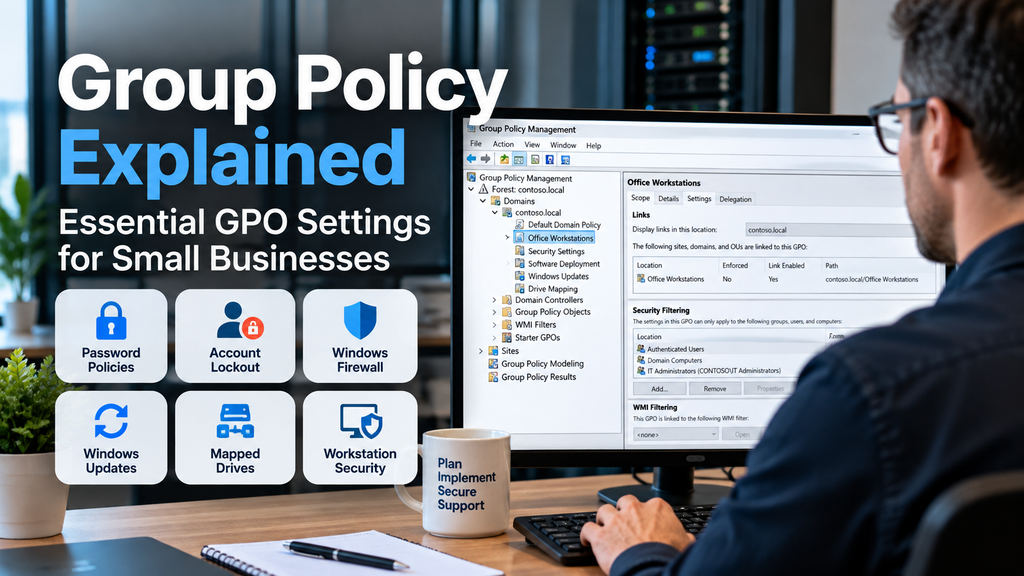
Managing multiple Windows computers individually can quickly become a frustrating and time-consuming task.
Imagine an office with 15 employees. Every computer needs security updates, firewall settings, password policies, and access to shared network folders.
Configuring these settings manually on every workstation would take hours. Worse, maintaining consistent configurations as your business grows becomes increasingly difficult.
Fortunately, Windows Server provides a powerful centralized management feature called Group Policy.
With Group Policy, IT administrators can configure and enforce Windows settings across multiple computers and user accounts from a central location.
In this guide, we’ll explain how Group Policy works and explore essential Group Policy Objects (GPOs) that every small-business administrator should understand.
We’ll also cover practical configuration examples, troubleshooting commands, and security recommendations.
1. What Is Group Policy?
Group Policy is a Windows administration technology that allows administrators to centrally manage operating system settings, security configurations, and user environments.
It is commonly used in networks running Microsoft Active Directory Domain Services (AD DS).
Instead of configuring each computer separately, administrators create policies that are automatically applied to selected users and computers.
For example, Group Policy can:
- Enforce password and account lockout requirements.
- Configure Windows Defender Firewall.
- Manage Windows Update behavior.
- Map shared network drives.
- Restrict access to selected Windows features.
- Configure security settings on employee workstations.
- Deploy certain software and administrative configurations.
Group Policy is especially useful for businesses with multiple domain-joined Windows computers.
Group Policy vs. Active Directory
Active Directory manages identities, computers, groups, and other directory objects.
Group Policy controls how selected Windows settings are configured for those users and computers.
The two technologies work together.
For example, Active Directory might contain an organizational unit (OU) called Office Computers.
An administrator can link a Group Policy Object to that OU to configure settings for the computers it contains.
For a broader introduction, read our guide to Active Directory on milutin.it.
2. How Group Policy Works
Group Policy settings are stored in Group Policy Objects, commonly called GPOs.
A GPO is a collection of configuration settings that can apply to users, computers, or both.
Administrators typically manage GPOs using the Group Policy Management Console (GPMC).
Computer Configuration vs. User Configuration
Every standard GPO contains two main configuration sections.
Computer Configuration
These settings apply to computer accounts, regardless of which user signs in.
Examples include:
- Windows Firewall configuration
- Security settings
- Windows Update policies
- System service configuration
User Configuration
These settings apply to user accounts.
Examples include:
- Desktop restrictions
- Control Panel settings
- Drive mappings
- Start menu configurations
- User-specific administrative templates
Understanding this distinction is important when deciding where to link a GPO.
How Policies Are Applied
Group Policy processing generally follows this order:
- Local Group Policy
- Site-linked GPOs
- Domain-linked GPOs
- Organizational Unit-linked GPOs
This is commonly called the LSDOU processing order.
Policies can also be affected by inheritance, enforcement, security filtering, WMI filtering, and other processing rules.
When multiple policies configure the same setting, the effective result depends on the applicable processing and precedence rules.
3. How to Open Group Policy Management
On a Windows Server with the appropriate management tools installed, you can open the Group Policy Management Console.
Method 1: Server Manager
- Open Server Manager.
- Select Tools.
- Click Group Policy Management.
Method 2: Run Command
Press Windows + R, type:
gpmc.msc
Then press Enter.
The Group Policy Management Console will open.
You should see your Active Directory forest, domains, organizational units, and existing Group Policy Objects.
If the console is unavailable, verify that the Group Policy Management feature or appropriate Remote Server Administration Tools (RSAT) components are installed.
4. Creating Your First Group Policy Object
Let’s create a basic GPO for office workstations.
Step 1: Create an Organizational Unit
In Active Directory Users and Computers, create an OU called:
Office Workstations
Move the appropriate computer accounts into this OU.
Avoid moving domain controllers or unrelated servers into the same OU.
Step 2: Create the GPO
Open Group Policy Management.
- Expand your domain.
- Right-click the Office Workstations OU.
- Select Create a GPO in this domain, and Link it here.
- Enter the name
Office Workstation Security. - Click OK.
Step 3: Edit the GPO
Right-click the new GPO and select Edit.
The Group Policy Management Editor will open.
You can now configure computer and user settings.
Best practice: Create separate GPOs for different administrative purposes rather than placing every setting into one large policy.
For example, use separate policies for workstation security, firewall configuration, Windows Updates, and drive mappings.
This makes troubleshooting and maintenance easier.
5. Configuring Password Policies
Strong authentication is essential for protecting business accounts.
Group Policy can configure traditional Active Directory domain password requirements.
Open the Group Policy Management Editor and navigate to:
Computer Configuration → Policies → Windows Settings → Security Settings → Account Policies → Password Policy
Important settings include:
| Setting | Example starting point |
|---|---|
| Minimum password length | 14 characters |
| Password complexity | Enabled |
| Password history | 24 remembered passwords |
| Reversible encryption | Disabled |
| Maximum password age | Based on company policy |
Modern security guidance generally favors long, unique passwords, MFA, and changing passwords when compromise is suspected rather than forcing frequent arbitrary password changes.
Important Active Directory Consideration
For domain user accounts, the default domain password policy is normally defined in a GPO linked at the domain level.
Creating a password policy in a GPO linked only to a workstation OU does not establish a different password policy for domain users.
If different groups of domain users need different password policies, use Fine-Grained Password Policies, configured through Active Directory Password Settings Objects.
Test authentication policies carefully before deploying them to production.
6. Configuring Account Lockout Policies
Account lockout policies help limit repeated password-guessing attempts.
In the Group Policy Management Editor, navigate to:
Computer Configuration → Policies → Windows Settings → Security Settings → Account Policies → Account Lockout Policy
You can configure:
- Account lockout threshold
- Account lockout duration
- Reset account lockout counter after
For example, a company might initially evaluate a threshold of 10 failed attempts with a 15-minute lockout duration.
However, these values are not universally appropriate.
Aggressive lockout settings can allow attackers to deliberately lock legitimate employees out of their accounts.
Consider your authentication architecture, MFA coverage, account monitoring, and operational requirements before choosing values.
As with domain password policies, domain account lockout settings must be configured at the appropriate domain policy scope or through supported fine-grained password policy mechanisms.
7. Configuring Windows Defender Firewall Through GPO
Windows Defender Firewall provides important protection against unauthorized network connections.
Rather than configuring each workstation manually, administrators can manage firewall settings centrally.
Step-by-Step Configuration
Open your workstation security GPO.
Navigate to:
Computer Configuration → Policies → Windows Settings → Security Settings → Windows Defender Firewall with Advanced Security
Select:
Windows Defender Firewall with Advanced Security
Open its properties.
You can configure firewall behavior for:
- Domain Profile
- Private Profile
- Public Profile
For most business environments, the firewall should remain enabled on all profiles.
A reasonable starting approach is to block unsolicited inbound connections and allow required outbound connections.
Creating Firewall Rules
Suppose your IT team needs Remote Desktop access to selected workstations.
Instead of disabling the firewall, create an inbound rule allowing the required RDP traffic only from authorized management IP addresses or approved network ranges.
Do not expose RDP directly to the public internet.
Remote administration should use a properly secured VPN, Remote Desktop Gateway, or another approved access solution.
For additional information, see our Small Business Firewall Setup Guide.
8. Managing Windows Updates with Group Policy
Keeping Windows computers updated is one of the most important security maintenance tasks.
Group Policy can help administrators control update behavior across domain-joined computers.
Navigate to:
Computer Configuration → Policies → Administrative Templates → Windows Components → Windows Update
The available settings and subfolders depend on the Windows version and installed administrative templates.
For supported Windows versions, administrators can configure policies such as:
- Automatic update behavior
- Update installation schedules
- Restart notifications
- Quality update deferrals
- Feature update targeting
- Windows Update service behavior
Practical Small-Business Example
Imagine an office where employees work between 9 AM and 5 PM.
You want Windows computers to install security updates without disrupting important meetings or business applications.
Configure appropriate update policies and active hours, then test restart behavior on a small group of computers.
For businesses using Windows Server Update Services (WSUS), additional policies can specify the internal update service.
However, WSUS has been deprecated by Microsoft and is no longer receiving new feature development. Businesses planning new update-management deployments should evaluate currently supported approaches, including Windows Update for Business policies and Microsoft Intune where appropriate.
Important: Never disable Windows Updates permanently as a troubleshooting shortcut.
9. Automatically Mapping Network Drives
Many small businesses use shared folders hosted on Windows Server or network-attached storage devices.
Group Policy Preferences can automatically map these folders for employees.
For example, an accounting department might use:
\\FILESERVER\Accounting
Instead of manually configuring this drive on every computer, create a drive mapping preference.
Step-by-Step Configuration
Open a GPO that applies to the intended users.
Navigate to:
User Configuration → Preferences → Windows Settings → Drive Maps
- Right-click Drive Maps.
- Select New → Mapped Drive.
- Choose the appropriate action, such as Update.
- Enter the network share path.
- Select a drive letter, such as
S:. - Configure the required options.
- Click OK.
Restricting Drive Mapping to Specific Departments
You can use item-level targeting to apply the mapping only to members of an appropriate Active Directory security group.
For example:
Accounting-Users
This ensures that the accounting drive mapping appears only for the intended employees.
Remember that a mapped drive does not provide file security by itself.
Actual access must be controlled through appropriate share permissions and NTFS permissions.
10. Essential Workstation Security Policies
Group Policy can also enforce consistent security settings across employee computers.
Here are several useful examples.
Automatic Screen Lock
To prevent unattended workstations from remaining accessible, configure a screen saver timeout and require password protection when the session resumes.
Relevant user policy settings are located under:
User Configuration → Policies → Administrative Templates → Control Panel → Personalization
For stronger and more predictable inactivity enforcement, administrators can also evaluate the machine inactivity limit security setting.
Restricting Local Administrator Access
Ordinary employees should not use local administrator accounts for everyday tasks.
Use controlled administrative group membership and separate privileged accounts.
For managing local administrator passwords, consider Windows Local Administrator Password Solution (Windows LAPS).
Windows LAPS can automatically manage and rotate local administrator passwords on supported Windows systems.
This reduces the risk associated with identical local administrator credentials across multiple computers.
Controlling Removable Storage
Some businesses need to restrict USB storage devices.
Relevant settings can be found under:
Computer Configuration → Policies → Administrative Templates → System → Removable Storage Access
Restrictions should be based on actual business requirements.
Blocking removable storage may improve security in some environments but can also interfere with legitimate workflows.
Configuring Microsoft Defender Antivirus
On supported Windows systems, Group Policy can configure many Microsoft Defender Antivirus settings.
Administrators should ensure that real-time protection and appropriate security features remain enabled.
Avoid disabling antivirus protections to resolve application compatibility issues without first investigating the underlying problem.
11. Applying Group Policy Changes
Group Policy is normally refreshed automatically.
However, administrators sometimes need to apply changes immediately.
Open Command Prompt or PowerShell on the target computer and run:
gpupdate /forceThis requests a refresh of applicable computer and user policies.
Some settings require the user to sign out or the computer to restart before they take effect.
To refresh policies remotely, administrators can use supported Group Policy Management functionality or PowerShell tools, provided the required permissions and network connectivity are available.
12. Troubleshooting Group Policy Problems
One of the most common questions in Windows administration is:
Why isn’t my GPO applying?
Several factors can prevent a policy from reaching the intended computer or user.
Check the Organizational Unit
Verify that the computer or user account is located in the correct OU.
A GPO linked to one OU does not automatically apply to unrelated OUs.
Check Security Filtering
Review the GPO’s security filtering and delegation permissions.
The target account must have the required permissions for Group Policy processing.
Verify Domain Connectivity
Group Policy processing depends on appropriate connectivity to Active Directory services.
Check DNS resolution, domain controller availability, and network connectivity.
Incorrect DNS configuration is a frequent cause of Active Directory-related problems.
Use GPResult
The gpresult command displays information about applied Group Policy settings.
To generate an HTML report, run:
gpresult /h C:\Temp\GPOReport.htmlMake sure the destination directory exists before running the command.
Open the generated HTML report in your browser.
The report can help identify applied and denied GPOs, security filtering results, and relevant policy information.
Use Resultant Set of Policy
Another useful tool is:
rsop.msc
Resultant Set of Policy provides information about applicable policy settings, although it does not display every modern Group Policy Preferences or administrative template detail.
For comprehensive troubleshooting, combine gpresult, Group Policy event logs, and the Group Policy Management Console.
Check Event Viewer
Group Policy processing events can be found under:
Event Viewer → Applications and Services Logs → Microsoft → Windows → GroupPolicy → Operational
These events may reveal processing errors, connectivity problems, or policy application delays.
For additional troubleshooting techniques, see our Windows Event Viewer guide on milutin.it.
13. Group Policy Best Practices for Small Businesses
Group Policy is powerful, but poor organization can make administration difficult.
Follow these recommendations:
- Use descriptive GPO names. Names such as
Workstations - Firewallare easier to maintain thanNew GPO 1. - Separate policies by purpose. Avoid creating one enormous GPO containing unrelated settings.
- Test before deployment. Apply new policies to a dedicated test OU or pilot group first.
- Document important changes. Record what was changed, why, and when.
- Avoid unnecessary domain-wide policies. Apply settings at the appropriate scope.
- Back up your GPOs. Use Group Policy Management or supported PowerShell commands.
- Review obsolete policies. Remove unused settings after verifying that they are no longer required.
- Restrict GPO editing permissions. Only authorized administrators should modify production policies.
- Use security groups carefully. Ensure that filtering and delegation match your intended scope.
- Review policy results regularly. Confirm that security settings remain effective after infrastructure changes.
14. Group Policy vs. Microsoft Intune
Traditional Group Policy is designed primarily for Active Directory domain environments.
However, modern businesses increasingly use cloud-managed devices and remote employees.
Microsoft Intune provides cloud-based endpoint management capabilities, including configuration policies, compliance controls, and application management.
When Group Policy Makes Sense
Group Policy remains useful when a business:
- Uses on-premises Active Directory.
- Has domain-joined Windows computers.
- Runs internal Windows Server infrastructure.
- Needs traditional centralized Windows configuration management.
When Intune May Be Better
Intune may be appropriate when a business:
- Has many remote employees.
- Uses Microsoft Entra ID.
- Wants cloud-based device management.
- Needs to manage laptops outside the office network.
- Wants centralized compliance and endpoint configuration.
Some organizations use both technologies in hybrid environments.
However, administrators should avoid configuring conflicting settings through Group Policy and Intune without understanding the applicable policy precedence and management behavior.
Final Thoughts
Group Policy is one of the most valuable tools available to Windows Server administrators.
It simplifies computer management, improves configuration consistency, and helps enforce security standards across business networks.
For small businesses, even a relatively simple Group Policy structure can save significant administration time.
Start with the essentials:
- Password and account security
- Windows Defender Firewall
- Windows Update configuration
- Network drive mappings
- Workstation security settings
- Centralized troubleshooting and reporting
As your environment grows, you can introduce additional policies for software deployment, device management, and more advanced security requirements.
Remember that Group Policy is only as effective as its design and maintenance.
Test changes before deploying them broadly, document your configurations, and review your policies regularly.
With a well-organized Group Policy environment, even a small IT team can manage dozens of Windows computers securely and efficiently.