Windows Event Viewer: How to Find and Fix Common Windows Errors
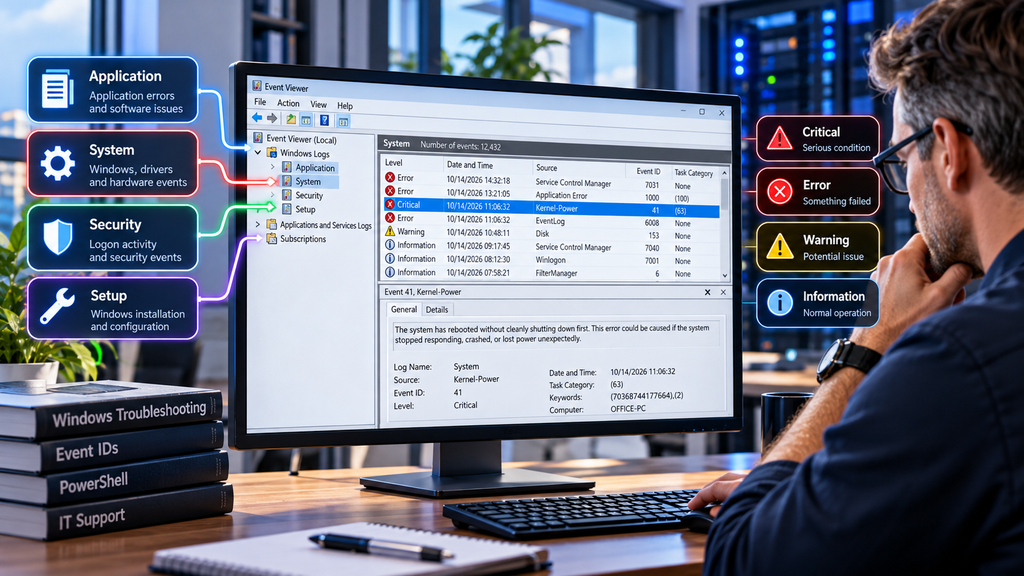
When a Windows computer crashes, freezes, restarts unexpectedly, or an application stops responding, finding the cause isn’t always straightforward.
Fortunately, Windows includes a powerful built-in troubleshooting tool called Event Viewer.
Event Viewer records important system activities, application failures, security events, and other information that can help you identify problems before they become serious.
Whether you’re an IT administrator managing multiple computers or a regular Windows user trying to troubleshoot your PC, understanding Event Viewer can save you hours of frustration.
In this guide, we’ll explain how Windows Event Viewer works, which logs matter most, and how to use real Event IDs to diagnose common Windows problems.
What Is Windows Event Viewer?
Windows Event Viewer is a built-in Microsoft management tool that allows users and administrators to examine events recorded by the operating system and installed applications.
Windows continuously generates event records describing activities such as:
- Application crashes and software errors
- System startup and shutdown
- Hardware and driver problems
- Failed login attempts
- Windows service failures
- Security-related activities
- Operating system warnings
Each event contains information that may help identify what happened, when it occurred, and which component was involved.
However, not every event indicates a problem.
Windows regularly records informational messages and warnings during normal operation.
The key to effective troubleshooting is identifying events that correspond to an actual problem, rather than attempting to eliminate every warning in the system.
How to Open Event Viewer in Windows 10 and Windows 11
There are several ways to access Event Viewer.
Method 1: Using the Run Command
This is usually the fastest method.
- Press Windows + R.
- Type
eventvwr.msc. - Press Enter.
The Event Viewer console will open.
Method 2: Using the Start Menu
- Open the Start menu.
- Search for Event Viewer.
- Select the application from the search results.
Method 3: Using Computer Management
- Right-click the Start button.
- Select Computer Management.
- Expand System Tools.
- Select Event Viewer.
These methods also work on supported Windows Server versions, although the interface may differ slightly.
Understanding Windows Event Logs
When you open Event Viewer, you’ll see several categories in the navigation panel.
The most commonly used logs are located under:
Event Viewer → Windows Logs
Let’s examine the most important ones.
Application Log
The Application log contains events generated by installed applications and software components.
For example, if Microsoft Excel crashes, you may find an event describing the application failure.
This log is particularly useful for investigating:
- Applications closing unexpectedly
- Software compatibility problems
- Application service errors
- Runtime failures
System Log
The System log records events generated by Windows system components, drivers, and services.
It is one of the first places to investigate when troubleshooting:
- Unexpected computer restarts
- Hardware problems
- Driver failures
- Windows service issues
- Storage-related errors
For example, if a computer restarts without warning, the System log may contain events recorded before or after the restart.
Security Log
The Security log records security-related activities based on the system’s audit policies.
Examples include:
- Successful and failed authentication attempts
- Account management activities
- Changes to security policies
- Privileged operations
Some security events require specific auditing policies to be enabled.
Security logs are especially important in business environments where administrators need to investigate suspicious activity or unauthorized access attempts.
Setup Log
The Setup log contains events related to Windows installation and certain system configuration activities.
It can help troubleshoot operating system setup issues and some installation-related problems.
Forwarded Events
The Forwarded Events log is used when events are collected from other computers through Windows Event Forwarding.
This is useful in business networks where administrators want to monitor multiple Windows systems from a central location.
Understanding Event Levels
Windows Event Viewer categorizes events by severity or purpose.
| Event Level | Meaning |
|---|---|
| Information | Normal operation or successful activity |
| Warning | A potential issue that may require attention |
| Error | An operation or component encountered a problem |
| Critical | A serious condition requiring investigation |
| Verbose | Detailed diagnostic information, where supported |
A warning does not necessarily mean that something is broken.
For example, a service may temporarily fail to connect to a resource and recover automatically.
Similarly, an error recorded several weeks ago may be unrelated to the problem you’re currently investigating.
Always consider the event’s timestamp, source, and surrounding circumstances.
How to Filter Windows Event Logs
A Windows computer can generate thousands of events, making manual inspection impractical.
Fortunately, Event Viewer includes filtering tools.
Step-by-Step: Filter for Errors
- Open Event Viewer.
- Expand Windows Logs.
- Select System.
- In the Actions panel, click Filter Current Log.
- Select Critical, Warning, and Error.
- Choose an appropriate time range.
- Click OK.
Event Viewer will display only the events matching your filter.
You can also filter by Event ID, event source, or keywords.
Tip: Start by filtering events around the exact time the problem occurred. This is usually more effective than reviewing every error recorded on the computer.
Important Windows Event IDs You Should Know
Event IDs help identify specific types of events.
However, the Event ID alone is not always enough. The event provider, log name, and message are also important.
Here are several useful examples.
Event ID 41 — Kernel-Power
Log: System
Source: Microsoft-Windows-Kernel-Power
Event ID 41 indicates that Windows detected an unexpected restart or shutdown without a clean shutdown sequence.
Possible causes include:
- Sudden power loss
- Hardware instability
- Overheating
- System crashes
- Forced power-button shutdowns
Event ID 41 does not identify the exact cause of the restart.
It tells you that Windows did not shut down normally.
To investigate further, examine nearby events, hardware temperatures, power conditions, and available crash dump files.
Event ID 6008 — Unexpected Shutdown
Log: System
Source: EventLog
Event ID 6008 indicates that the previous system shutdown was unexpected.
It frequently appears alongside Event ID 41.
If both events occur, investigate what happened immediately before the restart.
Check for power problems, hardware instability, Windows crashes, and other relevant events.
Event ID 1000 — Application Error
Log: Application
Source: Application Error
Event ID 1000 commonly appears when an application crashes.
The event details may include:
- Faulting application name
- Faulting module name
- Exception code
- Application path
- Module path
For example, if a browser crashes repeatedly, Event ID 1000 may identify the executable or DLL involved.
Possible troubleshooting steps include updating the application, disabling problematic extensions, repairing the installation, or checking for compatibility issues.
Event ID 1001 — Windows Error Reporting
Log: Commonly Application or System, depending on the event
Source: Windows Error Reporting, for relevant reports
Event ID 1001 is often associated with Windows Error Reporting.
It may contain information about application crashes, system failures, or other reported problems.
The event’s meaning depends on its provider and message.
For example, some Windows Error Reporting events include details about a bugcheck or application failure.
Do not assume that every Event ID 1001 refers to the same problem.
Event ID 4625 — Failed Logon
Log: Security
Source: Microsoft-Windows-Security-Auditing
Event ID 4625 records a failed logon attempt when the relevant auditing is enabled.
The event may include:
- Account name
- Logon type
- Source network address
- Failure reason
- Status and substatus codes
This information can help administrators investigate authentication problems or suspicious login activity.
For example, repeated failed network logons against the same account may justify further investigation.
However, failed logons can also result from outdated saved credentials, scheduled tasks, or misconfigured services.
Event ID 7031 — Service Control Manager
Log: System
Source: Service Control Manager
Event ID 7031 indicates that a Windows service terminated unexpectedly.
The event usually identifies the affected service.
For example, if a business application depends on a Windows service that repeatedly crashes, Event ID 7031 can help identify the component involved.
Further investigation may require checking the service’s application logs, dependencies, and configuration.
Practical Example 1: Troubleshooting Unexpected Restarts
Imagine that an office computer restarts several times during the working day.
The user reports that Windows suddenly shuts down without displaying an error message.
Here’s how to investigate.
Step 1: Check the System Log
Open:
Event Viewer → Windows Logs → System
Filter for Critical and Error events around the restart time.
Step 2: Look for Event IDs 41 and 6008
These events can confirm that Windows detected an unexpected shutdown.
Remember that they do not necessarily reveal the root cause.
Step 3: Examine Related Events
Look for events recorded before the restart.
Pay attention to:
- Hardware error reports
- Disk and storage errors
- Driver failures
- System bugchecks
- Relevant service failures
Step 4: Check Hardware and System Stability
If the logs suggest a hardware or stability issue, investigate:
- CPU and GPU temperatures
- RAM stability
- Power supply problems
- Storage health
- Recently installed drivers
If Windows created a memory dump, analyzing it may provide additional information about a system crash.
Event Viewer helps narrow the investigation, but it may not provide a definitive answer by itself.
Practical Example 2: Finding Out Why an Application Crashes
Suppose Microsoft Excel closes unexpectedly whenever a user opens a particular spreadsheet.
Step 1: Open the Application Log
Navigate to:
Event Viewer → Windows Logs → Application
Step 2: Find Event ID 1000
Look for an Application Error event corresponding to the time of the crash.
Step 3: Examine the Details
Identify the faulting application, module, and exception code.
These details can help determine whether the issue involves Excel itself, an add-in, or another software component.
Step 4: Troubleshoot the Application
Depending on the findings, try:
- Updating Microsoft Office.
- Starting Excel in Safe Mode.
- Disabling third-party add-ins.
- Testing another spreadsheet.
- Repairing the Office installation.
For Excel, Safe Mode can be started using:
excel /safe
This is a useful way to determine whether add-ins or certain startup settings are contributing to the problem.
Practical Example 3: Investigating Failed Login Attempts
In a small-business environment, administrators may need to investigate repeated authentication failures.
Open:
Event Viewer → Windows Logs → Security
Filter for Event ID 4625.
Review the account name, logon type, source address, and failure details.
Common logon types include:
| Logon Type | Description |
|---|---|
| 2 | Interactive logon |
| 3 | Network logon |
| 4 | Batch logon |
| 5 | Service logon |
| 10 | RemoteInteractive, commonly associated with RDP |
A large number of failed logons may indicate an application configuration issue, outdated credentials, or suspicious activity.
If you manage an Active Directory environment, remember that authentication-related events may also be recorded on domain controllers rather than only on the affected workstation.
Always investigate the complete authentication path before drawing conclusions.
How to Export Event Logs
Sometimes you need to share logs with another administrator or preserve them for further analysis.
Event Viewer allows you to export logs.
- Open Event Viewer.
- Select the required log.
- Click Save All Events As in the Actions panel.
- Choose a destination.
- Save the file in
.evtxformat.
You can later open the file using Event Viewer on another Windows computer.
When sharing event logs, remember that they may contain usernames, computer names, IP addresses, and other sensitive information.
Use appropriate access controls and secure transfer methods.
Using PowerShell to Read Event Logs
For IT administrators, PowerShell provides a faster way to search and analyze Windows events.
The Get-WinEvent command can retrieve events without opening the graphical Event Viewer interface.
For example, to display the ten most recent System events:
Get-WinEvent -LogName System -MaxEvents 10To retrieve recent Kernel-Power Event ID 41 entries:
Get-WinEvent -FilterHashtable @{
    LogName = 'System'
    Id = 41
} -MaxEvents 10
To find Application Error events from the last 24 hours:
Get-WinEvent -FilterHashtable @{
    LogName = 'Application'
    ProviderName = 'Application Error'
    StartTime = (Get-Date).AddDays(-1)
} -ErrorAction SilentlyContinue
PowerShell is particularly useful when troubleshooting multiple computers or automating administrative tasks.
Some logs require elevated permissions to access.
Common Mistakes When Using Event Viewer
Trying to Fix Every Error
Even healthy Windows systems can contain warnings and errors.
Focus on events associated with actual symptoms.
Ignoring Timestamps
An error recorded several days before a problem may have no connection to it.
Always compare event timestamps with the reported incident.
Searching Only by Event ID
Different event providers can use the same numeric Event ID for different purposes.
Always check the event source and message.
Assuming Event Viewer Reveals Every Cause
Some hardware failures, sudden power losses, and low-level system problems may leave incomplete diagnostic information.
Combine Event Viewer with other troubleshooting tools when necessary.
Clearing Logs Too Early
Deleting logs can remove valuable evidence.
If logs need to be cleared for maintenance or troubleshooting, export and preserve relevant events first.
Best Practices for IT Administrators
For business environments, consider the following recommendations:
- Review important System, Application, and Security events regularly.
- Configure appropriate audit policies.
- Use centralized event collection when managing multiple computers.
- Set reasonable event log sizes and retention policies.
- Restrict access to sensitive security logs.
- Correlate events with user reports and monitoring alerts.
- Document recurring problems and their resolutions.
- Keep Windows, drivers, and business applications updated.
For larger environments, Windows Event Forwarding or a centralized log management platform can make monitoring more efficient.
Final Thoughts
Windows Event Viewer is one of the most useful troubleshooting tools available to Windows users and IT professionals.
It provides detailed information about application failures, unexpected shutdowns, Windows services, authentication attempts, and many other system activities.
However, understanding how to interpret those events is more important than simply finding error messages.
A single Event ID rarely tells the entire story.
By examining timestamps, event providers, surrounding activity, and relevant system behavior, you can identify problems more efficiently and avoid unnecessary troubleshooting.
The next time a Windows computer crashes or behaves unexpectedly, Event Viewer should be one of the first tools you check.
It may not provide every answer, but it often provides the clues you need to find the real cause.
One Comment