VLANs Explained: Why Your Small Business Network Needs Them
If your office has computers, printers, Wi-Fi access points, IP phones, cameras, smart TVs, and other connected devices, chances are they are all connected to the same network.
For a very small office, that may work perfectly fine.
But as the network grows, putting everything on the same network becomes less secure and harder to manage.
This is where VLANs come in.
The good news is that VLANs sound much more complicated than they actually are.
What Is a VLAN?
VLAN stands for Virtual Local Area Network.
Normally, devices connected to the same switch or Wi-Fi network can communicate with each other because they belong to the same local network.
A VLAN allows you to logically separate those devices into different networks — even though they may be connected to the same physical switch.
Think of it as creating several separate networks using the same network equipment.
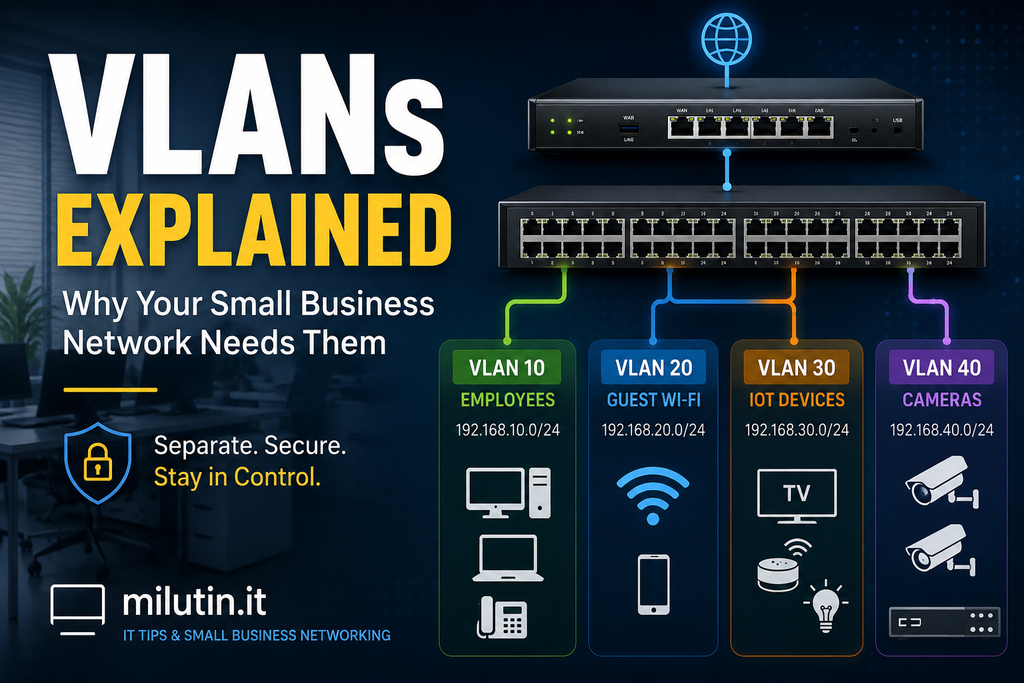
For example, a small office could have:
- VLAN 10 – Employees
- VLAN 20 – Guest Wi-Fi
- VLAN 30 – IoT devices
- VLAN 40 – Security cameras
All of these networks can use the same router, switches, and access points while remaining separated from each other.
Why Would a Small Business Need VLANs?
The biggest reason is security.
Imagine an office where employee computers, security cameras, printers, smart TVs, and guest phones are all connected to the same network.
If one poorly secured IoT device becomes compromised, an attacker could potentially use it as a starting point to access other devices on the network.
With VLANs, you can isolate that device.
Your cameras don’t need access to employee laptops.
Your smart TV doesn’t need access to your accounting computer.
And a customer’s phone connected to guest Wi-Fi definitely doesn’t need access to your office file server.
VLANs allow you to decide which groups of devices are allowed to communicate.
A Simple Small Office VLAN Setup
Let’s imagine an office with ten employees.
The office has:
- Desktop and laptop computers
- Network printers
- VoIP phones
- Wi-Fi access points
- Security cameras
- Smart TVs
- Guest Wi-Fi
Instead of putting everything on one network, we could divide it like this:
VLAN 10 – Employees
This is the main company network.
Employee computers, laptops, and trusted company devices connect here.
For example:
192.168.10.0/24
Devices on this network could access company servers, printers, NAS devices, and other internal resources.
VLAN 20 – Guest Wi-Fi
Visitors and customers connect here.
For example:
192.168.20.0/24
This VLAN should normally have internet access only.
Guests shouldn’t be able to see employee computers, printers, cameras, or other internal devices.
VLAN 30 – IoT Devices
Smart TVs, smart speakers, environmental sensors, and similar devices can go here.
For example:
192.168.30.0/24
IoT devices are often less secure than computers and phones, so isolating them from your main business network is a good idea.
VLAN 40 – Security Cameras
IP cameras and recording equipment can have their own network.
For example:
192.168.40.0/24
You can then configure firewall rules so only authorized devices can access the cameras or NVR.
VLANs Don’t Automatically Provide Security
This is an important point.
Simply creating VLANs doesn’t magically secure your network.
Your router or firewall must control traffic between the VLANs.
For example, you might create rules such as:
Employees → Internet: Allow
Employees → Printers: Allow
Guest → Internet: Allow
Guest → Employee network: Block
IoT → Internet: Allow if required
IoT → Employee network: Block
Camera VLAN → Internet: Block unless necessary
The exact rules depend on your business and equipment.
The basic principle is simple:
Allow devices to access what they need — and nothing more.
Do You Need a Managed Switch?
Usually, yes.
If you want to use VLANs across your wired network, you will normally need a managed switch that supports IEEE 802.1Q VLAN tagging.
An unmanaged switch doesn’t provide the configuration options needed to properly assign ports and manage VLAN traffic.
This doesn’t mean you need expensive enterprise equipment.
Many affordable managed switches from manufacturers such as Ubiquiti, TP-Link, MikroTik, Netgear, and others support VLANs.
For a small office, a basic managed switch is often enough.
What About Wi-Fi?
Modern business Wi-Fi systems can assign different wireless networks (SSIDs) to different VLANs.
For example:
OfficeWiFi → VLAN 10
GuestWiFi → VLAN 20
IoTWiFi → VLAN 30
Your access point broadcasts several Wi-Fi networks, but devices connecting to each one are placed into different VLANs.
This is particularly useful for guest networks.
Instead of simply creating another Wi-Fi password, you can actually isolate guest devices from your internal business network.
Tagged vs Untagged Traffic
When learning about VLANs, you’ll quickly encounter the terms tagged and untagged.
Here’s the simplified version.
An untagged port usually connects to an ordinary device such as a PC, printer, or camera.
The device doesn’t need to know anything about VLANs. The switch decides which VLAN that port belongs to.
A tagged connection can carry traffic from multiple VLANs.
This is commonly used between:
- Router and switch
- Switch and switch
- Switch and access point
These connections are often called trunk ports.
For example, one Ethernet cable between your switch and Wi-Fi access point might carry VLAN 10, VLAN 20, and VLAN 30 simultaneously.
The access point then assigns each Wi-Fi network to the appropriate VLAN.
Do All Small Offices Need VLANs?
No.
If you have a tiny office with three computers, one printer, and no guest Wi-Fi or IoT devices, VLANs may add unnecessary complexity.
A simple, properly secured network can be perfectly adequate.
But VLANs become much more useful when you have:
- Guest Wi-Fi
- IP cameras
- VoIP phones
- IoT devices
- Servers or NAS storage
- Multiple departments
- Sensitive business data
- More than a handful of network devices
The more diverse your network becomes, the more useful segmentation becomes.
A Practical Example
Imagine a small company using a Ubiquiti UniFi gateway, managed switch, and two access points.
Instead of building several completely separate physical networks, the administrator can create three VLANs:
Corporate – VLAN 10
Employees and company computers.
Guest – VLAN 20
Visitors. Internet access only.
IoT – VLAN 30
Smart TVs and other connected devices.
The same switches, access points, and Ethernet cabling are used for everything.
Firewall rules on the gateway determine which VLANs can communicate.
This gives the business much better network separation without requiring three separate sets of network equipment.
Keep It Simple
One common mistake is creating too many VLANs.
Just because you can create 20 different networks doesn’t mean you should.
For most small businesses, three or four VLANs are often enough.
Start with the obvious separation:
Trusted devices
Guests
IoT
Cameras, if applicable.
Add more only when there is a real reason.
A network should be secure, but it should also be understandable and maintainable.
Final Thoughts
VLANs are one of the most useful tools for improving security and organization in a growing small-business network.
They allow you to separate employees, guests, cameras, IoT devices, and other equipment without building completely separate physical networks.
For a very small office, VLANs may not be necessary.
But once you introduce guest Wi-Fi, security cameras, IoT devices, servers, or other network services, segmentation becomes increasingly valuable.
And despite the intimidating terminology, the basic idea is simple:
Don’t put every device in your business on the same network just because you can.
Give devices access to the resources they actually need — and keep everything else separated.