How to Secure Remote Access to Your Small Business Network
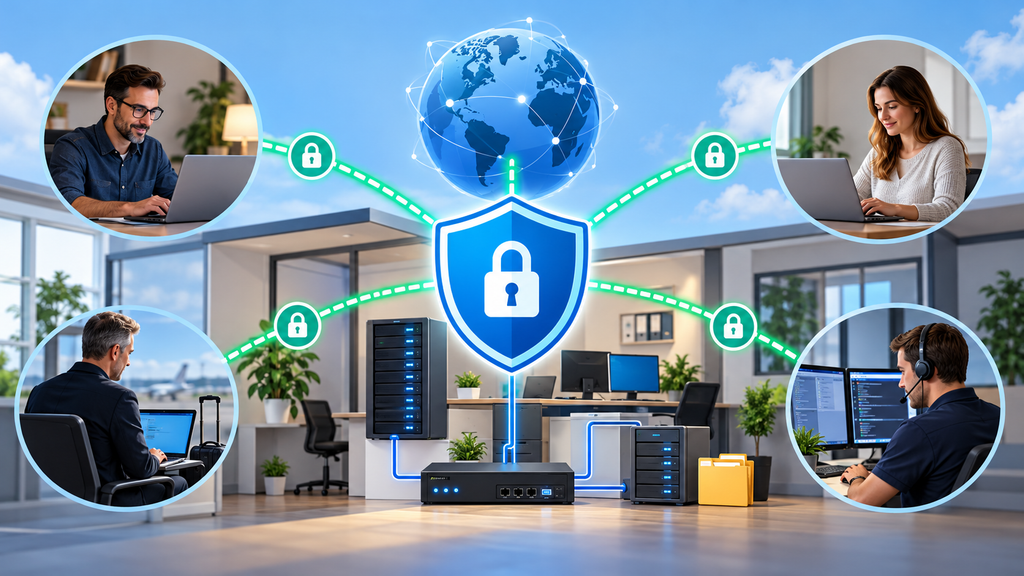
Remote work is no longer limited to large companies. Small businesses increasingly need employees, managers, and IT administrators to access office computers, files, and applications from outside the workplace.
Whether you’re working from home, traveling, or supporting an office remotely, secure remote access can make everyday operations easier.
However, poorly configured remote access can expose your entire business network to cyberattacks.
In this guide, we’ll explain how remote access works, compare popular technologies, and show you how to protect your small business without investing in expensive enterprise solutions.
What Is Remote Access?
Remote access allows users to connect to computers, servers, applications, or network resources from another location.
For example, an accountant might need to access financial software installed on an office computer. A business owner might want to retrieve documents from a company file server while traveling.
An IT administrator may need to troubleshoot a Windows Server without physically visiting the office.
Common remote access technologies include:
- Virtual Private Networks (VPNs): Create encrypted connections to private networks.
- Remote Desktop Protocol (RDP): Allows users to control Windows computers remotely.
- Remote support applications: Tools such as AnyDesk and TeamViewer provide remote desktop access and technical support.
- Zero Trust Network Access (ZTNA): Provides access to specific applications or resources based on identity, device security, and access policies.
Each technology has advantages, but choosing the right one depends on your company’s infrastructure and security requirements.
Why Secure Remote Access Matters
A remote connection creates an additional way to reach your business systems.
If that connection is not properly protected, attackers may attempt to steal passwords, access sensitive files, install ransomware, or compromise company servers.
One particularly dangerous mistake is exposing Windows Remote Desktop directly to the internet.
Attackers routinely scan public IP addresses looking for accessible RDP services. Once they find one, they may attempt password attacks or exploit vulnerabilities in unpatched systems.
A successful compromise could provide access to business applications, confidential information, and other computers on the network.
The most important rule: Never expose RDP directly to the public internet.
Instead, use a properly secured VPN, remote access gateway, or identity-aware access solution.
VPN vs. Remote Desktop: What’s the Difference?
VPN and Remote Desktop are often mentioned together, but they serve different purposes.
Virtual Private Network (VPN)
A VPN creates an encrypted connection between a remote device and a private network.
Once connected, an authorized employee can access approved internal resources, depending on the network’s security policies.
For example, an employee working from home can establish a VPN connection and access a shared folder on the office file server.
Modern VPN solutions include:
- WireGuard
- OpenVPN
- IPsec-based VPN solutions
- Tailscale, which uses WireGuard technology
A VPN does not automatically make every connected device trustworthy. Access permissions, device security, and network segmentation are still essential.
Remote Desktop Protocol (RDP)
RDP allows users to interact with a remote Windows desktop as if they were sitting in front of that computer.
It is especially useful when employees need access to software installed on office computers or Windows servers.
For example, a company might host accounting software on a Windows computer. Employees can connect remotely and use that application without installing it on their personal devices.
RDP provides remote desktop functionality, while a VPN provides a secure network connection.
For many small businesses, using RDP through a properly secured VPN is a practical solution.
How to Set Up Secure Remote Access
Let’s look at a typical small-business environment.
Imagine an office with five employees, a Windows Server, several workstations, and a router connected to the internet.
The company wants employees to access office computers securely while working remotely.
Step 1: Choose a Secure Remote Access Solution
For smaller environments, WireGuard or Tailscale can be practical choices.
WireGuard is a lightweight VPN protocol known for its performance and modern cryptography.
Tailscale builds on WireGuard and simplifies device connectivity, often eliminating the need for manual port forwarding.
Both can be useful, but their deployment models differ.
WireGuard usually requires more hands-on configuration, while Tailscale provides centralized identity and access management features.
Step 2: Configure User Authentication
Every employee should have an individual account.
Avoid sharing VPN credentials or remote desktop accounts between multiple users.
Where supported, enable multi-factor authentication (MFA).
MFA adds another layer of protection by requiring users to verify their identity using an additional factor, such as an authenticator application or security key.
For WireGuard deployments, key management, device authorization, and secure distribution of configurations are especially important. WireGuard itself does not provide conventional username-and-password MFA.
Step 3: Restrict Network Access
Not every employee needs access to every computer or server.
An accountant might only need access to an accounting workstation, while an IT administrator may require access to additional infrastructure.
Use firewall rules, network segmentation, VPN access policies, and appropriate user permissions to limit access.
This follows the principle of least privilege: users should receive only the permissions necessary to perform their jobs.
Step 4: Secure Windows Remote Desktop
If your employees use RDP, apply these basic security measures:
- Enable Network Level Authentication (NLA).
- Keep Windows and Remote Desktop components updated.
- Use strong, unique credentials.
- Enable account lockout or other protection against repeated authentication attempts.
- Restrict RDP access using Windows Firewall.
- Allow connections only through approved secure access paths.
- Use non-administrator accounts for ordinary work.
- Review authentication and remote access logs.
Changing the default RDP port is not a substitute for proper security controls.
Step 5: Test the Connection
Before deploying remote access to employees, test it from an external network.
Verify that authorized users can reach only the resources they need.
Also confirm that unauthorized users cannot access protected systems.
Test what happens when a device is lost, a user leaves the company, or an account needs to be disabled.
A secure remote access solution should allow administrators to revoke access quickly.
What About Zero Trust?
Traditional VPNs often provide network-level connectivity.
Zero Trust approaches focus on continuously evaluating access based on identity, device security, and other relevant conditions.
Instead of assuming that a connected device should be trusted, access decisions are made for specific resources.
For example, an employee may be permitted to access an internal business application without receiving broad access to the entire office network.
Solutions such as Cloudflare Zero Trust and Tailscale can support identity-aware access models, depending on their configuration and capabilities.
For small businesses, these technologies may reduce the complexity of traditional remote access deployments.
However, Zero Trust is not a single product or a guarantee of security. Proper configuration, access policies, and ongoing administration remain essential.
Common Remote Access Security Mistakes
Even businesses with modern IT infrastructure can make basic mistakes.
1. Exposing RDP to the Internet
Forwarding TCP port 3389 from the router to an internal Windows computer creates unnecessary exposure.
Use a secure remote access solution instead.
2. Sharing Administrator Accounts
When multiple employees use the same administrator credentials, accountability and access control become difficult.
Create individual accounts and grant administrative privileges only when necessary.
3. Ignoring Software Updates
Unpatched operating systems, VPN servers, routers, and remote access applications may contain known security vulnerabilities.
Establish a regular patching process and prioritize security updates.
4. Allowing Unmanaged Personal Devices
Employees sometimes connect from personal computers that lack adequate security protection.
Where possible, use managed devices with disk encryption, endpoint protection, and current software updates.
5. Failing to Monitor Remote Connections
Remote access logs can help identify unusual activity, repeated authentication failures, and unexpected connections.
Review logs regularly and configure alerts for important security events.
Best Practices for Small Businesses
A secure remote access strategy does not have to be complicated.
Start with these essential practices:
- Use a properly secured VPN or identity-aware access solution.
- Require individual user identities and MFA wherever supported.
- Never expose RDP directly to the internet.
- Keep operating systems, routers, and remote access software updated.
- Apply least-privilege access policies.
- Use company-managed devices whenever possible.
- Maintain reliable, tested backups.
- Monitor authentication activity and review permissions.
- Remove access immediately when employees leave.
- Document your remote access configuration and recovery procedures.
These measures can significantly reduce common risks without requiring a large IT budget.
Final Thoughts
Remote access can improve productivity, simplify IT administration, and give small businesses greater flexibility.
But convenience should never come at the expense of security.
For many small offices, a combination of secure VPN connectivity, properly configured Windows Remote Desktop, strong authentication, and restricted network permissions provides a practical starting point.
Other businesses may benefit from identity-aware remote access solutions that provide more granular control.
The best approach depends on your existing infrastructure, employee requirements, and security needs.
The goal is simple: Give authorized users reliable access to the resources they need while keeping everything else protected.
With careful planning and regular maintenance, even a small business can build a remote access environment that is both convenient and secure.