How to Set Up a Small Business File Server: NAS vs Windows Server vs Cloud Storage
If you run a small business with several computers, sooner or later you will face the same problem: where should everyone store and share company files?
Keeping documents on individual PCs may work when there are only one or two users. But once five, ten, or twenty people need access to the same files, things quickly become messy.
You end up with files called:
Invoice-FINAL.xlsx
Invoice-FINAL-NEW.xlsx
Invoice-FINAL-NEW-2.xlsx
And nobody knows which one is actually final.
A proper file storage system gives your business one central place for documents, controlled access for employees, backups, and the ability to recover files when something goes wrong.
For most small businesses, there are three main options:
- A NAS (Network Attached Storage)
- A Windows Server
- Cloud storage such as Microsoft OneDrive or Google Drive
There is also a fourth option that is often the most practical: combining local storage with cloud backup or synchronization.
Let’s look at each approach.
What Is a File Server?
A file server is simply a system that stores files and makes them available to other computers over a network.
Instead of keeping important company data on individual PCs, employees access shared folders such as:
\\SERVER\Accounting
\\SERVER\Sales
\\SERVER\Projects
Access can be controlled so that employees only see the folders they actually need.
For example, everyone might have access to a shared company folder, while only accounting employees can access financial documents.
A central file server also makes backups significantly easier because important company data is stored in one controlled location.
Option 1: NAS
A NAS (Network Attached Storage) is a device designed specifically to store and share files over a network.
Popular NAS manufacturers include Synology and QNAP.
Inside the NAS are one or more hard drives or SSDs. The device connects directly to your network, usually through an Ethernet connection to your network switch.
Once configured, computers on the network can access shared folders stored on the NAS.
Advantages of a NAS
For many small businesses, NAS offers an excellent balance between price, simplicity, and functionality.
A NAS usually provides:
- Centralized file storage
- User accounts and permissions
- Automated backups
- RAID support
- File versioning
- Remote access
- Cloud synchronization
- Backup to external drives or cloud services
Modern NAS devices can do much more than simply store files.
They can also run backup software, host small applications, record IP security cameras, synchronize files between offices, and even run lightweight virtual machines.
Disadvantages of a NAS
A NAS is not a complete replacement for a traditional server.
If your company needs Active Directory, complex Windows applications, Remote Desktop Services, databases, or other server-based software, a NAS may not be enough.
But if your main requirement is shared files and backups, it is often exactly what you need.
Option 2: Windows Server
The traditional approach is to install a dedicated server running Windows Server.
This gives you significantly more control over your IT environment.
A Windows Server can provide file storage, but it can also handle many other services.
For example:
- Active Directory
- Centralized user accounts
- Group Policy
- DNS
- DHCP
- File sharing
- Printer sharing
- Remote Desktop Services
- Business applications
- Databases
This becomes especially useful as a company grows.
Instead of creating separate local accounts on every computer, employees can log in using centralized domain accounts.
Permissions and security policies can then be managed from one place.
Advantages of Windows Server
Windows Server gives administrators much more control than a simple NAS.
It is particularly useful when the company needs centralized management of users and computers.
You can create groups such as:
Accounting
Sales
Management
IT
Then assign folder permissions to those groups instead of managing every user individually.
If someone joins the accounting department, you simply add their account to the Accounting group.
They immediately receive the appropriate access.
Disadvantages of Windows Server
The biggest disadvantage is complexity.
Windows Server requires more administration and maintenance than a NAS.
You also need to consider:
- Server hardware
- Windows Server licensing
- Client Access Licenses (CALs)
- Backup software
- Antivirus/security
- Updates
- Monitoring
- Power consumption
For a company with only five employees that simply wants shared documents, a full Windows Server environment may be unnecessary.
Option 3: Cloud Storage
The third option is to avoid running a local file server completely.
Instead, businesses can use cloud platforms such as Microsoft OneDrive, SharePoint, or Google Drive.
Files are stored in the cloud and synchronized to employee computers.
This approach has become extremely popular, especially for businesses with remote employees.
Advantages of Cloud Storage
The biggest advantage is simplicity.
There is no physical server to maintain.
The cloud provider handles the underlying storage infrastructure while employees can access documents from almost anywhere.
Cloud storage also makes collaboration much easier.
Multiple users can work on documents without constantly emailing different versions back and forth.
For businesses already using Microsoft 365, OneDrive and SharePoint can integrate naturally with Word, Excel, Outlook, and Teams.
Disadvantages of Cloud Storage
Cloud storage depends heavily on your internet connection.
If your internet connection is slow or unreliable, accessing large files can become frustrating.
Monthly subscription costs also increase as the number of users grows.
Another important consideration is that cloud synchronization is not automatically the same thing as backup.
If files are deleted, encrypted by ransomware, or synchronized incorrectly, those changes may propagate to other devices.
Version history and retention features help, but businesses should still have a proper backup strategy.
NAS vs Windows Server vs Cloud Storage
Here is a simplified comparison:
| Feature | NAS | Windows Server | Cloud Storage |
|---|---|---|---|
| Initial cost | Medium | High | Low |
| Monthly cost | Low | Low/Medium | Medium |
| Easy to manage | Yes | No | Yes |
| Local file speed | Excellent | Excellent | Depends on internet |
| Remote access | Good | Good | Excellent |
| Active Directory | Limited | Excellent | Cloud identity |
| Backup options | Excellent | Excellent | Depends on service |
| Best for | Small offices | Growing businesses | Remote/cloud-first teams |
There is no single solution that is best for every company.
The correct choice depends on how the business actually works.
Example: A Small Office With 8 Employees
Imagine a company with eight employees.
They have:
- Eight Windows computers
- One network printer
- Accounting documents
- Customer files
- Project documents
- Microsoft Office
- A reliable internet connection
They do not run any special server applications.
In this situation, installing a full Windows Server may be unnecessary.
A good NAS with two or four drives could provide central storage for the office.
Employees could access shared folders through the local network while important data is automatically backed up to a cloud service.
Microsoft 365 could then be used for email and collaborative documents.
This creates a relatively simple environment without requiring a full-time system administrator.
A Hybrid Setup Is Often the Best Solution
For many small businesses, I prefer a hybrid approach.
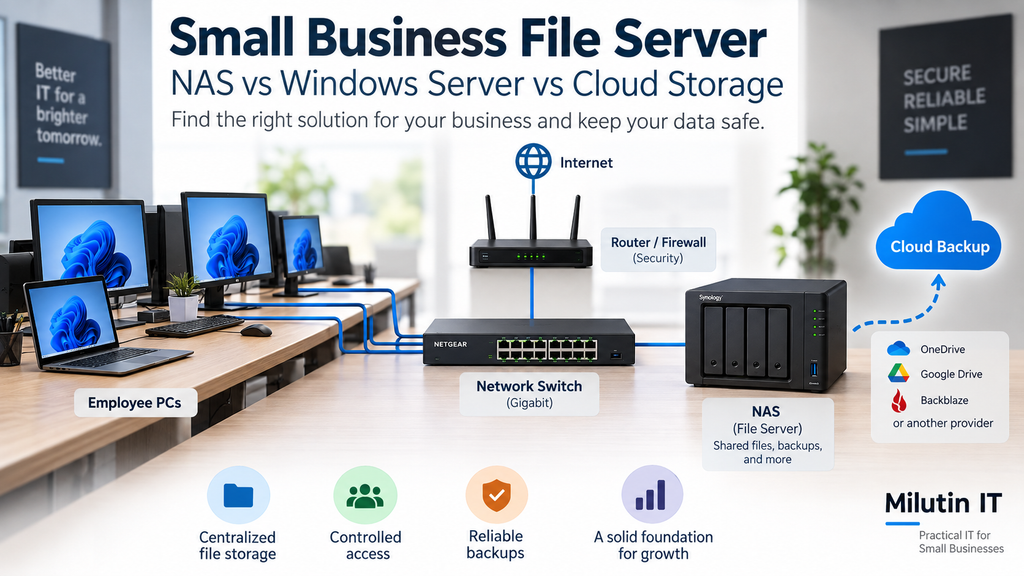
The basic design looks like this:
Employee PCs → Gigabit Network → NAS → Cloud Backup
Employees access files from the NAS at local network speed.
The NAS then automatically backs up important data to a cloud provider.
This gives the company two major advantages.
First, employees get fast local access to their files.
Second, the business still has an off-site copy of important data if something happens to the office.
For example:
- Hardware failure
- Theft
- Fire
- Flood
- Ransomware
- Accidental deletion
This setup can also be expanded later.
If the company eventually needs Active Directory or server applications, a Windows Server can be added without replacing the NAS.
RAID Is Not a Backup
This deserves its own section because it is one of the most common misunderstandings in small business IT.
RAID is not a backup.
If your NAS contains two drives configured as RAID 1, the same data exists on both drives.
If one drive fails, the second drive keeps the system running.
That protects you against drive failure.
It does not necessarily protect you against:
- Accidental file deletion
- Ransomware
- File corruption
- Theft
- Fire
- NAS hardware failure
If a user deletes an important folder and that deletion is replicated across the RAID array, the folder is still deleted.
You need a separate backup.
Follow the 3-2-1 Backup Rule
A good starting point for business backups is the 3-2-1 rule.
Keep:
3 copies of your data
on
2 different types of storage
with
1 copy stored off-site.
For example:
- Working files on the NAS
- Backup on an external storage device
- Encrypted backup in the cloud
The exact implementation can vary, but the important point is that your only backup should not sit next to the original data.
Don’t Forget the Network
A file server is only as useful as the network connecting employees to it.
Whenever possible, desktop computers and servers should use Ethernet instead of Wi-Fi.
A typical small-office setup might look like:
Internet → Router/Firewall → Network Switch → PCs + NAS/Server + Access Points
The NAS or server should connect directly to the switch using Gigabit Ethernet or faster networking.
Wi-Fi should primarily be used for mobile devices and laptops where a wired connection is impractical.
For more details, see my guide on building a complete small-office network.
Security Matters
Centralizing company files also means centralizing valuable company data.
Use strong passwords and individual user accounts.
Do not create one shared account called something like:
office
and give the password to everyone.
Users should have their own accounts, and permissions should follow the principle of least privilege.
Employees should only have access to the files required for their jobs.
Administrator accounts should also be separate from normal everyday user accounts.
Remote access should be protected with strong authentication, preferably including multi-factor authentication.
And never expose SMB file sharing directly to the public internet.
If remote access to internal resources is required, use a properly configured VPN or another secure remote-access solution.
Which Solution Should You Choose?
For a very small company that mainly uses Office documents and email, cloud storage may be enough.
For a small office that wants fast local storage and reliable centralized backups, a NAS is often an excellent solution.
For companies that need centralized Windows management, Active Directory, business applications, Remote Desktop Services, or more advanced infrastructure, Windows Server makes much more sense.
And for many small businesses, the best solution is not choosing only one.
A combination of local NAS storage and cloud backup provides excellent performance, reasonable cost, and strong data protection.
The important thing is to design the system around the business requirements instead of buying technology first and figuring out what to do with it later.
A €5,000 server is not automatically better than a €700 NAS.
The best solution is the one that solves the company’s actual problem while remaining secure, manageable, and easy to back up.