How to Set Up a Firewall for a Small Business: A Beginner’s Guide
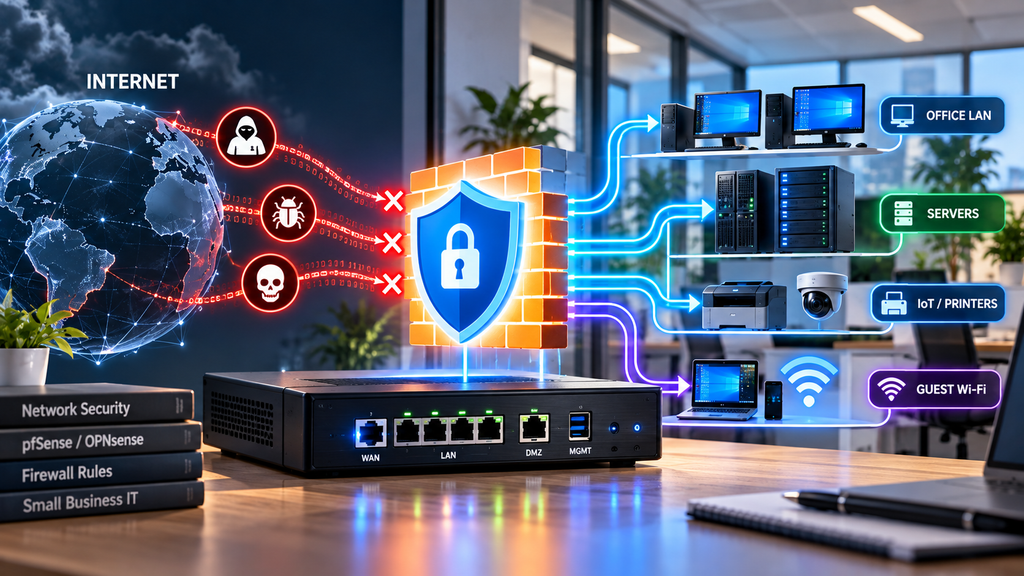
Every small business relies on its network to communicate, share files, access cloud applications, and manage daily operations. But connecting your office to the internet also exposes your network to potential cyber threats.
A properly configured firewall is one of the most important components of a secure business network.
The good news? You don’t need an expensive enterprise security system to protect a small office.
In this guide, we’ll explain what a firewall does, explore different firewall solutions, and walk through the essential steps for setting up a firewall for your small business.
What Is a Firewall?
A firewall is a security system that monitors and controls network traffic based on predefined rules.
Think of it as a security checkpoint between your business network and other networks, including the internet.
A firewall decides which connections are allowed and which should be blocked.
For example, it can allow employees to browse websites while blocking unauthorized attempts to connect to internal computers.
Modern firewalls typically use stateful inspection, which means they track active connections and can recognize legitimate response traffic.
However, a firewall is not a complete cybersecurity solution. It should work alongside endpoint protection, software updates, secure authentication, and reliable backups.
Why Does a Small Business Need a Firewall?
Small businesses often operate with limited IT budgets and may not have dedicated cybersecurity personnel.
That doesn’t make them immune to cyberattacks.
A firewall helps reduce several common network security risks.
1. Blocking Unauthorized Connections
A firewall can prevent unwanted inbound connections from reaching office computers and servers.
This is especially important for systems that should never be directly accessible from the public internet.
2. Controlling Network Access
Not every device needs access to every network resource.
For example, guest Wi-Fi users should not be able to connect to accounting computers or internal file servers.
A properly configured firewall can enforce these restrictions.
3. Protecting Internal Services
Businesses frequently use internal services such as file sharing, printers, databases, and Remote Desktop.
Firewall rules help limit which devices can reach these services.
4. Improving Network Visibility
Many firewall solutions provide traffic logs, connection statistics, and security alerts.
These tools can help administrators identify unusual activity and troubleshoot connectivity problems.
Hardware vs. Software Firewalls
There are two common approaches to firewall protection.
Hardware Firewalls
A hardware firewall is a dedicated device, or an appliance running specialized software, positioned between your network and the internet.
It typically protects multiple devices and provides centralized network security controls.
Common options include:
- Dedicated pfSense appliances
- OPNsense-compatible firewall appliances
- Fortinet FortiGate
- Sophos Firewall
- Ubiquiti UniFi gateways
Hardware firewalls are particularly useful for offices with multiple computers, servers, and network segments.
Software Firewalls
Software firewalls run directly on individual computers or servers.
Windows Defender Firewall, for example, is built into modern Windows operating systems.
It can control inbound and outbound traffic for individual devices.
Linux systems also support firewall technologies such as nftables, often managed through tools including firewalld or UFW.
For most small businesses, the strongest approach combines a network firewall with properly configured firewalls on individual computers.
This provides multiple layers of protection.
Does Your Router Already Have a Firewall?
Most modern business and consumer routers include basic firewall functionality.
They commonly provide stateful traffic filtering and block unsolicited inbound connections by default.
For a very small office, this may provide a reasonable starting point.
However, basic routers may lack advanced features such as:
- Granular firewall rules
- VLAN-aware access control
- Centralized security logging
- Intrusion detection and prevention
- Advanced VPN configuration
- Detailed traffic monitoring
Also, Network Address Translation (NAT) is not itself a security policy. It is the firewall’s filtering behavior that determines which connections are permitted.
If your company uses multiple departments, internal servers, or remote access, a dedicated business firewall may provide better control.
Choosing the Right Firewall for Your Small Business
Let’s compare three popular approaches.
pfSense
pfSense is a firewall and routing platform based on FreeBSD.
It offers extensive networking and security features, including:
- Stateful firewall rules
- VLAN support
- VPN connectivity
- Traffic shaping
- Network monitoring
- Optional intrusion detection and prevention packages
pfSense is popular among IT professionals who want detailed control over network configurations.
It requires some networking knowledge, particularly when configuring advanced firewall rules.
OPNsense
OPNsense is another FreeBSD-based firewall and routing platform.
It provides many features similar to pfSense, including VPN services, VLANs, traffic monitoring, and intrusion detection options.
Its web interface and update model make it an attractive option for administrators who prefer an actively maintained open-source firewall platform.
Both pfSense and OPNsense are capable solutions for small-business networks.
Commercial Firewall Solutions
Commercial platforms such as Fortinet, Sophos, and Ubiquiti offer integrated hardware and software solutions.
Depending on the product and license, they may include centralized management, advanced security inspection, technical support, and automatic threat intelligence updates.
These features can simplify administration, although subscription costs and licensing requirements should be considered.
How to Set Up a Small Business Firewall
Let’s walk through a basic deployment.
Imagine an office with ten employees, one Windows Server, a network printer, and a guest Wi-Fi network.
The goal is to protect internal resources while allowing employees to access the internet and approved business applications.
Step 1: Plan Your Network
Before configuring firewall rules, identify the devices and services that need network access.
A simple network might look like this:
Internet → ISP Modem/ONT → Firewall → Managed Switch → Office Devices
The firewall sits at the network boundary and controls traffic between the internet and internal network segments.
For additional security, divide the office into separate networks.
For example:
| Network | Subnet | Purpose |
|---|---|---|
| Office LAN | 192.168.10.0/24 | Employee computers |
| Servers | 192.168.20.0/24 | Internal servers |
| Guest Wi-Fi | 192.168.30.0/24 | Visitor internet access |
| Management | 192.168.40.0/24 | Network administration |
These are example private IP ranges. Your actual network configuration may differ.
Using separate VLANs and firewall interfaces allows administrators to control communication between these networks.
Step 2: Install and Configure the Firewall
Install your chosen firewall platform on compatible hardware or deploy a supported firewall appliance.
Connect the WAN interface to your internet connection and the LAN interface to your internal network.
Configure the WAN interface using the settings provided by your ISP, such as DHCP, static IP, or PPPoE.
Next, configure the LAN interface and DHCP services.
If your firewall will manage multiple VLANs, configure the corresponding VLAN interfaces and ensure your managed switch uses matching VLAN assignments.
Before connecting production systems, change default administrative credentials and install available security updates.
Step 3: Configure Basic Firewall Rules
A good starting point is to deny unnecessary inbound connections.
Most business firewall platforms block unsolicited WAN traffic by default.
Keep that protection enabled.
Then configure explicit rules for authorized traffic.
For example:
| Traffic | Action |
|---|---|
| Internet → Internal LAN | Block by default |
| Office LAN → Internet | Allow required services |
| Guest Wi-Fi → Internet | Allow required services |
| Guest Wi-Fi → Internal Networks | Block |
| Office LAN → Approved Server Services | Allow |
| Management VLAN → Firewall Administration | Allow authorized administrators |
Rule order and evaluation behavior vary between firewall platforms, so always check the documentation for your chosen system.
Avoid creating overly broad rules that allow unrestricted access between all networks.
Step 4: Separate Guest Wi-Fi from Business Devices
Guest Wi-Fi should provide internet access without exposing internal company resources.
Create a separate guest VLAN and configure firewall rules to prevent access to office computers, servers, and management interfaces.
If guests use a different subnet, blocking only one internal subnet may not be enough.
Ensure your rules cover all protected internal networks, including management and server VLANs.
Also verify that IPv6 traffic is subject to equivalent restrictions if IPv6 is enabled.
Step 5: Secure Firewall Administration
Your firewall’s management interface is a sensitive administrative resource.
Restrict access to trusted administrators and approved management networks.
Recommended measures include:
- Use strong, unique administrator credentials.
- Enable MFA where supported.
- Disable management access from the public internet.
- Use HTTPS for web administration.
- Keep firewall firmware and software updated.
- Disable unnecessary services.
- Back up the firewall configuration securely.
For remote administration, use a properly secured VPN or another approved management access solution.
Step 6: Configure Secure Remote Access
If employees need to access office resources remotely, avoid exposing internal services directly to the internet.
A VPN such as WireGuard or IPsec can provide encrypted connectivity.
Depending on your firewall platform, remote access features may be built in or available through supported packages.
Use individual credentials or device-specific keys, restrict accessible resources, and enable MFA where the authentication architecture supports it.
Remote access users should receive only the permissions required for their work.
Step 7: Enable Logging and Monitoring
Firewall logs help administrators understand which connections are permitted or denied.
They can also reveal repeated connection attempts, unexpected traffic, and configuration problems.
Enable logging for important security events, but avoid collecting unnecessary data that creates excessive storage or privacy concerns.
Consider configuring alerts for:
- Failed administrator login attempts
- Changes to firewall rules
- VPN authentication failures
- Unusual traffic patterns
- Firewall service failures
Remember that firewall logs alone cannot detect every attack.
Step 8: Test Your Firewall Rules
Never assume that a firewall configuration works simply because the internet connection is active.
Test the rules from different network segments.
For example:
- Verify that office computers can access required internet services.
- Confirm that guest devices cannot reach internal servers.
- Check that only approved computers can access sensitive server services.
- Confirm that the firewall management interface is inaccessible from untrusted networks.
- Verify that unauthorized inbound connections are blocked.
- Test VPN access and access revocation.
Use authorized security testing methods and avoid scanning networks you do not own or manage.
Common Firewall Configuration Mistakes
Even a powerful firewall can provide weak protection if configured incorrectly.
Allowing Everything Outbound
An unrestricted outbound policy may simplify connectivity, but it provides little control over applications communicating with external systems.
Where practical, restrict sensitive networks and servers to the destinations and services they actually require.
Exposing Remote Desktop
Forwarding TCP port 3389 directly to a Windows computer creates unnecessary exposure.
Use a secure VPN or Remote Desktop Gateway with appropriate authentication and access controls.
Ignoring IPv6
Administrators sometimes create strict IPv4 firewall rules while overlooking IPv6 connectivity.
If IPv6 is enabled, ensure it is covered by equivalent security policies.
Using the Same Network for Everything
Placing employee computers, servers, guest devices, and network management interfaces on one unrestricted network increases the potential impact of a compromised device.
Network segmentation can help limit lateral movement.
Forgetting Configuration Backups
Firewall failures or configuration mistakes can interrupt business operations.
Keep secure, up-to-date configuration backups and document the steps required to restore service.
How Much Does a Small Business Firewall Cost?
Firewall costs depend on the platform, hardware, performance requirements, and support arrangements.
A basic router may already include firewall functionality suitable for a very small office.
An open-source firewall platform can reduce software licensing costs, but it still requires compatible hardware, configuration time, updates, and maintenance.
Commercial firewall appliances may involve upfront hardware costs and recurring subscriptions.
When comparing options, consider the total cost of ownership rather than only the purchase price.
Also account for internet connection speed, VPN throughput, the number of users, and any advanced security inspection features you intend to enable.
Firewall Best Practices Checklist
Before considering your deployment complete, verify the following:
- The firewall blocks unauthorized inbound connections.
- Administrative access is restricted.
- Default credentials have been replaced.
- Security updates are installed.
- Guest and internal networks are separated.
- Firewall rules follow least-privilege principles.
- IPv4 and IPv6 policies are consistent.
- Remote access is properly secured.
- Important events are logged and reviewed.
- Configuration backups are available and tested.
Review these settings regularly, especially after network changes or the installation of new services.
Final Thoughts
A firewall is one of the foundations of small-business network security.
It helps control network traffic, protect internal services, separate different types of devices, and reduce unnecessary exposure to the internet.
For a very small office, a properly configured router firewall may be sufficient as an initial solution.
Businesses with internal servers, remote workers, multiple VLANs, or more complex requirements may benefit from a dedicated firewall platform such as pfSense, OPNsense, or a commercial appliance.
The most important factor is not the brand or price of the firewall. It is how well the solution is configured, maintained, and integrated into your overall security strategy.
A well-configured firewall, combined with secure endpoints, strong authentication, regular updates, and reliable backups, provides a much stronger foundation for protecting your small business.